Dialora Agency Setup Guide (White-Label Portal)
This guide will help you set up your Dialora Agency account, configure branding, add email SMTP, and create client sub-accounts under your white-label portal.
Accessing the Agency Dashboard
- Once you subscribe to the Agency Plan (Tier 3 or Tier 4), a dedicated Agency Dashboard will appear.

- You can switch to it anytime from the dropdown menu at the top left corner of your Dialora account.
Step 1 – Update Branding
Your first task is to white-label the platform with your agency’s identity.
- On the Agency Dashboard, click Update Branding (top right corner).
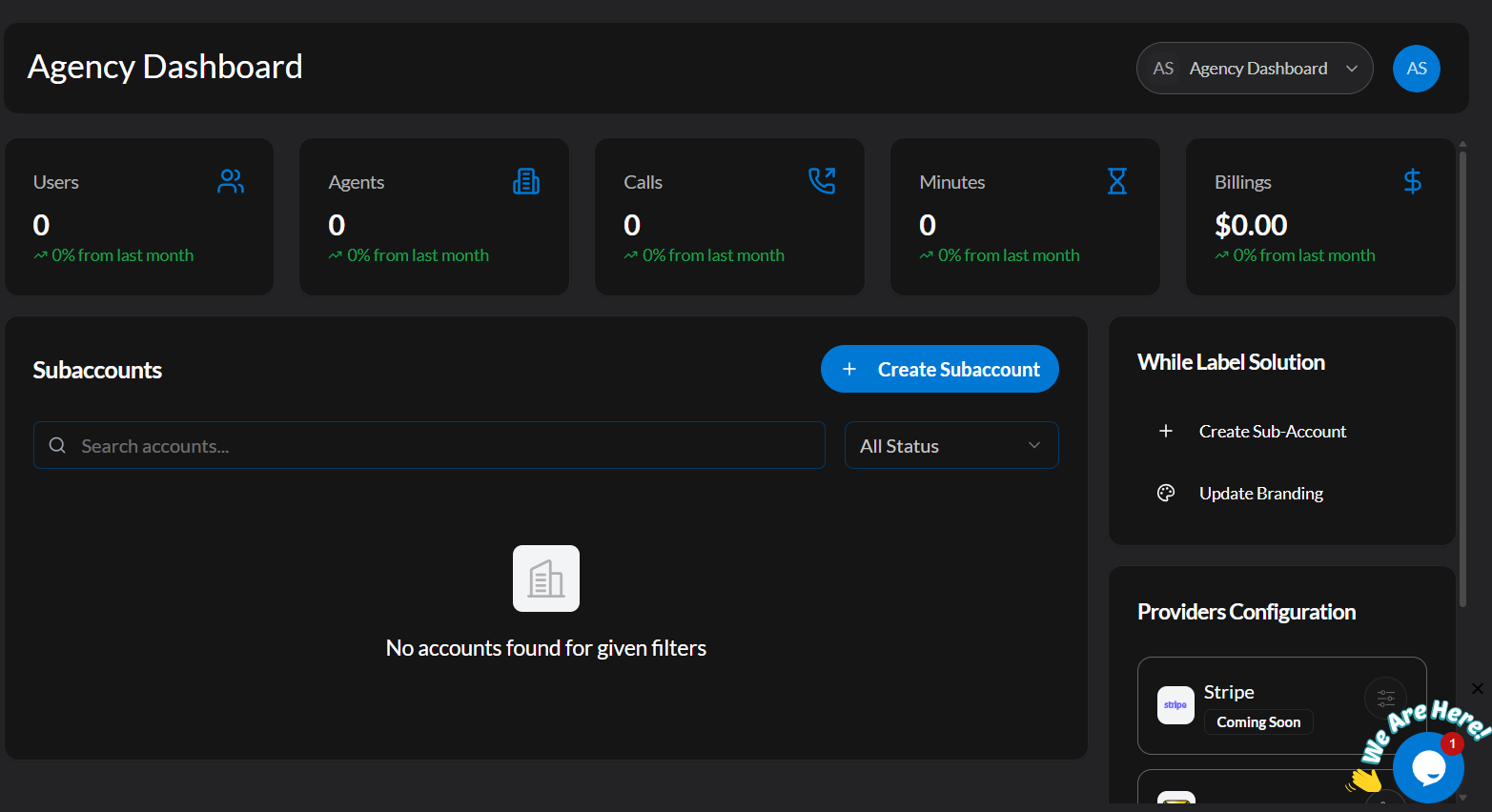
- In the pop-up window, provide:
- Agency/Company Name
- Brand Logo (follow logo size and pixel ratio guidelines)
- Brand Icon
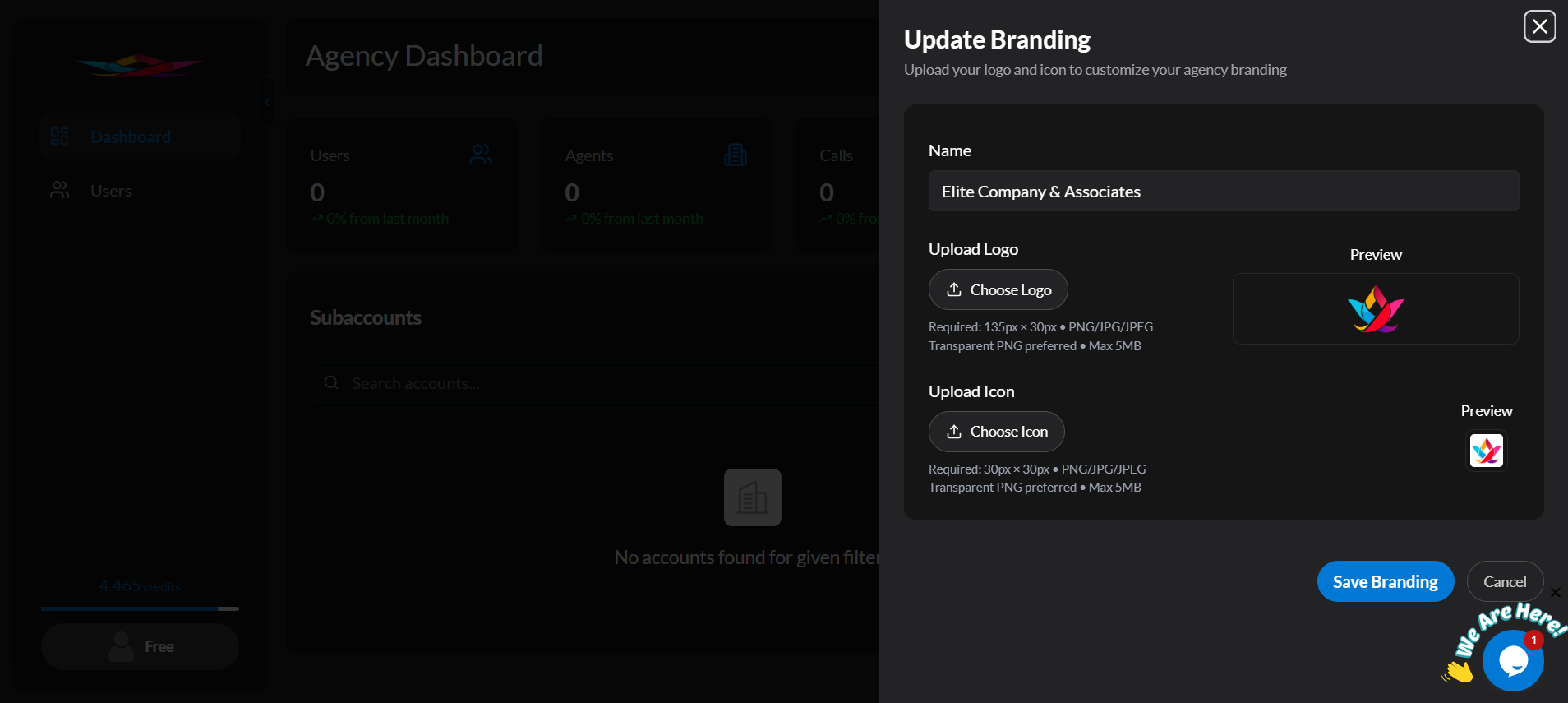
- Click Save Branding
- Your agency dashboard will now display your brand identity for you and your clients.
Step 2 – Configure Email (SMTP Setup)
This ensures that all client emails (account creation, login details, notifications) are sent from your agency’s domain instead of Dialora’s.
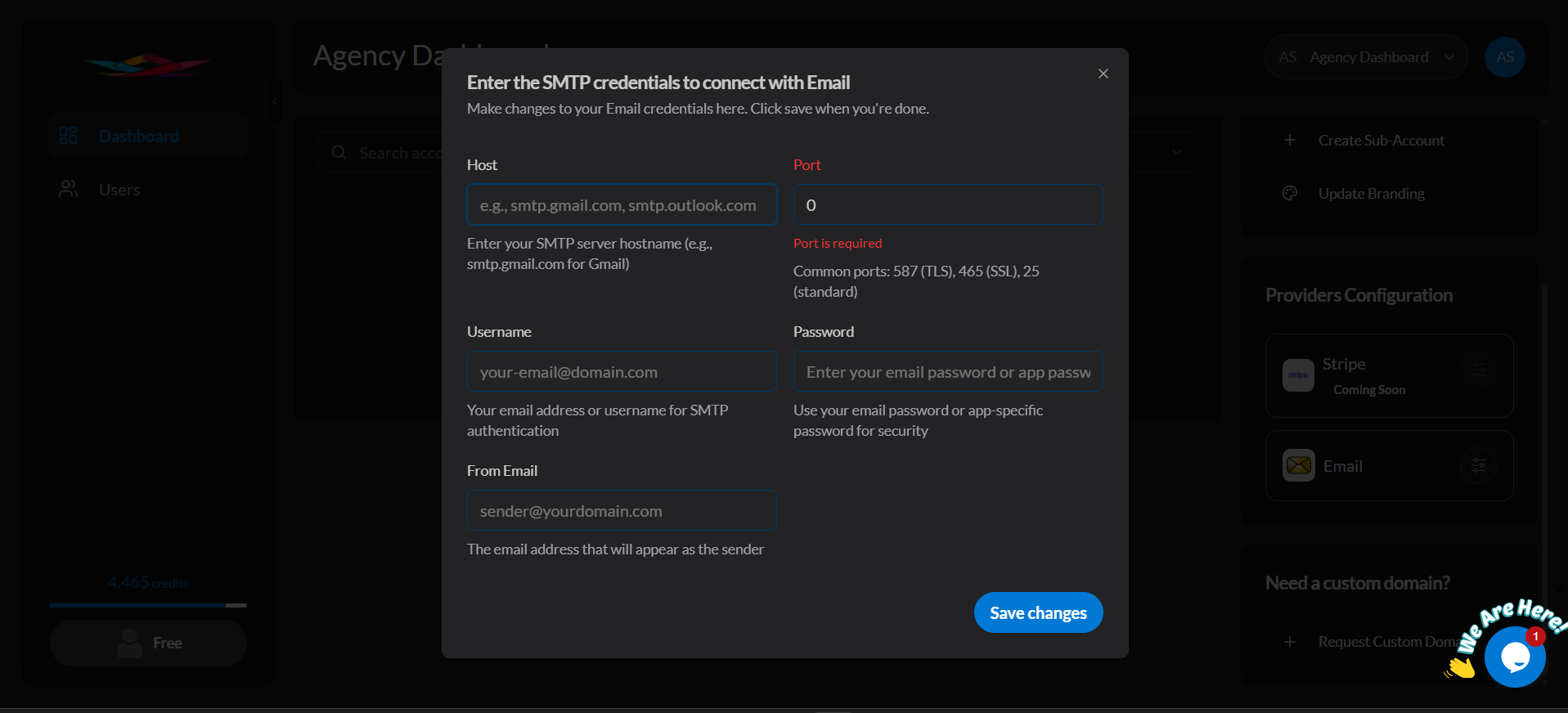
- Go to Email Settings (SMTP) in your agency dashboard.
- Host (e.g., smtp.gmail.com)
- Port (e.g., 465 or 587)
- Username (your email address)
- Password (your email password or app-specific password)
- From Email (the sender address your clients will see)
Supported providers include Gmail, Zoho, Outlook, GoDaddy, Ionos, SendGrid, and more.
Step 3 – Create Client Sub-Accounts
Sub-accounts let you onboard clients under your agency’s white-label system.
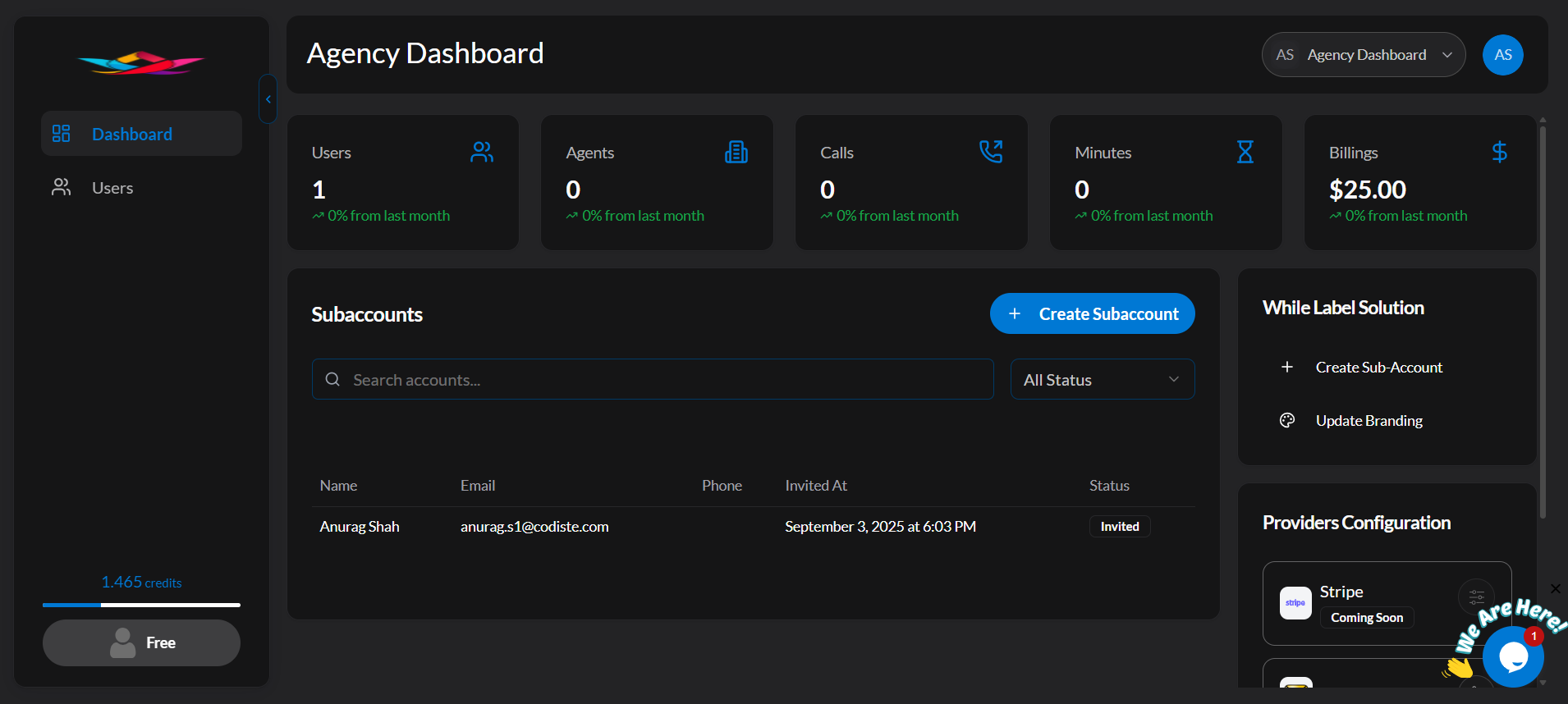
- Click “Sub-Accounts” in the Agency Dashboard (above Update Branding).
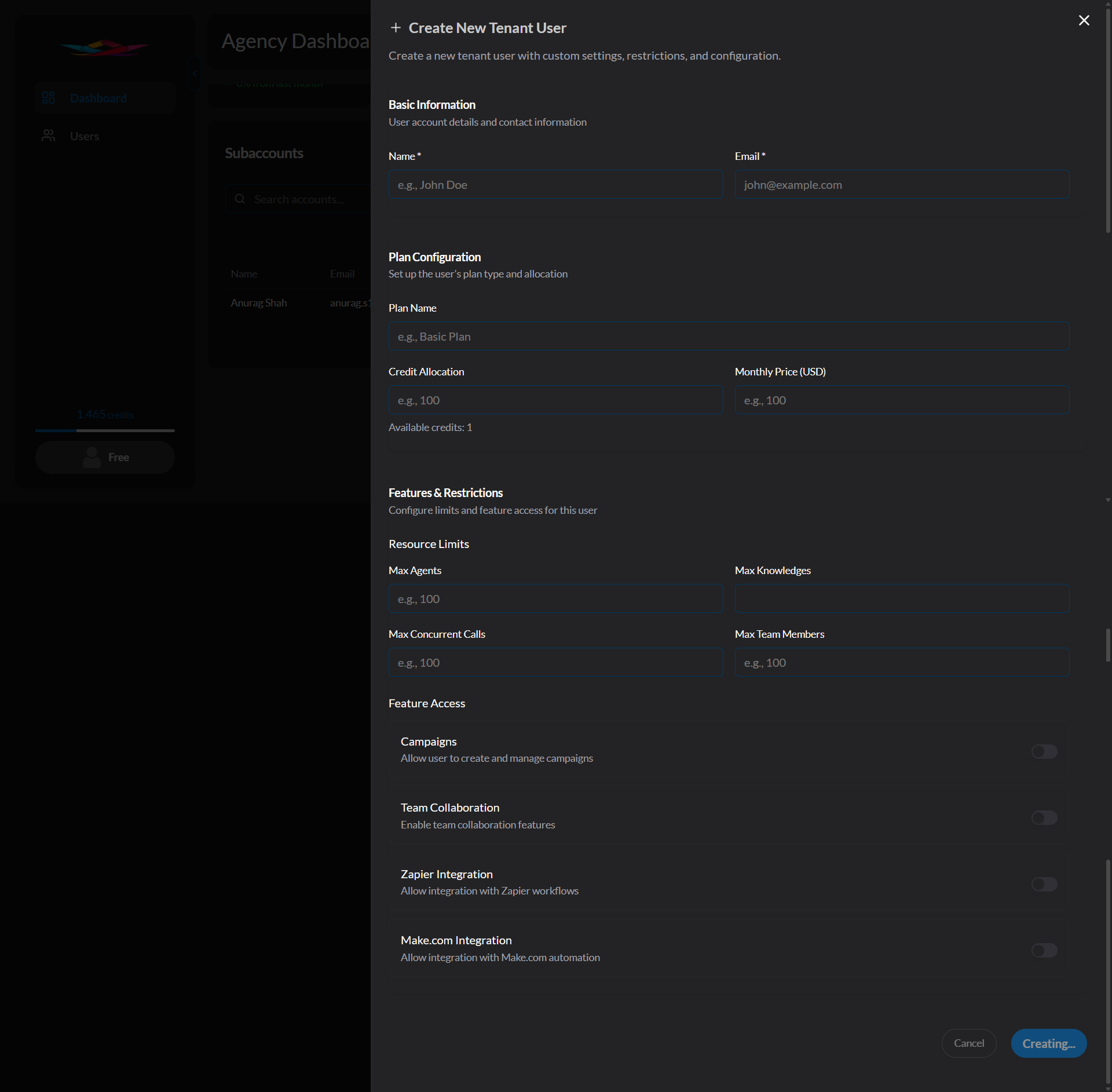
- Select Create Sub-Account.
-
Fill in the client details:
- Client/Business Name
- Plan (pick an existing plan or create a new one)
-
Click Create Sub-Account.
-
The client will receive an invite email. Once accepted, they’ll appear under your Shared Workspaces.
What a plan defines
Plans are where limits and pricing live, so a plan is worth setting up carefully before you attach clients to it.
Billing
- Plan name and billing period
- Monthly price and currency
- Payment provider — bill through Stripe, or handle billing yourself outside Dialora
- Included credits and the top-up rate per minute
- Phone number price
- Optional trial period in days
Resource limits
- Max agents
- Max knowledge bases
- Max concurrent calls
- Max team members
Feature access
- Zapier integration on/off
- Make.com integration on/off
What your sub-accounts don’t get
A few Dialora features only run on app.dialora.ai and are unavailable to anyone signing in through your custom domain:
| Feature | On your agency domain |
|---|---|
| Studio — the in-app AI assistant | Not available |
| Google Calendar integration | Not available — use Cal.com instead |
This is structural, not a setting — there’s nothing to enable. Plan your client onboarding around it, and point clients at Cal.com rather than Google Calendar for booking.
Agency vs. Shared Workspaces
- My Workspace → Your agency’s internal space (use for managing your own Dialora agents).
- Shared Workspace → Sub-accounts (your client dashboards). _ From here you can: - Monitor client activity (agents, calls, campaigns). - Block a client (irreversible action).
Step 4 – Manage Custom Plans & Pricing
- Create plans with your own names, credit allocations, resource limits, and pricing.
- Example: Dental Clinic Plan – 1,000 credits, 15 users, $97/month.
- Choose a payment provider per plan: connect Stripe and let Dialora bill your clients on the plan you defined, or select agency billing and invoice them yourself.
Connecting Stripe
Connect Stripe from your agency dashboard under providers. You can connect with a restricted key rather than a full-access secret key, so Dialora only gets the permissions it actually needs.
Dialora validates the key when you connect it and tells you exactly which permissions it grants — and flags any that are missing — before anything depends on it.
Optional: Set Up a Custom Domain
Host your agency portal on your own domain, e.g. app.growthdriven.com.
- Go to Request Custom Domain in the Agency Dashboard and submit your domain.
- Dialora gives you the DNS records to add at your domain provider.
- Add the records exactly as shown, then save.
- Dialora verifies them automatically and reports the status — submitted, verifying, or action required.
DNS propagation can take up to 48 hours. If your domain has a CAA record, you may be asked to add an additional record before certificates can be issued.
For the full walkthrough, see Agency Custom Domain Setup Guide. If it doesn’t come up, see Custom domain not loading.
User Management
- Block a client: Users → Cancel Subscription. Type “block” to confirm. This cannot be undone.
- Monitor calls: From the client sub-account → Call History → recordings and transcripts.
- Change a client’s plan: see Sub-Account Plan Change.
- Assign phone numbers: see Phone Number Assignment.
- Sub-account users: clients can add their own team members under their workspace.
You’re all set! With branding, email, and sub-accounts configured, your Dialora Agency Portal is ready to run as your own white-label platform.