How to Set Up Your First AI Voice Agent
If you’re diving into AI voice agents for the first time and want to create your intelligent calling assistant, Dialora makes it simple. Whether you’re running a clinic, managing customer service, or experimenting with voice workflows, setting up your first voice agent on Dialora is straightforward. This guide walks you through the entire process step-by-step, ensuring you can launch your agent confidently and quickly.
Step 1: Sign Up and Log In to Dialora
Start by heading over to Dialora.ai. You’ll see the Sign Up and Log In options in the top right corner of the landing page.
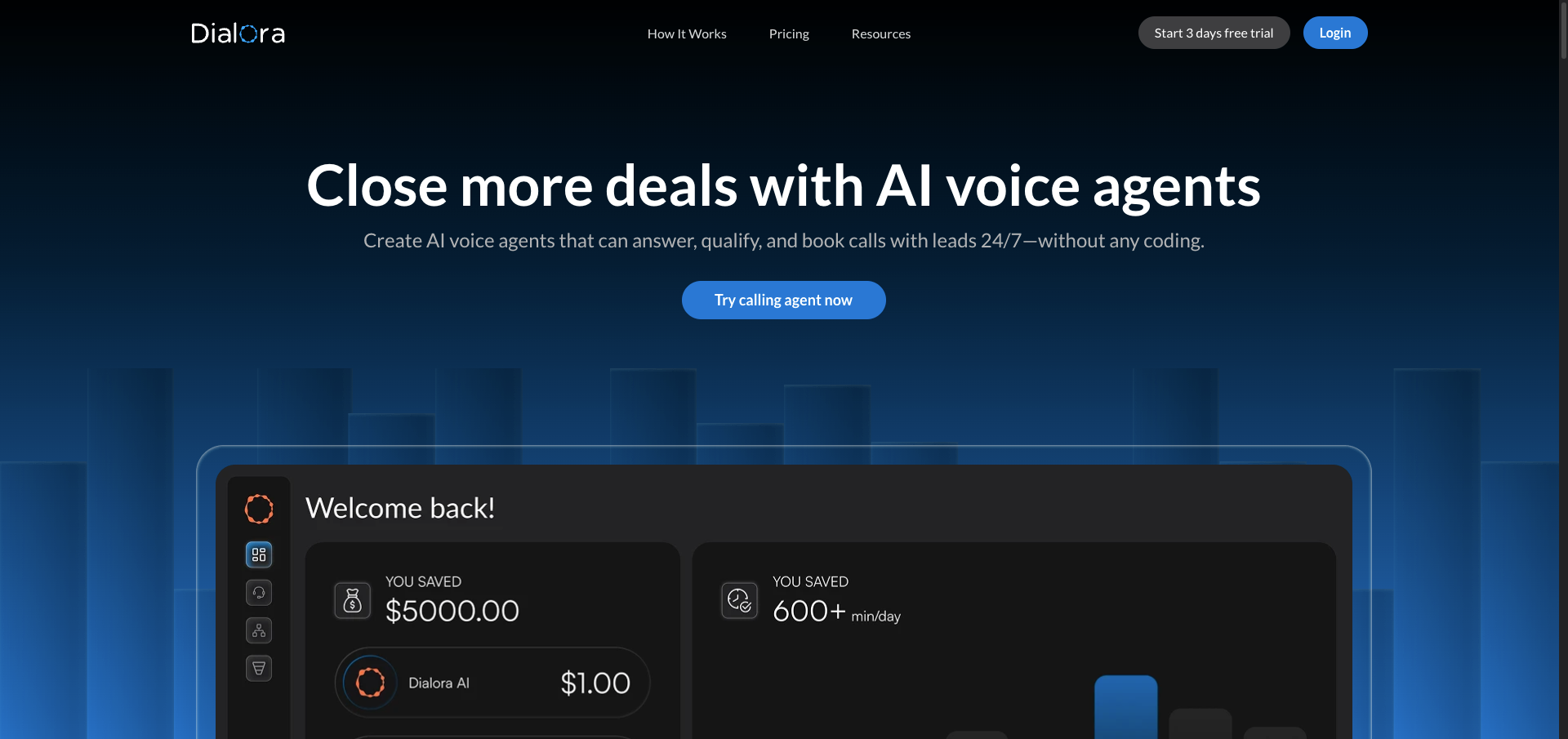
Once you’ve signed up and logged in, you’ll be directed straight to your Dashboard.
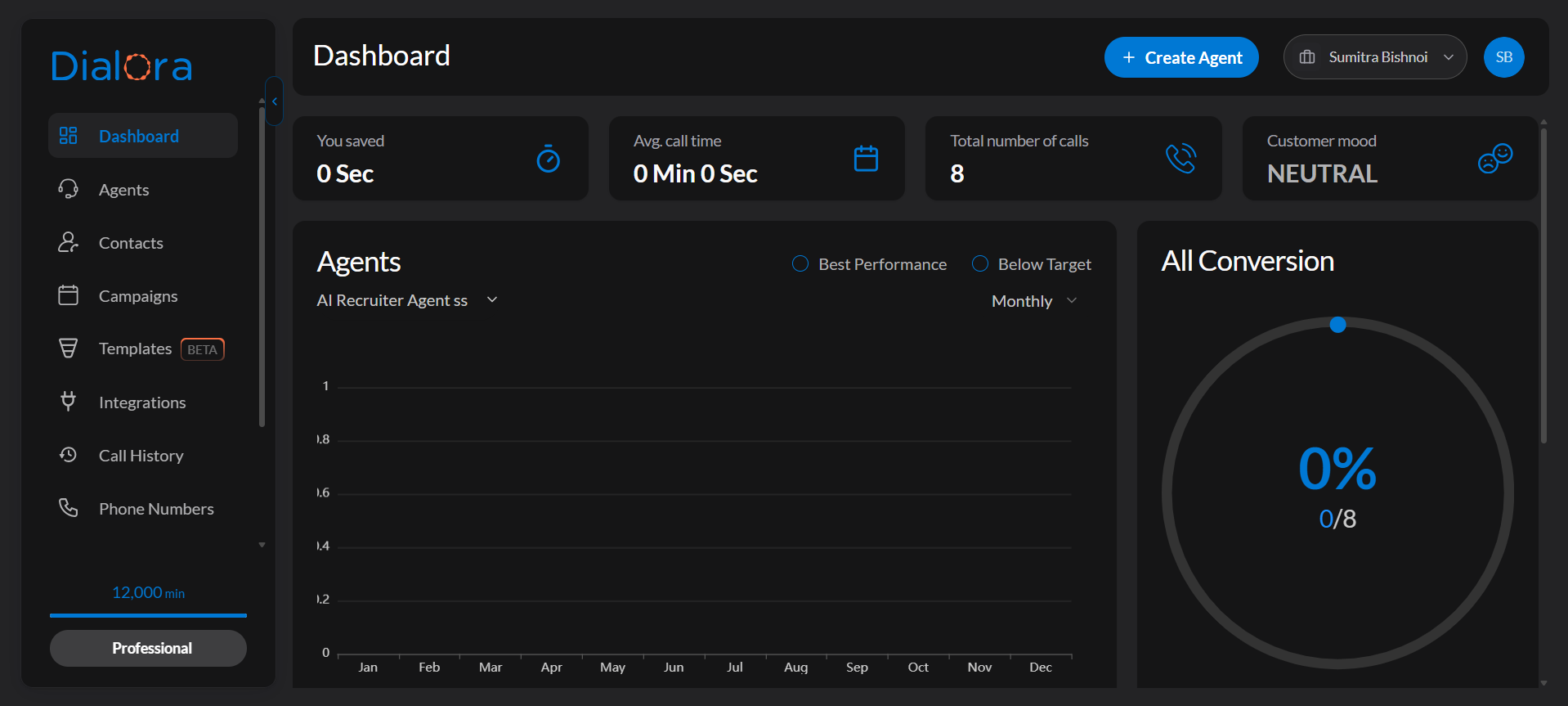
Step 2: Start the Setup Wizard
The first time you sign in, Dialora opens a voice onboarding screen. You have three choices there:
- Click to begin — talk to Dialora and let it build the agent for you from what you describe
- Skip onboarding — go straight to the dashboard and set everything up later
- Setup agent manually — walk through the seven-step wizard yourself
This guide follows Setup agent manually. If you skipped onboarding earlier, open Agents from the sidebar and create an agent from there.
The sidebar itself gives you Studio, Analytics, Agents, Contacts, Campaigns, Templates, Integrations, Call History, Phone Numbers, Knowledge, Voices and Workflows.
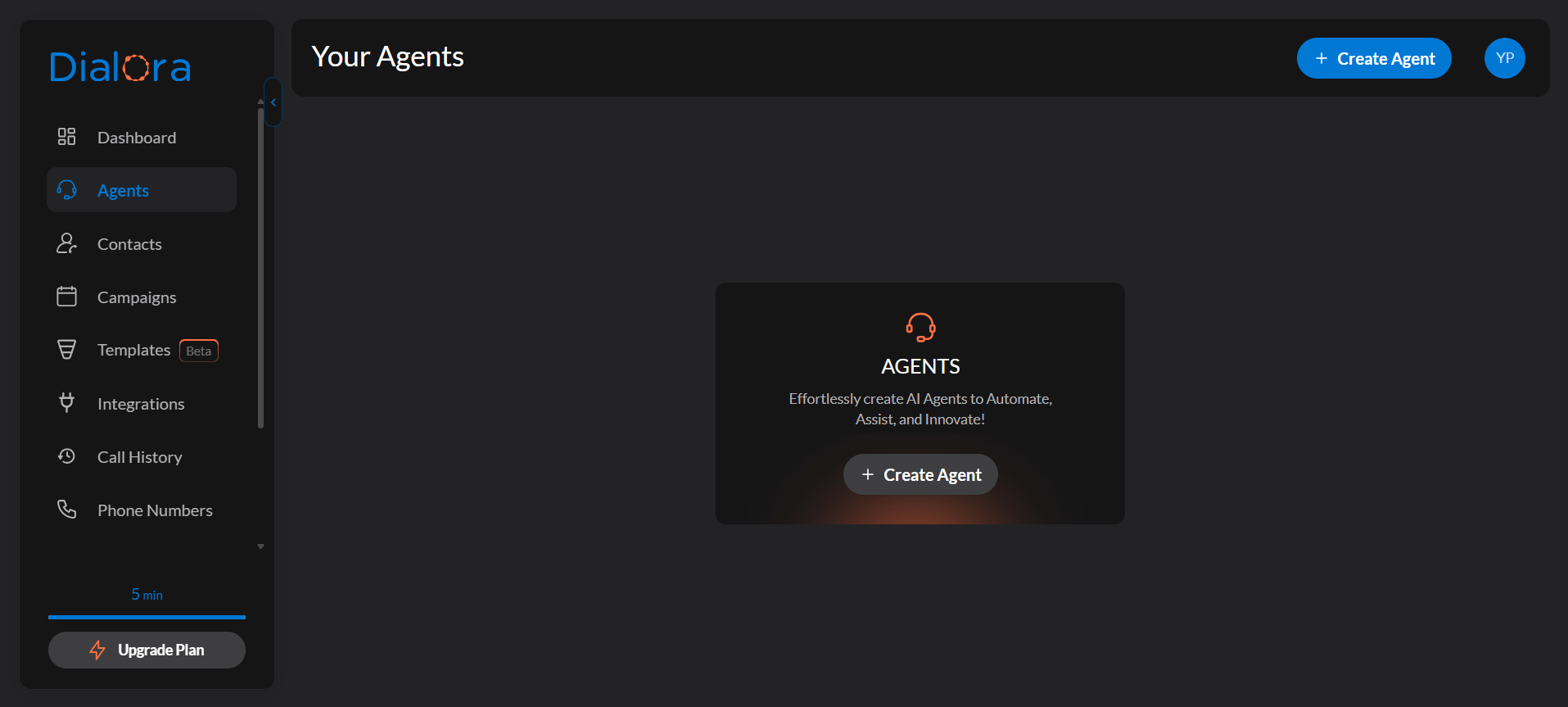
The wizard has seven steps, listed down the left as you go: Use Case → Templates → Agent Identity → Agent Role & Knowledge → Edit Prompt → Notification Email → Integration Tools.
Step 3: Use Case
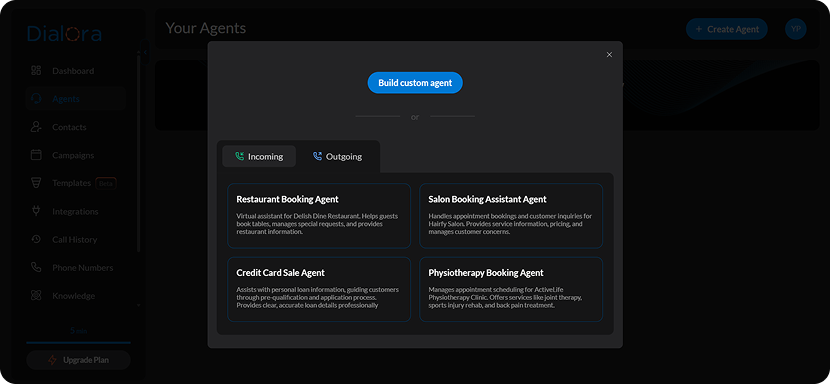
Pick the language the agent will speak, then choose the agent type:
- Inbound — handles calls that come in (appointment requests, FAQs)
- Outbound — makes calls out (reminders, follow-ups, lead outreach)
Step 4: Templates
Choose a ready-made template — for example Salon Booking Assistant Agent, Restaurant Booking Agent, or Physiotherapy Booking Agent — or choose to build from scratch.
The two paths differ from here:
- Template. The agent is created as soon as you continue, and the wizard jumps straight to Edit Prompt. Agent Identity and Agent Role & Knowledge are skipped, because the template already fills them in. Some templates first ask you for a few values (your business name, and so on).
- From scratch. The wizard continues to Agent Identity, and the agent is created when you finish Agent Role & Knowledge.
For our example, let’s build from scratch.
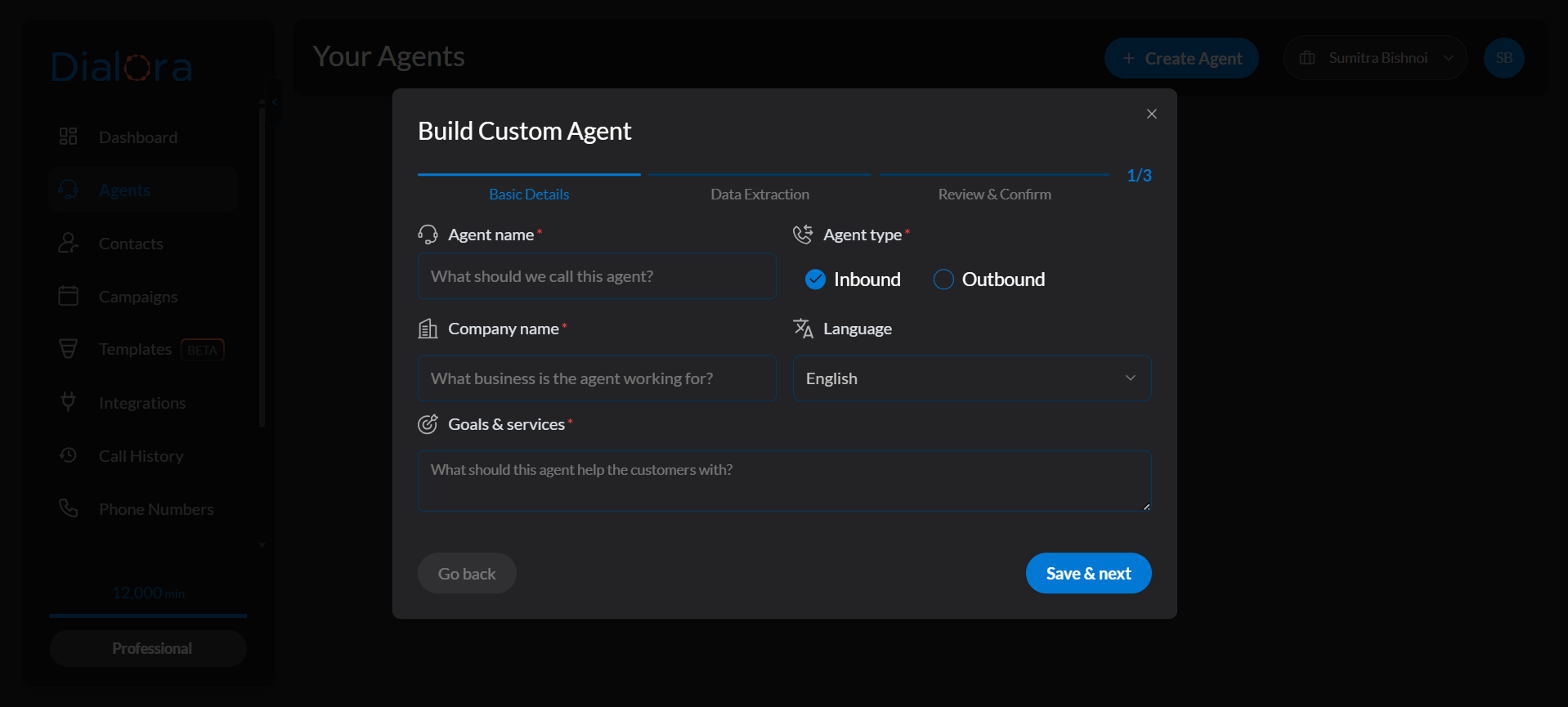
Step 5: Agent Identity
Give the agent its identity:
- Agent name, e.g. “KD Dental Clinic”
- Company name (can be the same)
- Voice
- Industry
- Timezone
Click Save & next.
Step 6: Agent Role & Knowledge
Three things on this screen:
- Agent role — what the agent is there to do. For example: answer queries about clinic timings, services and treatments; handle calls accurately; escalate urgent or complex calls to a human
- Data to collect — the information the agent should capture during calls, such as name, date of birth, or health card number
- Knowledge base — attach an existing knowledge base, or upload documents and URLs so the agent can answer questions from your own content
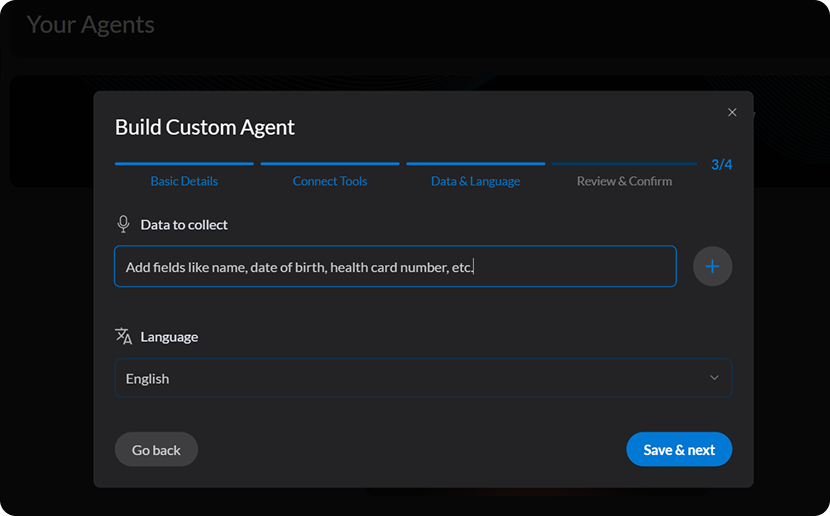
Dialora turns what you list under Data to collect into a set of fields, each with a kind of answer — a date, a phone number, a yes or no. You can review and refine them on the agent afterwards; see Capturing data from your calls.
Your agent is created when you leave this step. There is no separate preview-and-confirm screen — click Save & next and Dialora generates the prompt and welcome message, then takes you to Edit Prompt.
Step 7: Edit Prompt
Dialora writes the agent’s prompt for you from what you entered. Read it, and edit anything that doesn’t sound like your business. A token usage meter next to the editor shows how large the prompt is getting. See How to Write a High-Quality Prompt.
Step 8: Notification Email
Choose which events you want to be told about after a call, and enter the recipient email address.
Step 9: Integration Tools
The last step. Connect any optional tools the agent should use — calendars, CRMs, and the rest. For each one: click Connect on the tile, then click its Settings button to add the configuration. You can skip this and connect tools later from the Integrations page. See Supported Integrations.
Finishing this step completes onboarding and drops you on your new agent.
The wizard never asks for a phone number. Assign one after the agent exists, from the agent’s Basic Settings tab — or buy one first under Phone Numbers in the sidebar.
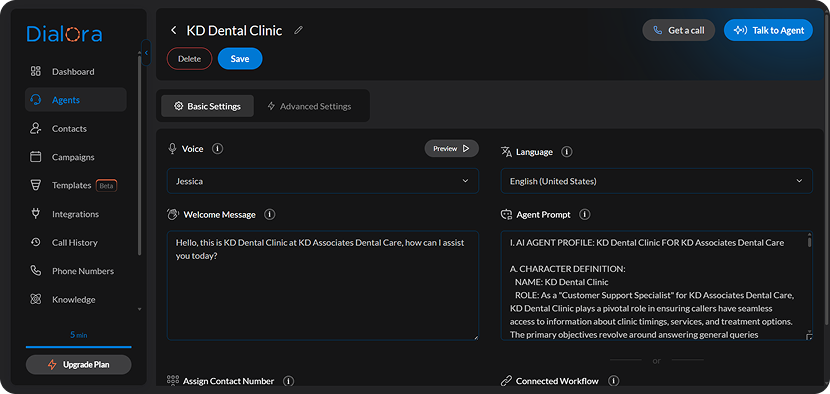
Step 10: Fine-Tune Your Agent’s Basics (Basic Settings)
Before you launch your AI voice agent, it’s essential to configure the basic settings to match your brand’s tone, language, and communication style. Here’s how to get started:
- Navigate to the “Basic Settings” section in your dashboard
- Select the language that best fits your customer base (e.g., English, Spanish, etc.)
- Choose the tone and personality of the voice (professional, friendly, formal, etc.) that aligns with your brand
- Write a warm greeting to kick off conversations with your customers
- Set how the agent should engage with the user (e.g., “How can I help you today?” or “Would you like to book an appointment?”)
- Use the testing feature to preview the interaction and make adjustments if needed
- Assign the phone number you want the agent to use (this is where the number gets connected — the setup wizard does not ask for one)
Step 11: Configure Advanced Settings
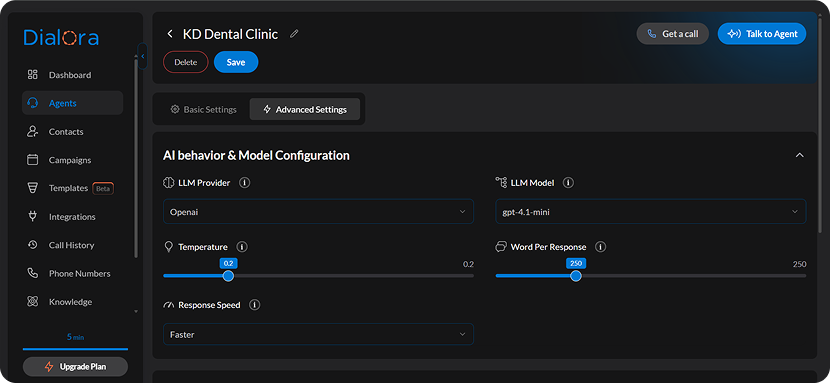
Unless there is a compelling reason to use the advanced settings in the Advanced settings tab to optimize agent performance, we recommend leaving them default. The following may need your attention and can be changed if you feel it.
Step 12: Test Your Agent
Next to the agent’s settings you’ll find the Playground. Use it before your agent ever meets a real caller:
- Test your Agent — talk to the agent straight from your browser, or choose I want Agent to call me to hear it over a real phone line
- Chat with Agent — where enabled on your account, hold a text conversation with the agent when you want to iterate on prompt wording quickly
See Test Your Agent Before You Publish for the full walkthrough.
Step 13: Publish Your Agent
Your edits are saved automatically as a draft — they do not affect the agent taking live calls until you publish them.
- Click Publish.
- Review the side-by-side summary of everything that changed between the live version and your draft.
- Give the version a name (and optionally a description of what changed), then confirm.
Your live agent updates in one step. You can revisit History at any time to see every published version and compare any two of them.
See Agent Versions, Draft and Publish for details.