How to change language settings in Dialora
Your agent is no longer limited to a single language. You can give it a list of languages, and both transcription and voice follow along — so a caller can switch language part-way through a conversation and the agent keeps up.
Prerequisite: you’ve already created and configured at least one AI voice agent. If not, set up your first agent here →
Step 1: Log in and open your agent
- Head over to the Dialora Portal and log in.
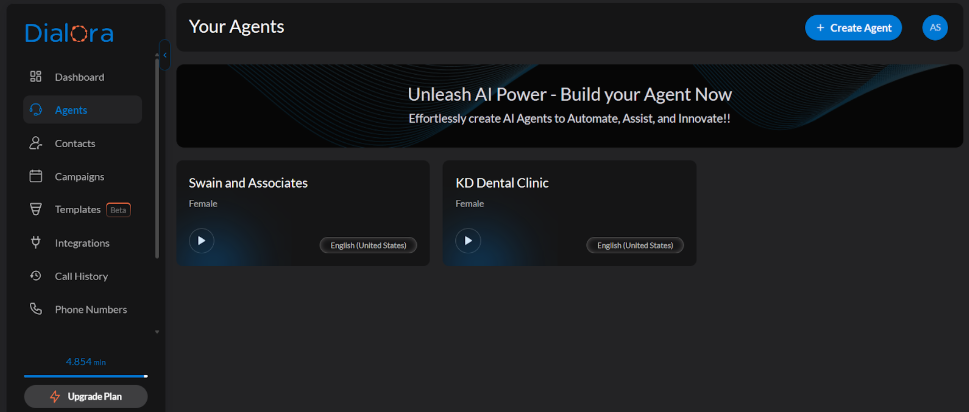
- On the left-hand menu, click the Agents tab.
- Select the agent whose language you want to change.
Step 2: Open the Language field
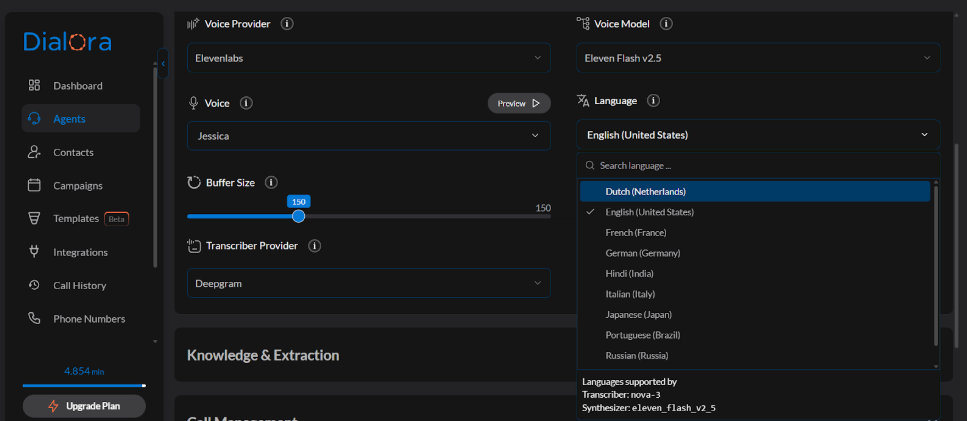
The Language field sits in Basic Settings, right next to Voice — it’s one of the first things you see when you open an agent. You’ll also find it inside Advanced Settings → Voice & Audio Settings if you’re already working there.
Step 3: Pick one language, or several
The Language field is a multi-select. Search for a language and click to add it; click the badge to remove it.
- One language — the agent speaks and listens in that language only. Pick this when your callers are consistent; it’s the most predictable setup.
- Several languages — the agent detects which language the caller is using and responds in it, switching mid-conversation as needed. Pick this when you serve a mixed audience.
You can select up to 5 languages on one agent. Adding more languages gives the agent more to disambiguate, so choose the ones your callers actually use rather than everything you might ever need.
Step 4: Check your voice supports the language
Voice and language are configured separately. After you change the language, confirm the selected voice actually speaks it — a voice trained for English will sound wrong reading Spanish. Use the preview button next to the Voice field to hear it.
If your voice provider doesn’t offer a suitable voice, switch providers under Advanced Settings → Voice & Audio Settings.
Step 5: Check the transcriber
Speech-to-text also has to handle the language. Under Advanced Settings → Voice & Audio Settings, the transcriber section lets you pick a provider and turn on multilingual detection.
If you selected several languages, make sure multilingual detection is on — otherwise the transcriber will lock to the first language it hears.
Step 6: Test, then publish
Use the Playground to talk to the agent in each language you configured. Keypad (DTMF) prompts are spoken in the caller’s language too, and the conversation language is preserved across keypad turns.
When it sounds right, publish the version — language changes only reach real callers once published. See Agent Versions, Draft and Publish.