How to Set Up ElevenLabs Integration with Dialora
Let’s link ElevenLabs to Dialora. These quick steps will enable realistic voice output for your AI agents.
Step 1: Log In to Your Dialora Account
- Go to Dialora and log in to your account.
Step 2: Navigate to the Integration Section
- Open the Dialora dashboard and locate the left sidebar.
- Click on Integration.
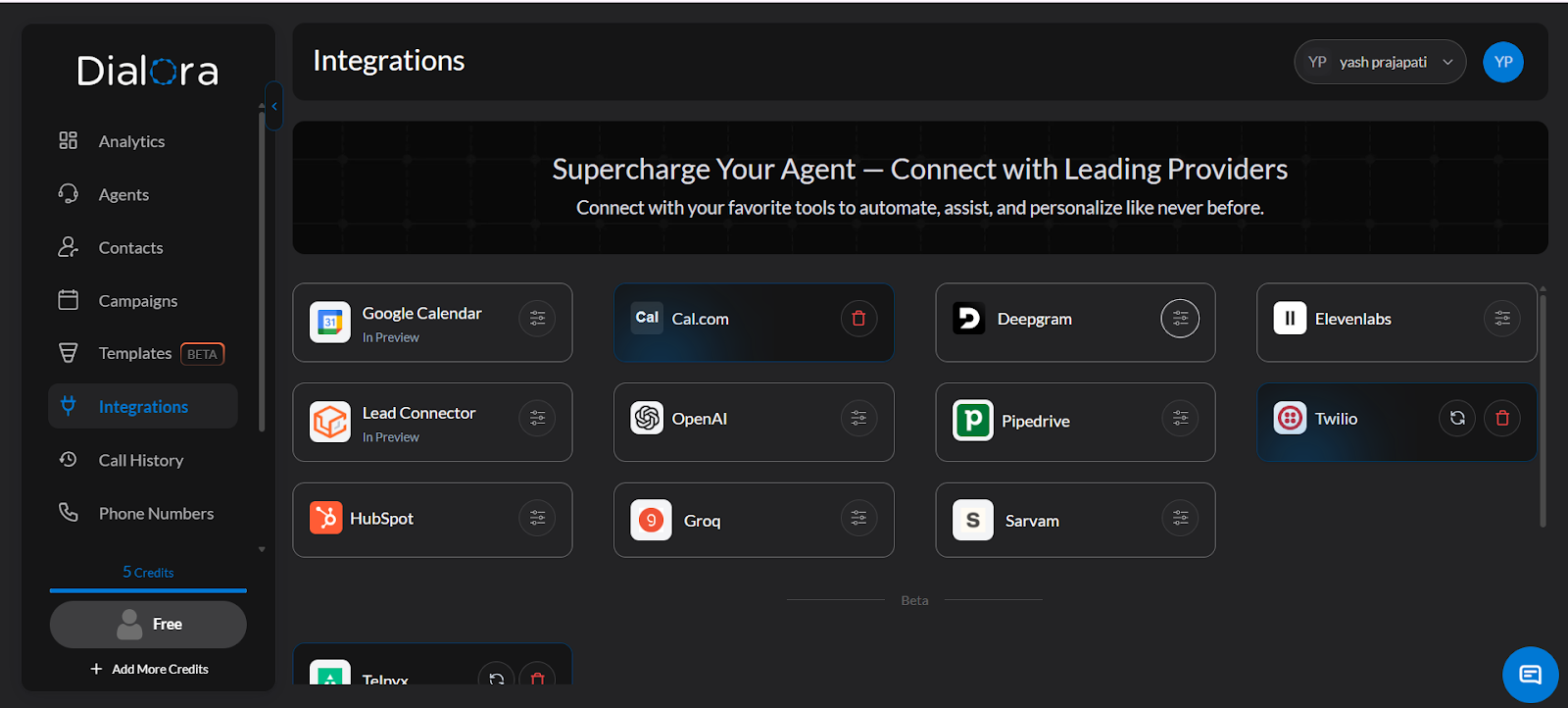
Step 3: Locate the ElevenLabs Field
- You will see a field for the ElevenLabs API Key — you’ll fill this in shortly.
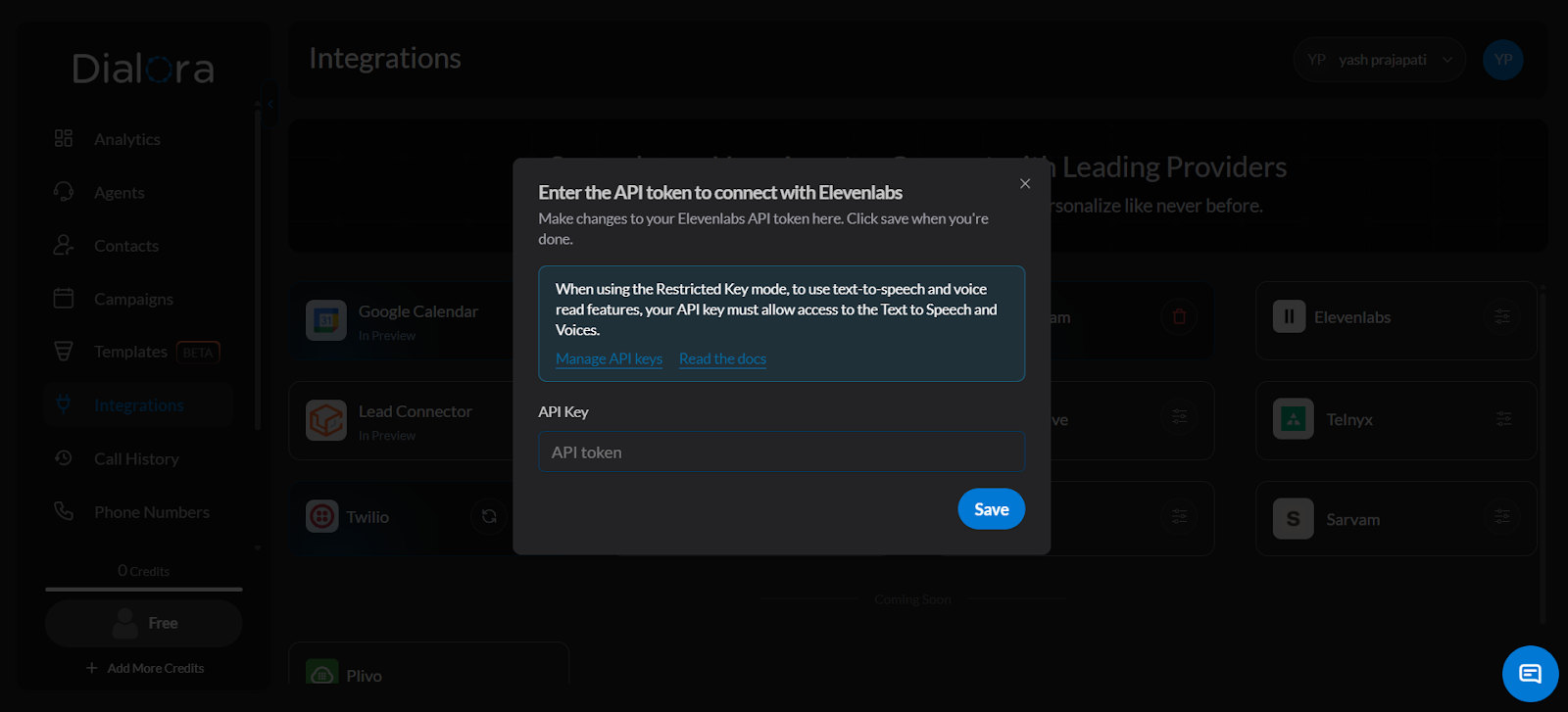
Step 4: Log In to Your ElevenLabs Account
- Go to ElevenLabs and log in to your account.
- Complete the onboarding process if you are a new user.

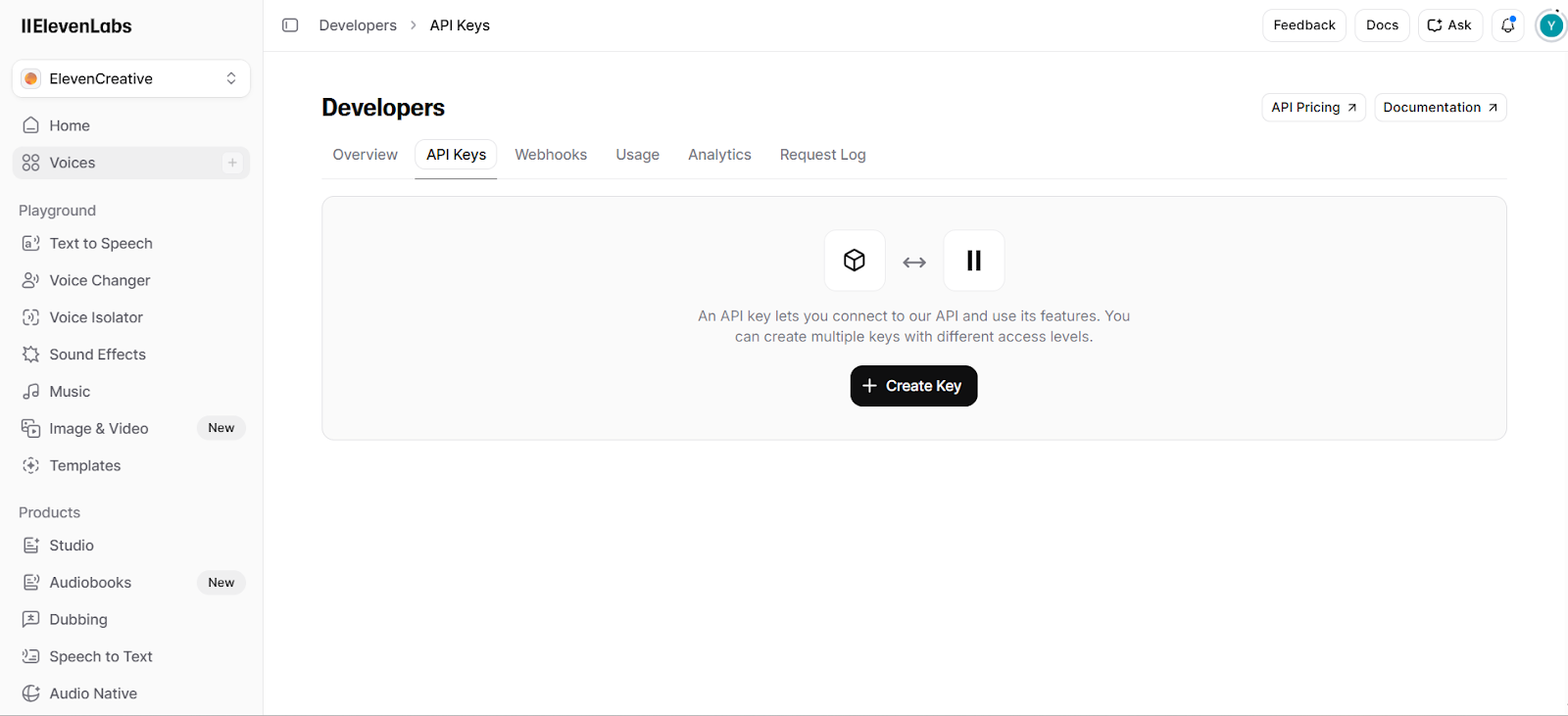
Step 5: Navigate to the API Keys Page
- Go directly to: https://elevenlabs.io/app/developers/api-keys
Step 6: Create a New API Key
- Click Create API Key and fill in the required details.
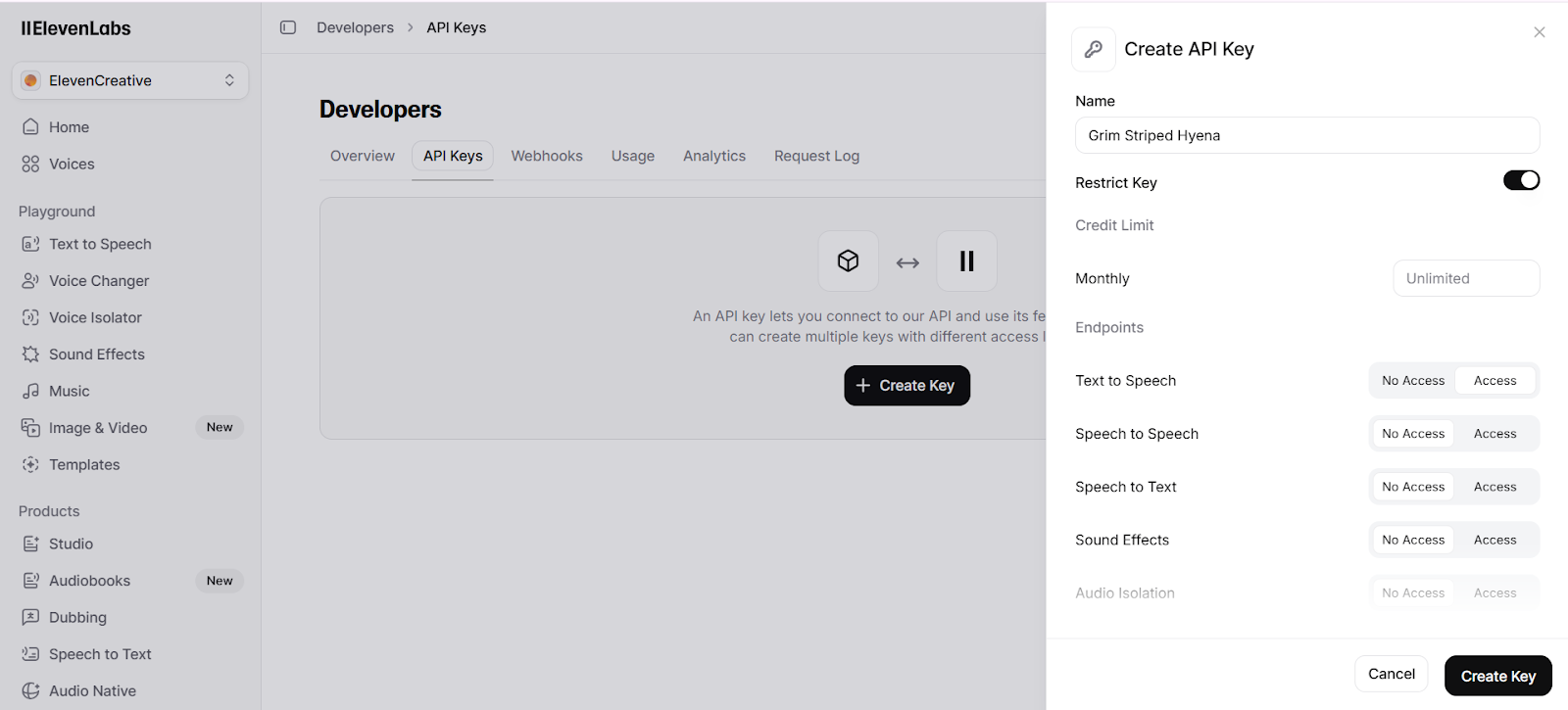
Step 7: Set Permissions
Choose one of the following options based on your needs:
Option A — Full Access
- If you are granting full access, it is strongly recommended to click Restrict Key to limit unnecessary permissions.

Option B — Limited Access
- If you prefer restricted access, select only these two permissions:
- Text to Speech — Access
- Voice — Write
Step 8: Generate the Key and Connect to Dialora
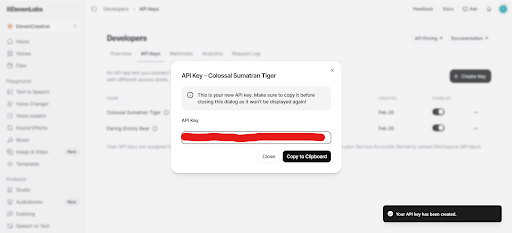
- Once your permissions are set, click Create to generate your API key.
- Copy the key.
- Go back to your Dialora dashboard.
- Paste it into the ElevenLabs field under Integrations.
- Click Save.
Your ElevenLabs account is now successfully connected to Dialora.