How to Set Up Twilio API Key Integration with Dialora
Let’s get your integration ready. Follow the quick steps below to connect your Twilio API key with Dialora and start powering your voice workflows.
Step 1: Log In to Your Dialora Account
- Go to Dialora and log in to your account.
Step 2: Navigate to the Integration Section
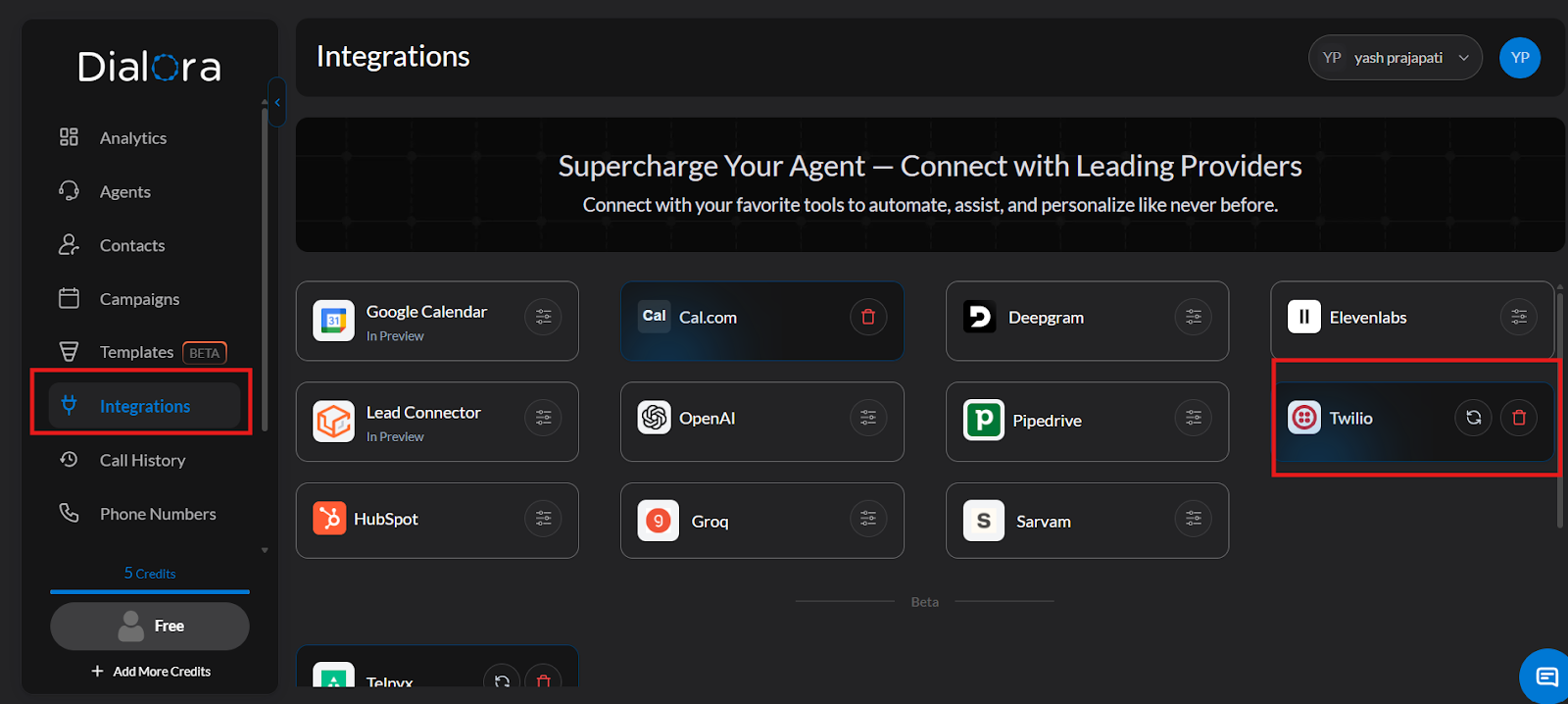
- Open the Dialora dashboard and locate the left sidebar.
- Click on Integration.
Step 3: Open the Twilio Integration
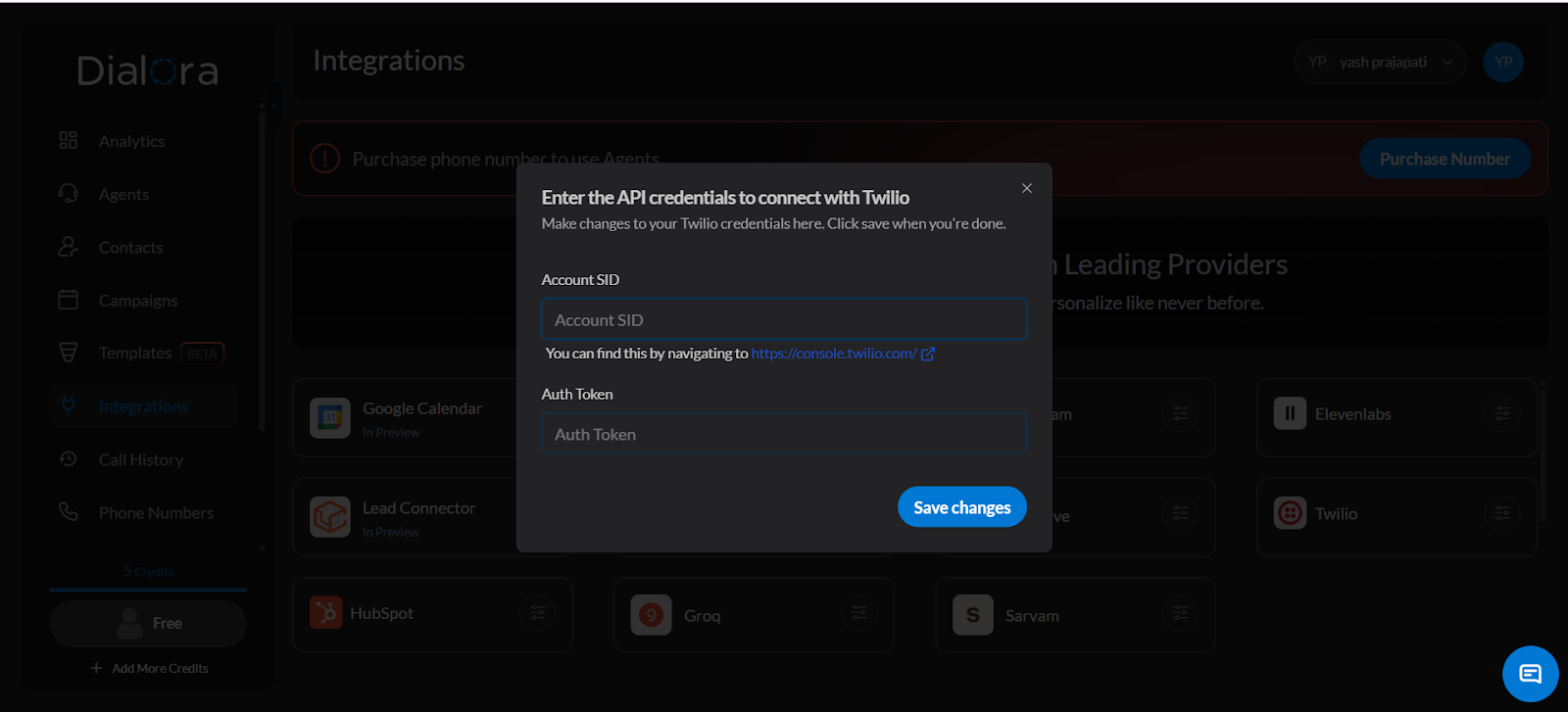
- Click the Twilio button from the list of available integrations.
- You will see fields for Account SID and Auth Token — you’ll fill these in shortly.
Step 4: Log In to Your Twilio Console
- Open a new tab and go to https://console.twilio.com .
- Log in to your Twilio account.
Step 5: Copy Your Account SID and Auth Token
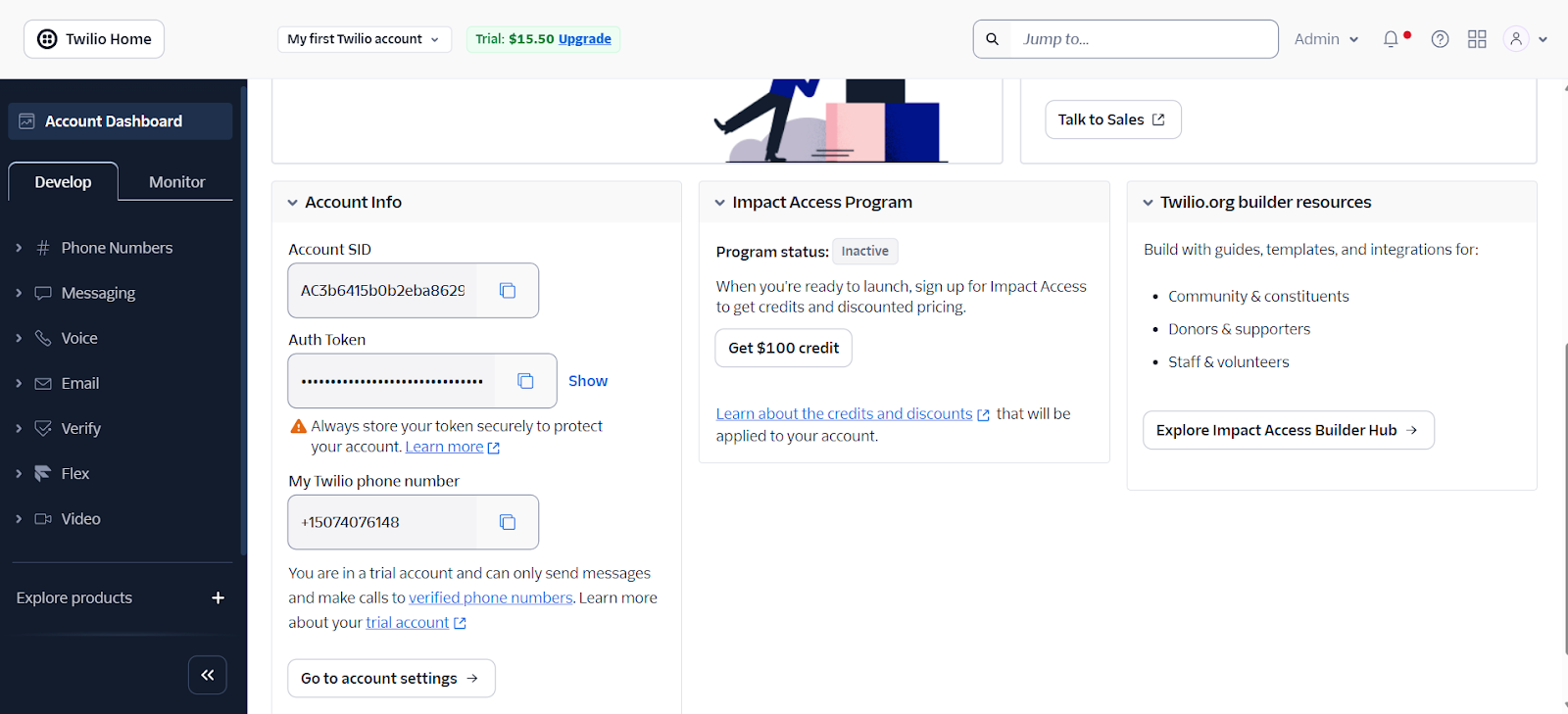
- On the Twilio Console dashboard, scroll down to the Account Info section.
- You will see your Account SID and Auth Token displayed there.
- Copy both values.
Step 6: Paste Credentials into Dialora and Save
- Go back to your Dialora dashboard.
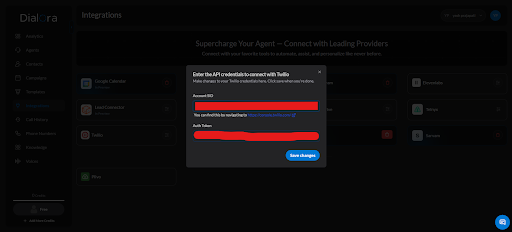
- Paste your Account SID and Auth Token into their respective fields.
- Click Save to connect your account.
Step 7: Integration Complete
Your Twilio number is now successfully connected to Dialora. Your voice workflows are ready to go!