How to Set Up the Groq API Key Integration with Dialora
Integrating Groq enables faster AI inference within Dialora. Follow the steps below to connect your API key and activate it.
Step 1: Log In to Your Dialora Account
- Go to Dialora and log in to your account.
Step 2: Navigate to the Integration Section
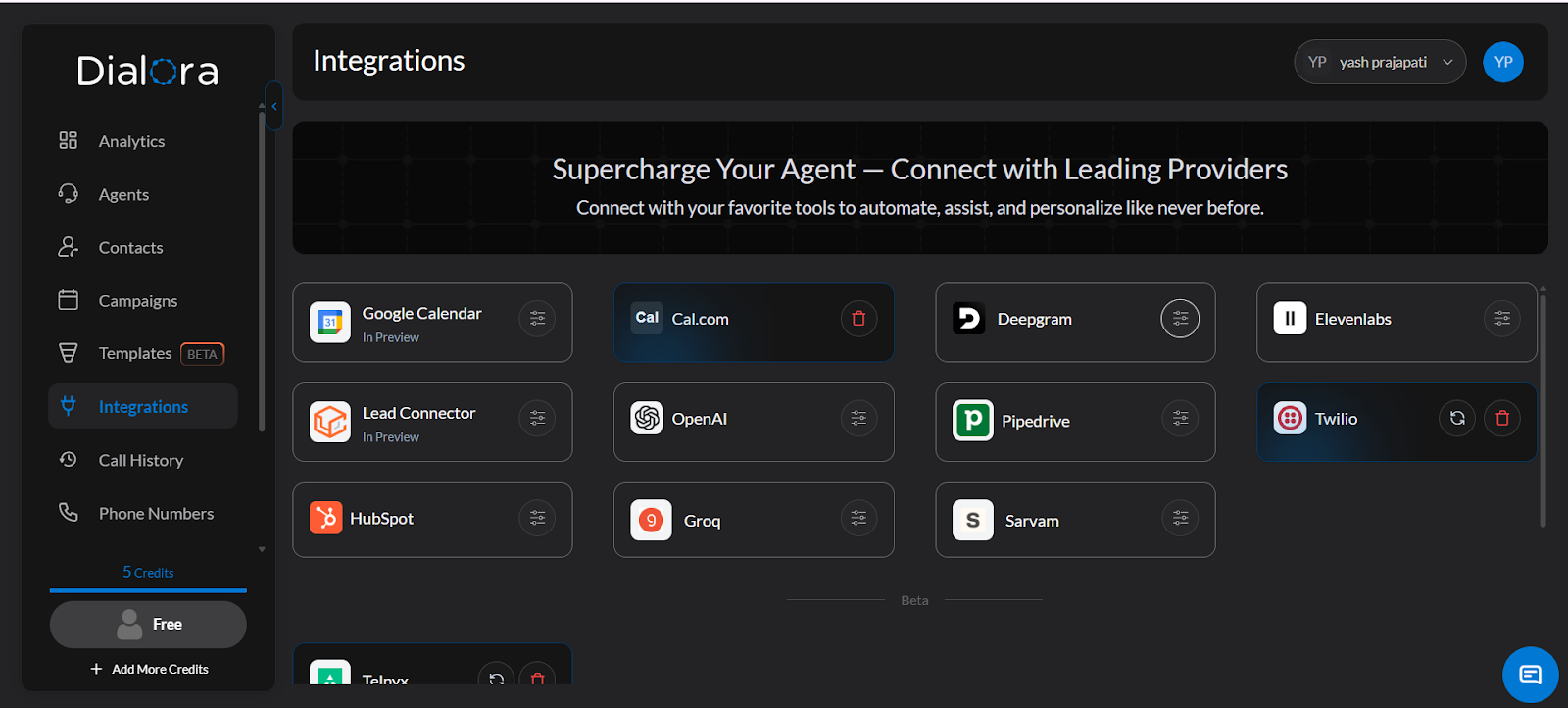
- Open the Dialora dashboard and locate the left sidebar.
- Click on Integration.
Step 3: Locate the Groq Field
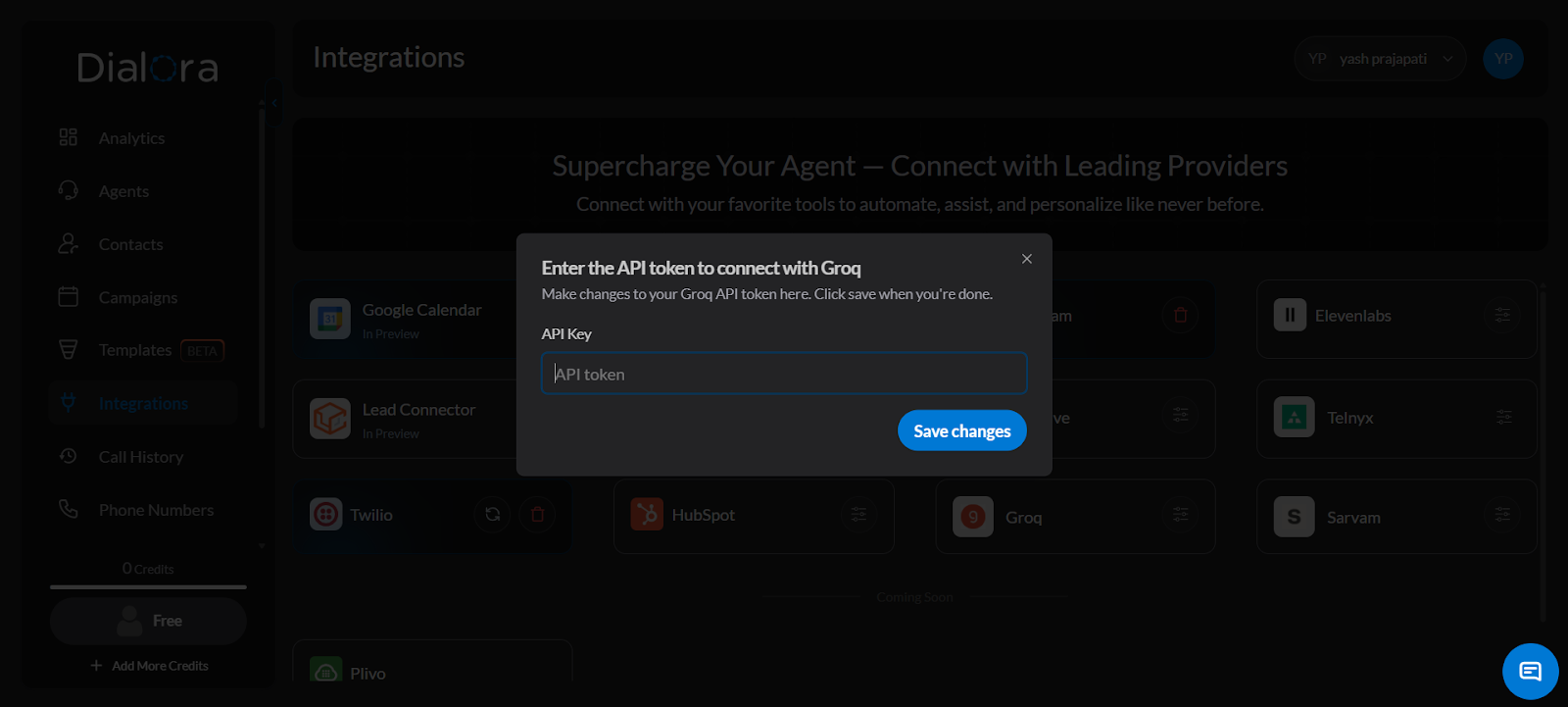
- You will see a field for the Groq API Key — you’ll fill this in shortly.
Step 4: Log In to Your Groq Console
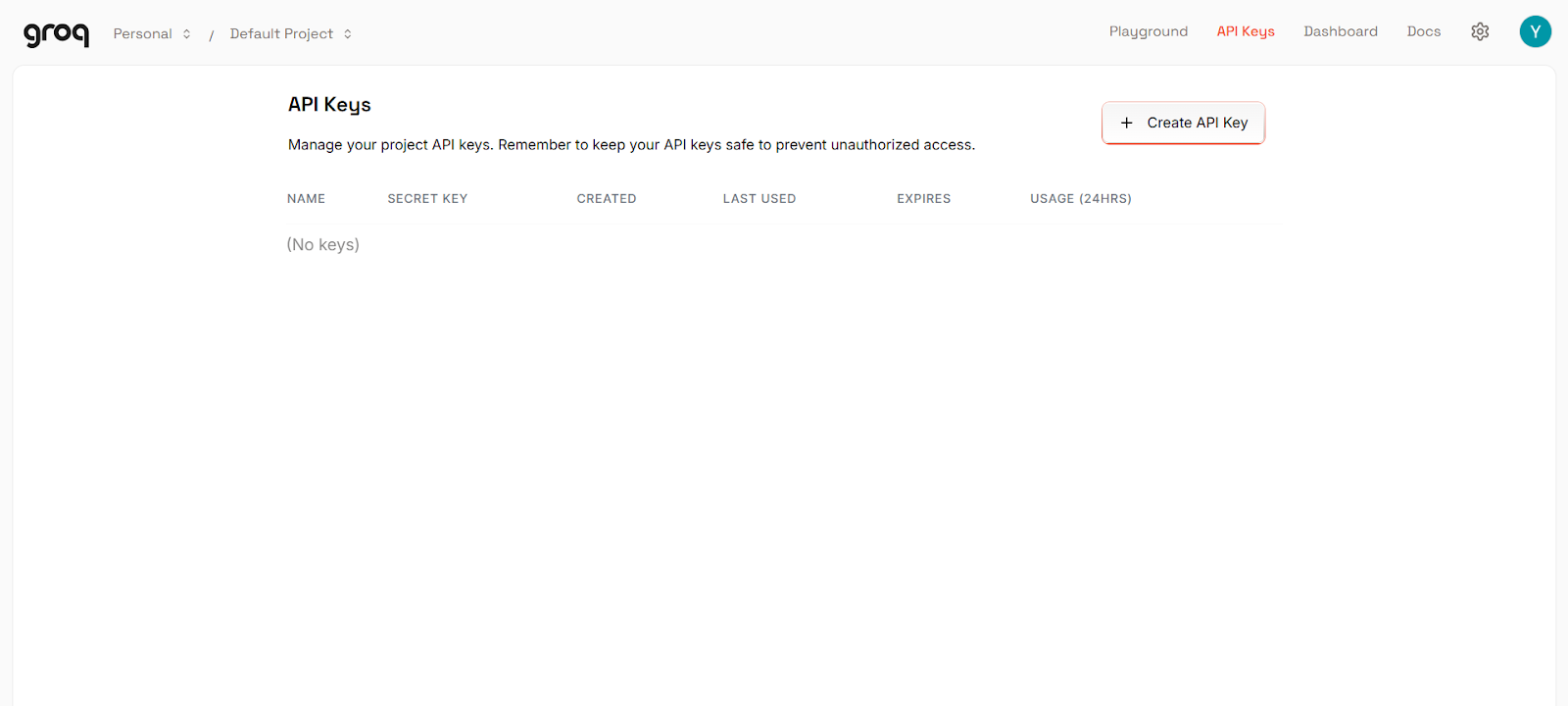
- Open a new tab and go to https://console.groq.com/keys .
- Log in to your Groq account.
Step 5: Create a New API Key
- Click Create API Key and fill in the required details such as the key name.
Step 6: Generate and Copy the API Key
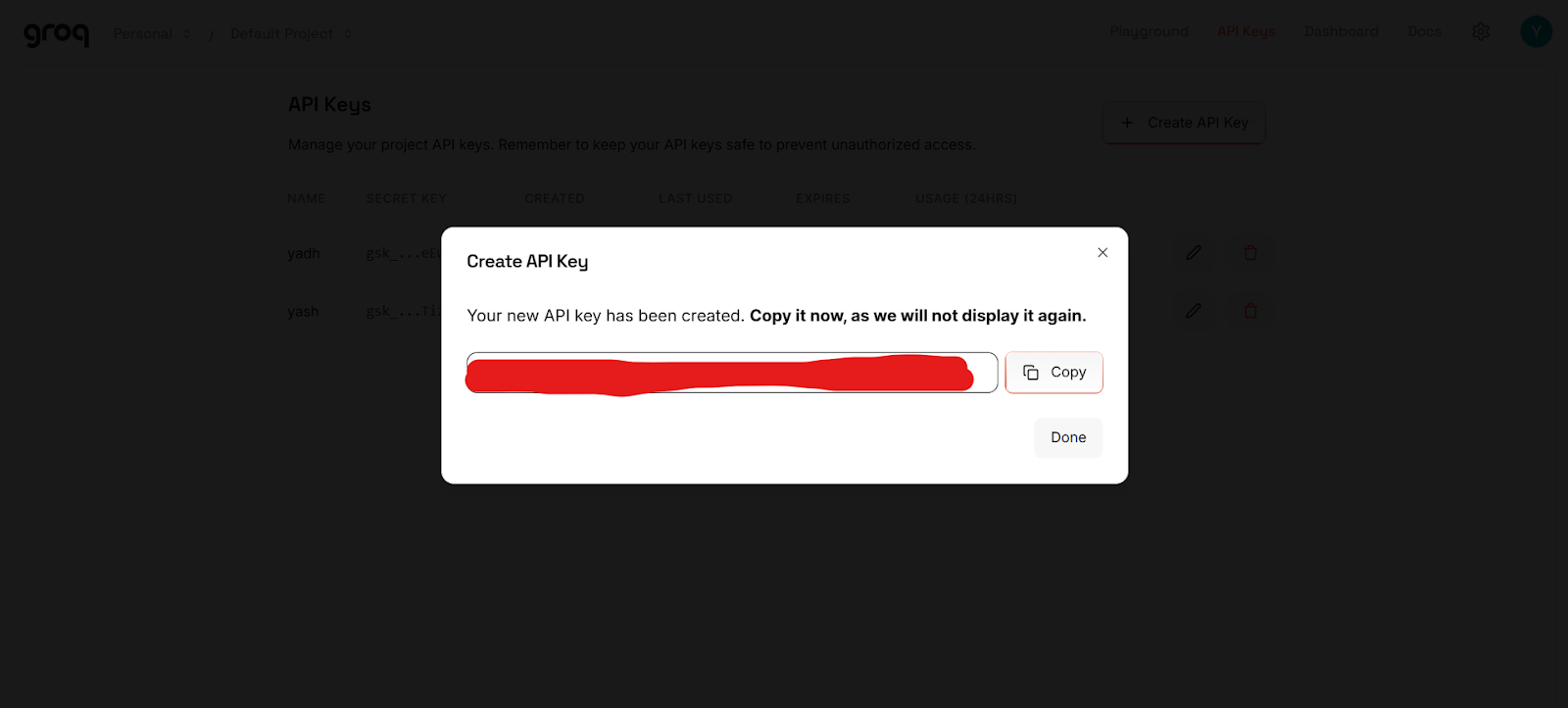
- Click Submit to generate your API key.
- Make sure to copy it — it will only be shown once.
Step 7: Paste the Key into Dialora and Save
- Go back to your Dialora dashboard.
- Paste the API key into the Groq field under Integrations.
- Click Save.
Your Groq account is now successfully connected to Dialora.