How to Set Up Pipedrive API Key Integration with Dialora
Ready to streamline your sales pipeline with Dialora? Follow the steps below to connect your Pipedrive API key.
Step 1: Log In to Your Dialora Account
- Go to Dialora and log in to your account.
Step 2: Navigate to the Integration Section
- Open the Dialora dashboard and locate the left sidebar.
- Click on Integration.
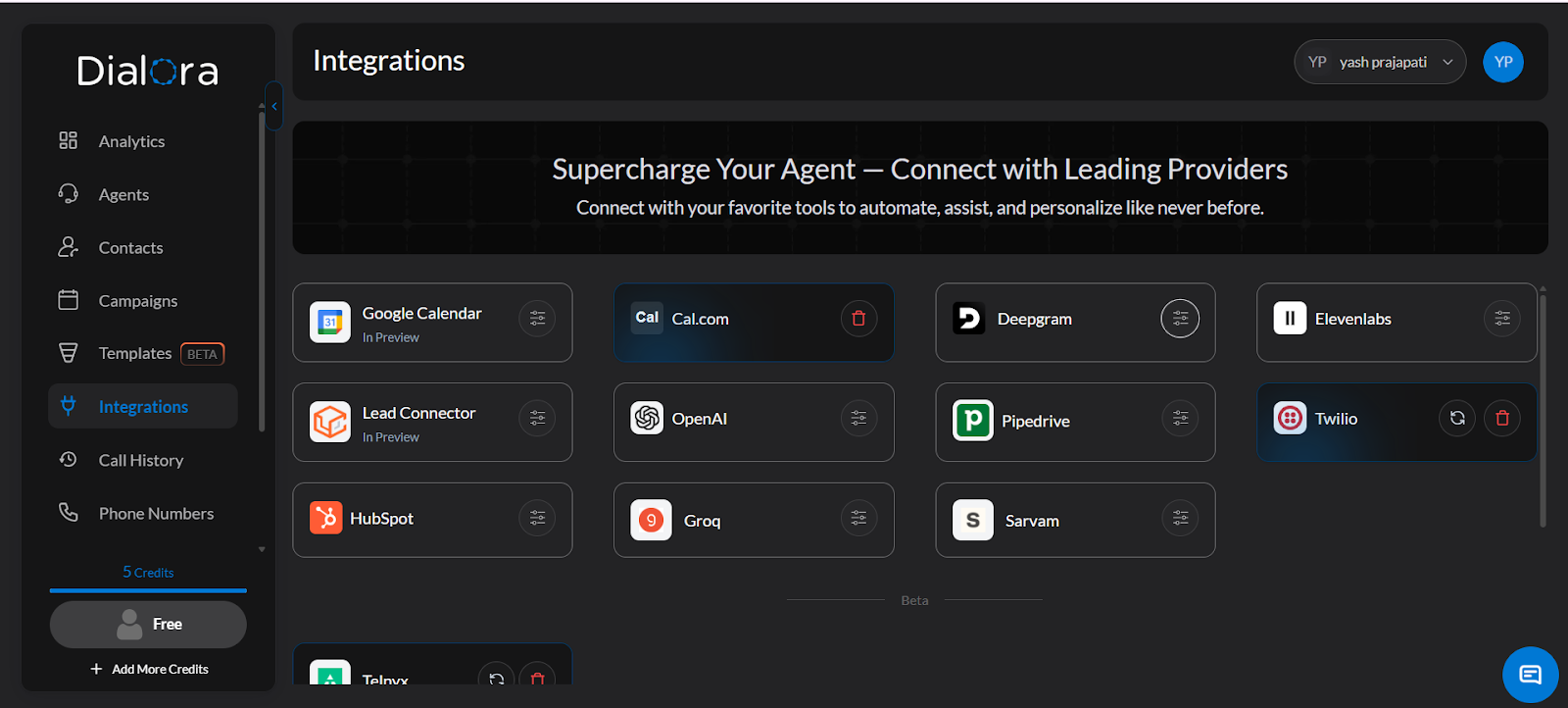
Step 3: Locate the Pipedrive Field
- You will see a field for the Pipedrive API Key — you’ll fill this in shortly.
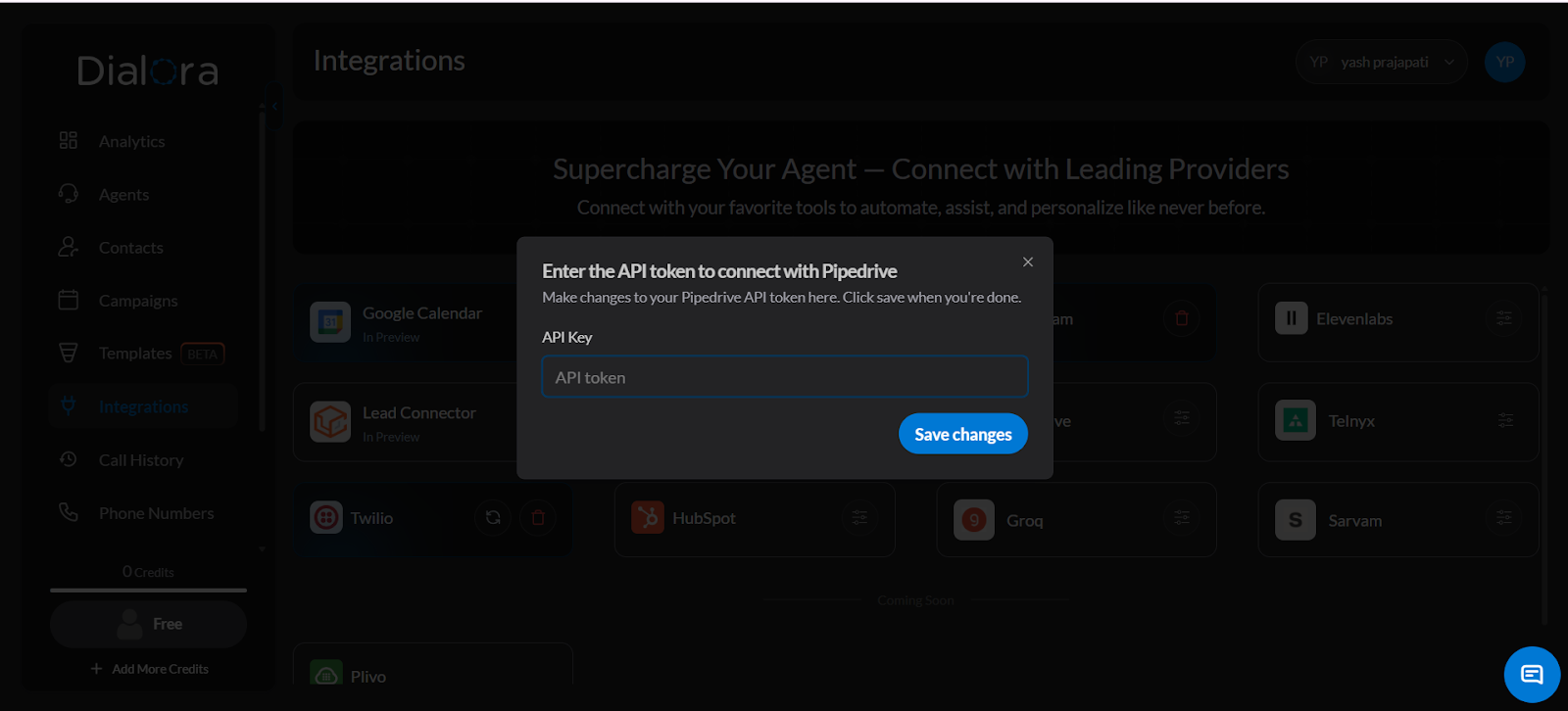
Step 4: Log In to Your Pipedrive Account
- Open a new tab and go to https://app.pipedrive.com/auth/login .
- Log in to your Pipedrive account.
Step 5: Open Your Profile Menu
- Click your profile icon in the top-right corner of the dashboard.
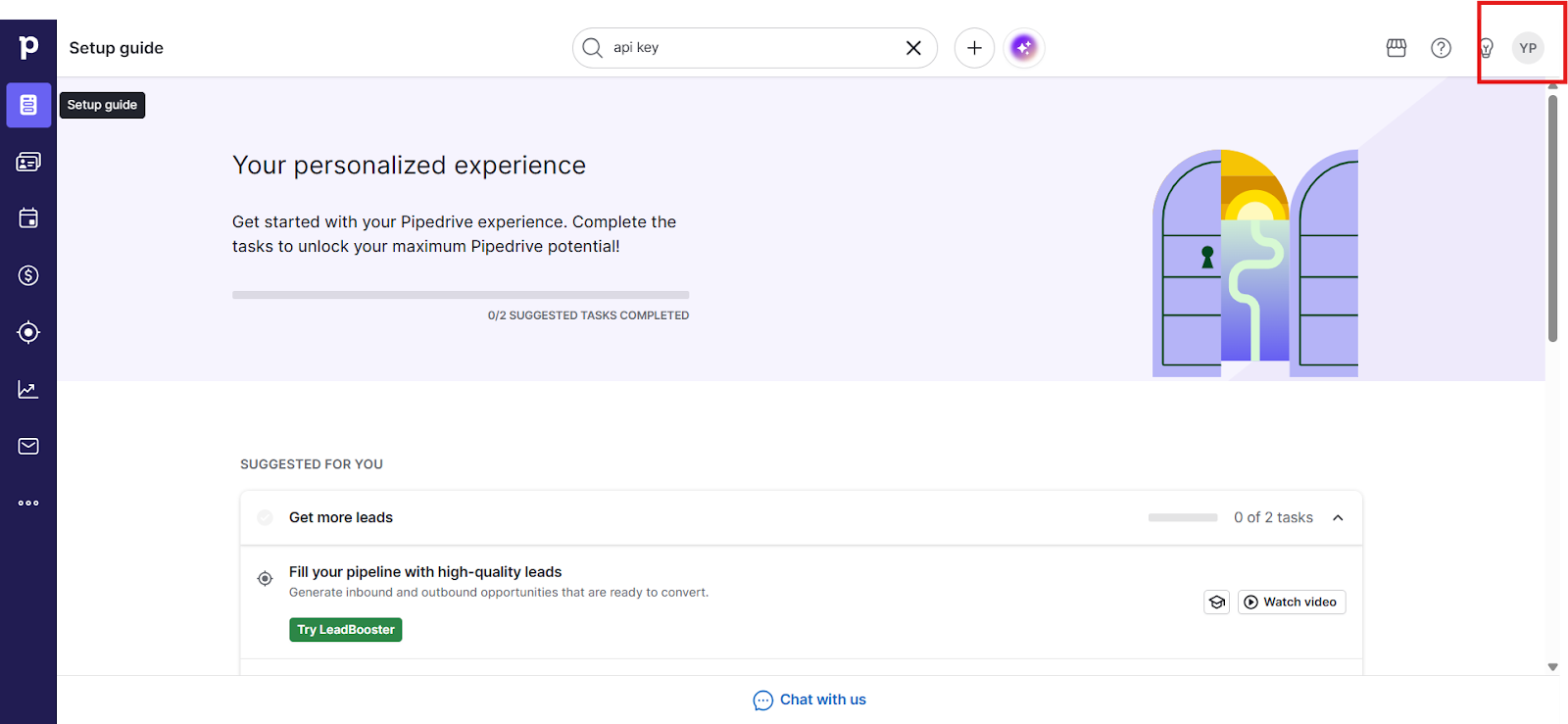
Step 6: Go to Company Settings
- From the dropdown menu, select Company Settings.
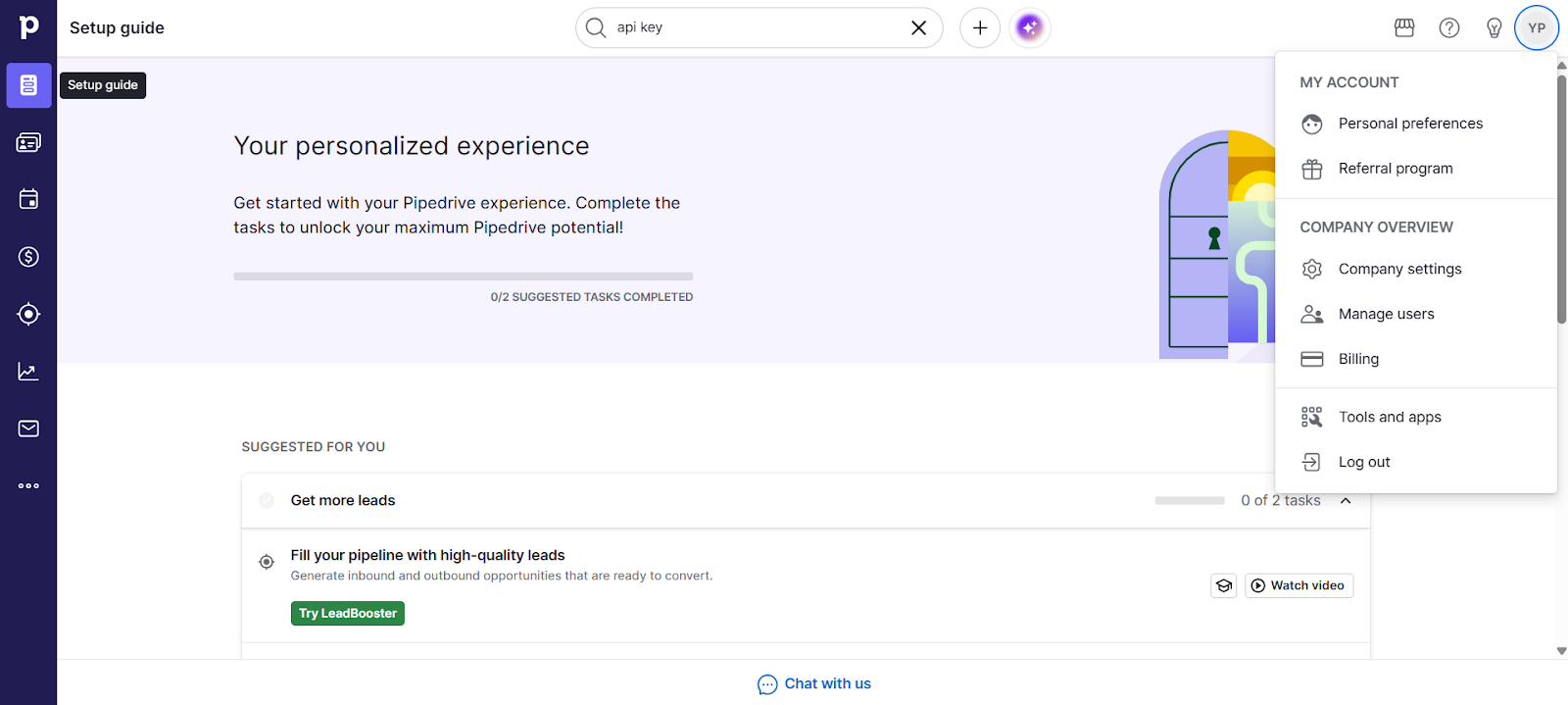
Step 7: Open Personal Preferences
- In the settings panel, select Personal Preferences.
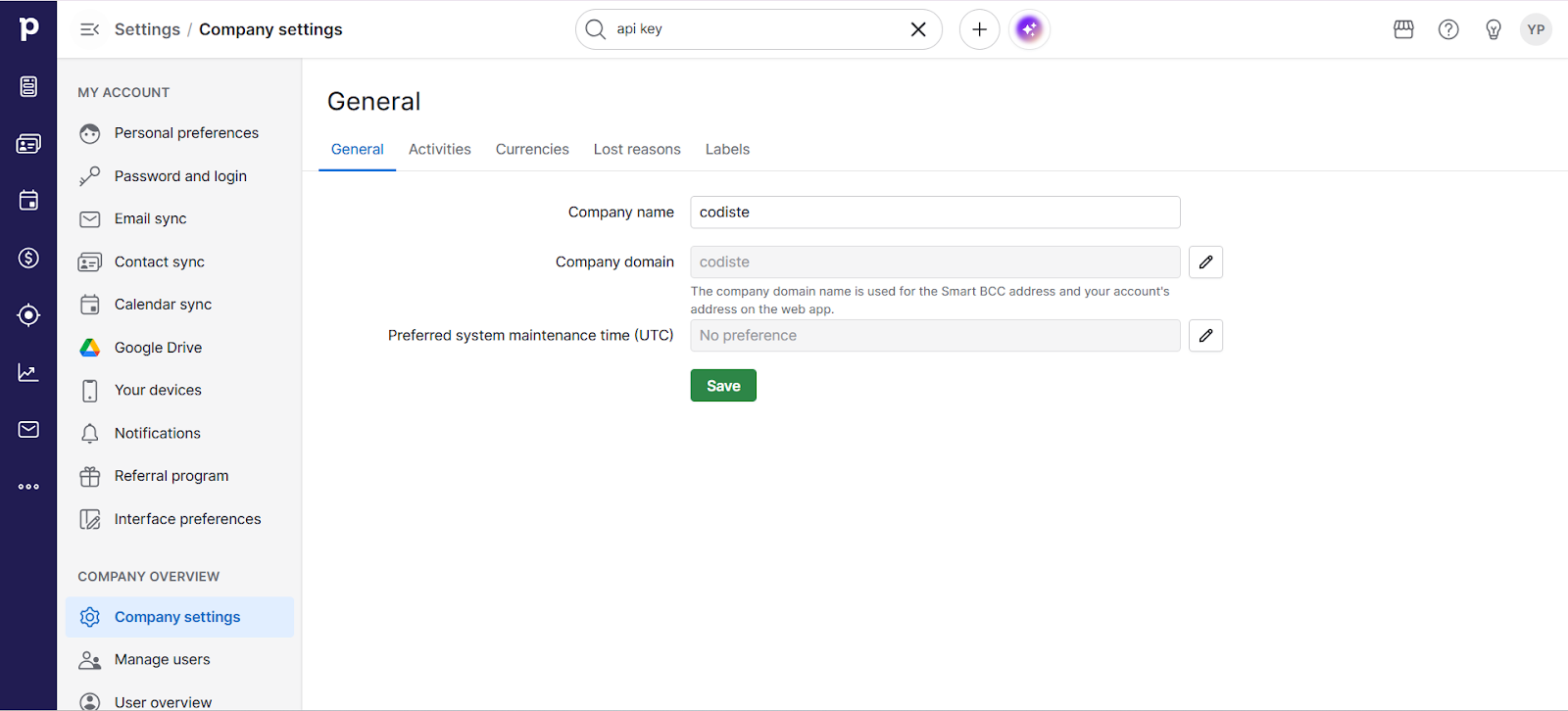
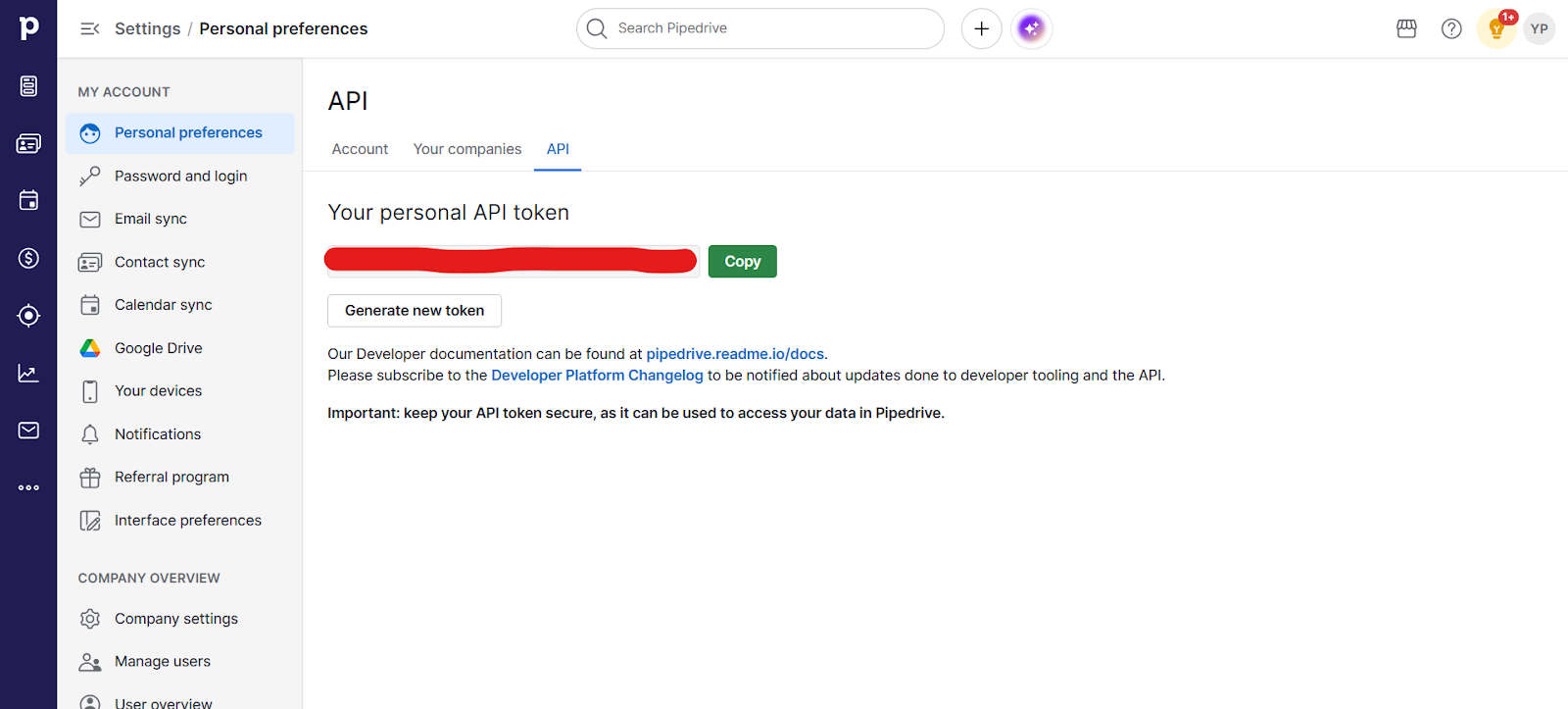
Step 8 & 9: Copy Your API Token
- Click on the API tab.
- You will see your API Token listed there.
- Click Copy to copy it.
Step 10: Paste the Token into Dialora and Save
- Go back to your Dialora dashboard.
- Paste the API token into the Pipedrive field under Integrations.
- Click Save.
Your Pipedrive account is now successfully connected to Dialora.