How to Set Up Google Calendar Integration with Dialora
Learn how to integrate Google Calendar with Dialora to manage booking availability and receive call notifications.
Google Calendar is available on app.dialora.ai. If you reach Dialora through an agency custom domain, the Google Calendar tile won’t appear on your Integrations page — use Cal.com instead, or ask your agency.
Step 1: Log In to Your Dialora Account
- Go to Dialora and log in to your account.
Step 2: Access Calendar Settings
- Open the Dialora dashboard and locate the left sidebar.
- Click on Integration.
- Select Google Calendar from the available integrations.
- Click Connect Google Calendar.
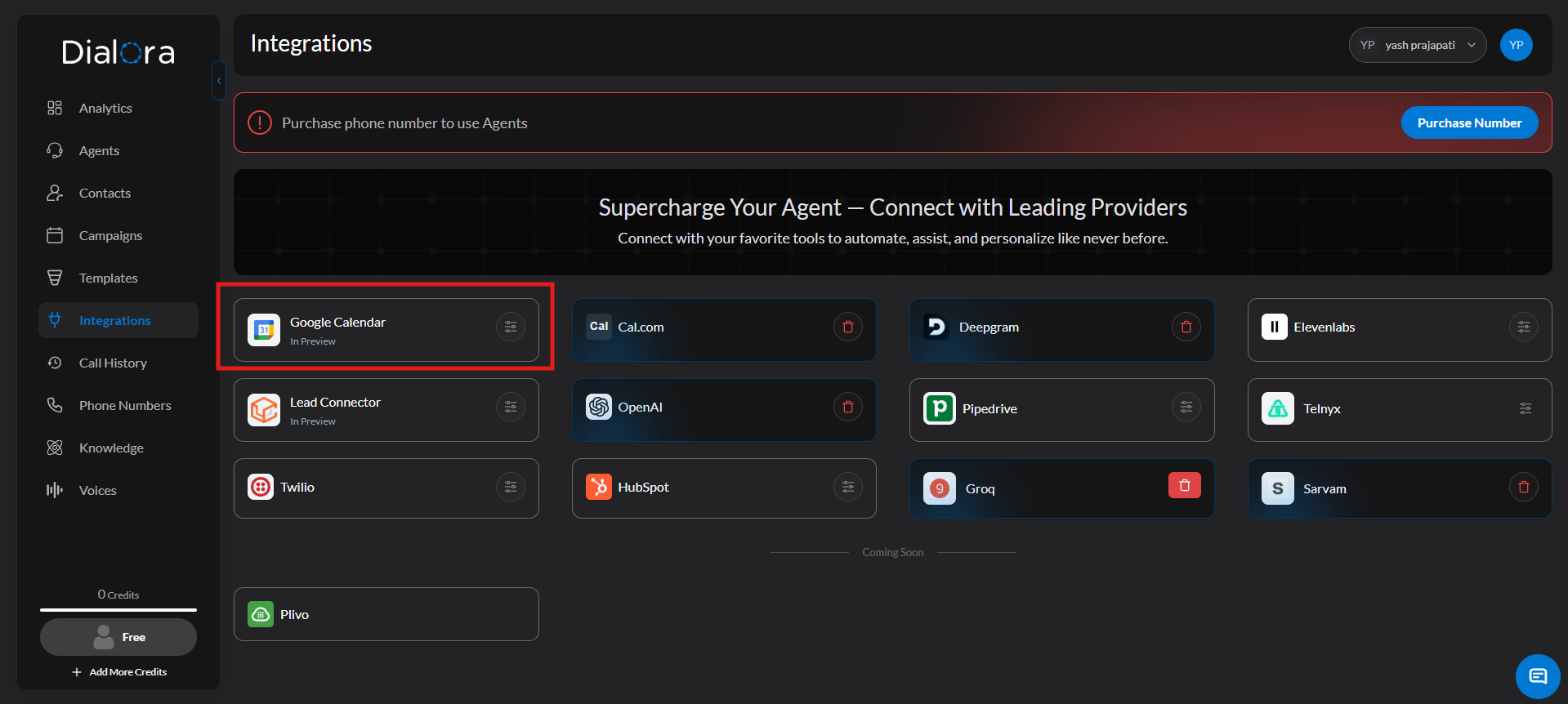
Step 3: Authorize Dialora Access
- A Google login window will appear.
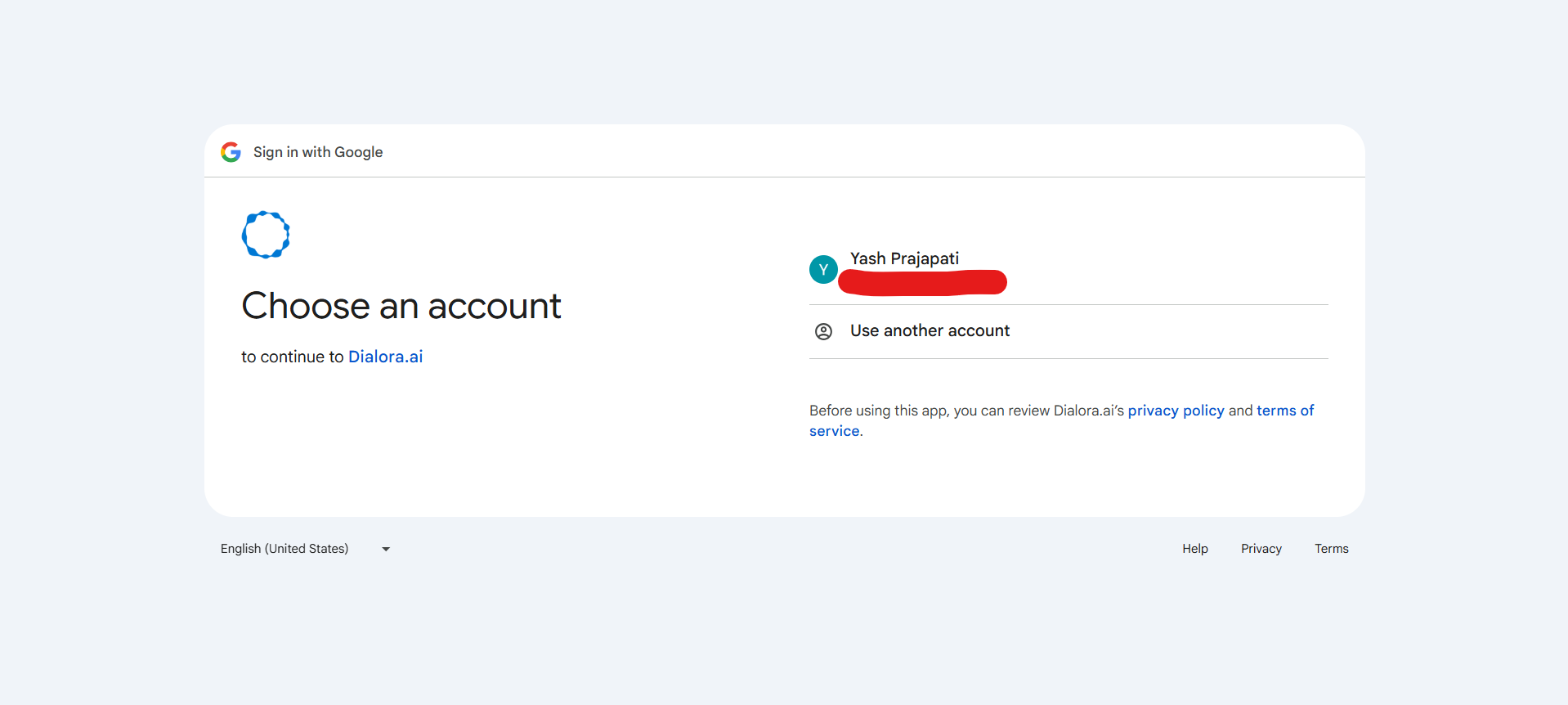
- Sign in with the Google account that contains your calendar.
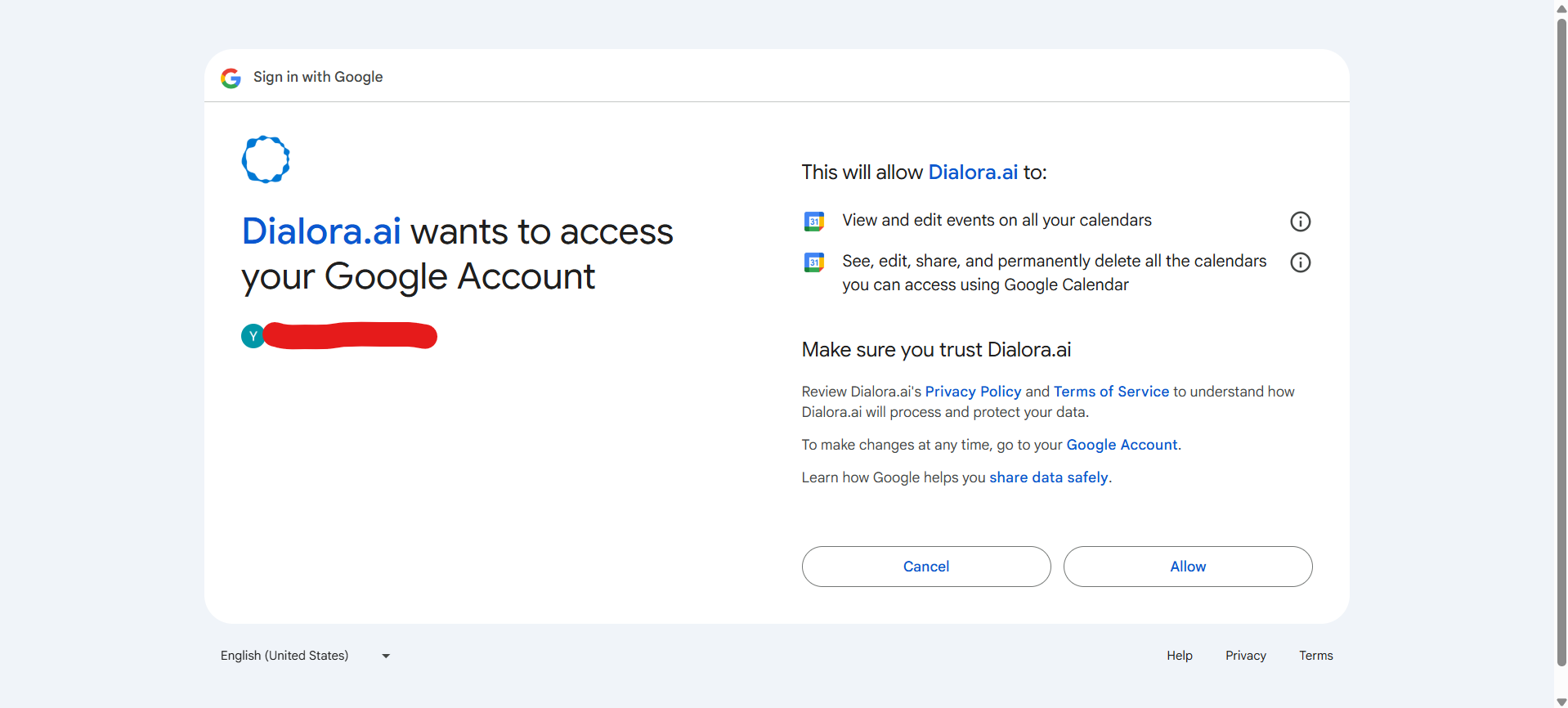
- Click Allow when prompted to grant Dialora access to your calendar.
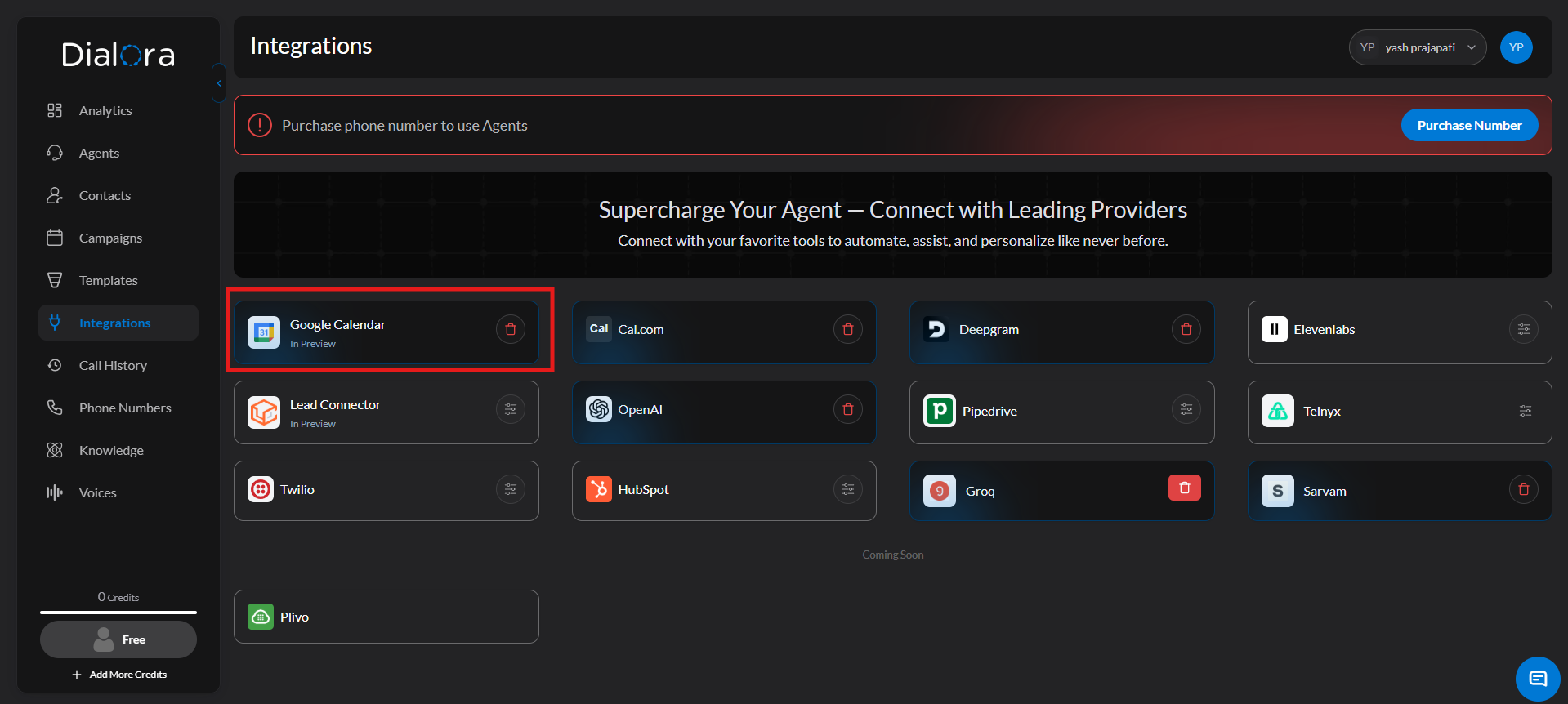
- You’ll be redirected back to Dialora upon successful authorization.
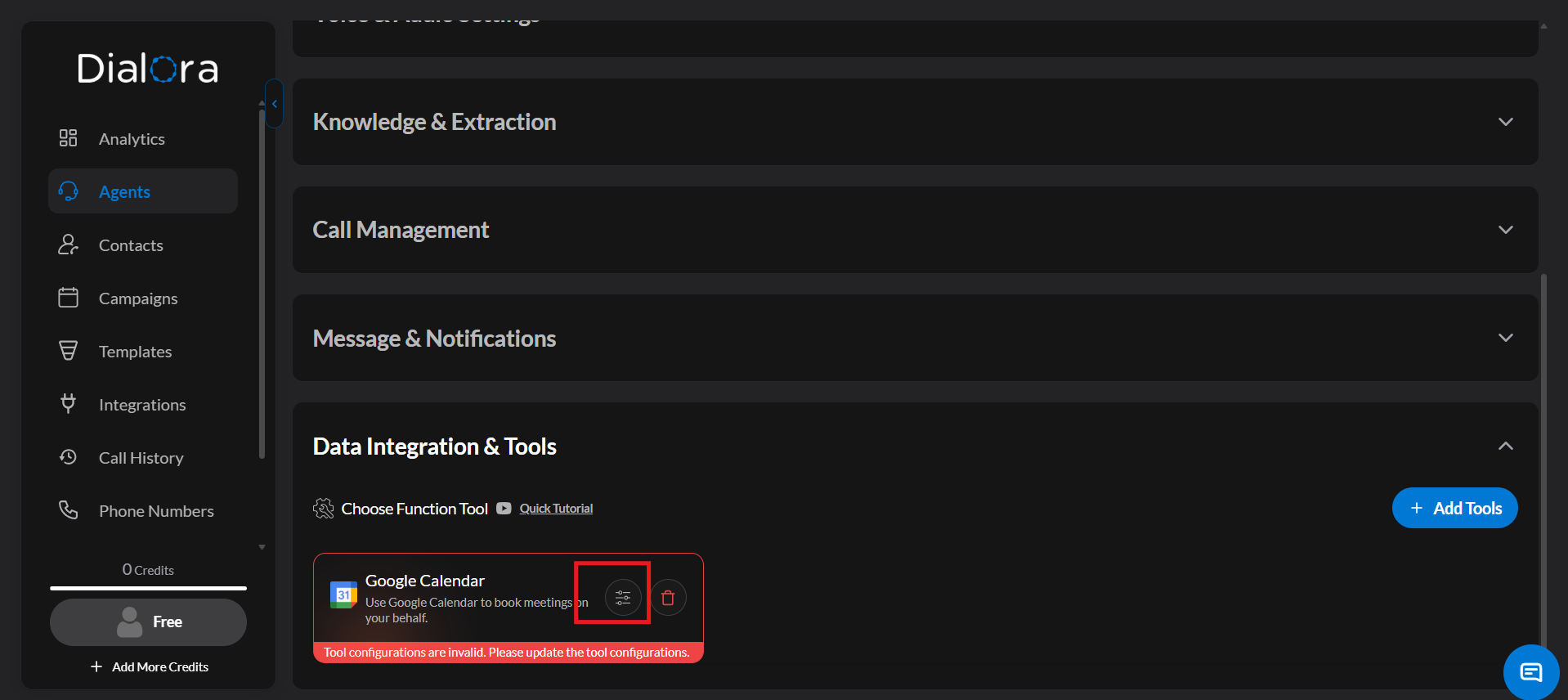
Step 4: Add Google Calendar to the Agent
- Navigate to Agents → open your agent → the Tools tab.
- Click Select Tools From Library.
- Select Google Calendar.
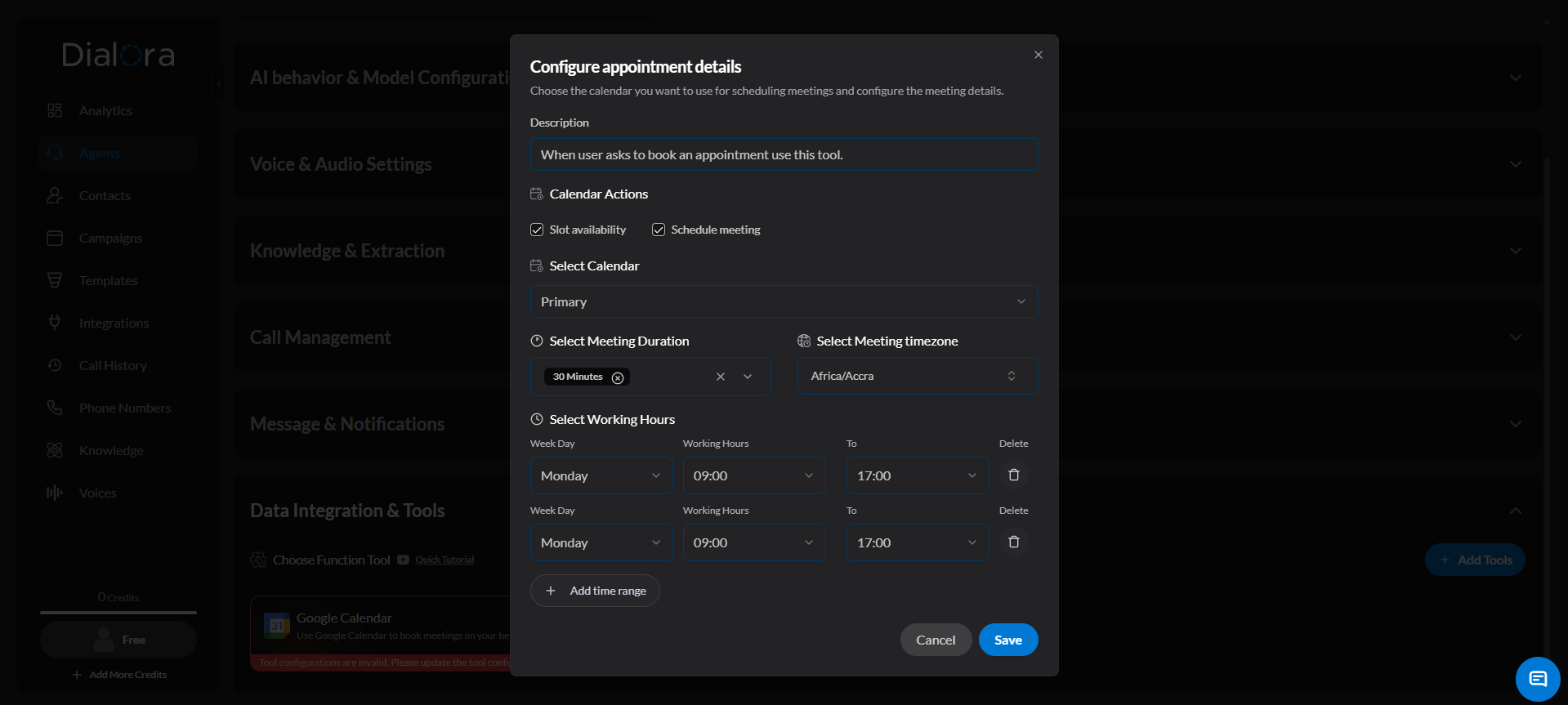
Step 5: Go to Google Calendar settings and fill in the details:
- Description — A brief description of how the calendar will be used
- Calendar Actions — Choose which actions the agent can perform
- Select Calendar — Choose which Google Calendar to use
- Select Meeting Duration — Set the default meeting length
- Select Meeting Timezone — Set the timezone for scheduling
- Select Working Hours — Define when the agent can book appointments
- Click Save.
Your Google Calendar is now connected to Dialora.
Authentication Errors
Problem: “Invalid credentials” or “Unable to connect” message
Solution:
- Ensure you’re using the correct Google account
- Try disconnecting and reconnecting the calendar