How to Upload Contacts in CSV Format
Uploading your contacts to Dialora is quick, but the CSV needs four specific columns for the import to work.
Required columns
Your CSV must have a header row containing all four of these:
| Column | Required | Notes |
|---|---|---|
firstName | Yes | A row with an empty first name is skipped |
lastName | Yes | Column must exist; the value may be blank |
phone | Yes | The number to dial |
email | Yes | Column must exist; the value may be blank |

Header matching is forgiving about spacing, punctuation, and case — First Name, first_name, and firstname all resolve to firstName. What it is not forgiving about is a missing column: if any of the four is absent, the whole upload is rejected with a message naming what’s missing.
You can add as many extra columns as you like after these four — custom tags, notes, preferences. They’re kept with the contact and can be used as variables in your agent’s prompt.
Dialora parses and normalizes phone numbers automatically, so a range of formats works. Include the country code (+1 555 123 4567) whenever you can — a bare local number is ambiguous, and rows whose phone number can’t be parsed are skipped rather than dialed incorrectly.
Step 1: Go to the Contacts tab
Log into your Dialora dashboard and click Contacts in the sidebar.
Step 2: Create a group
Under the Groups tab, click Create Group.
Name it after the segment it represents — for example QuarterFirstCustomers, or by region or campaign. Campaigns dial one group, so how you split your groups determines who you can target.
Step 3: Choose how to add contacts
On the right side of your screen you’ll see two options:
- Add Manually — add one contact at a time
- Upload Contacts — bulk upload via CSV
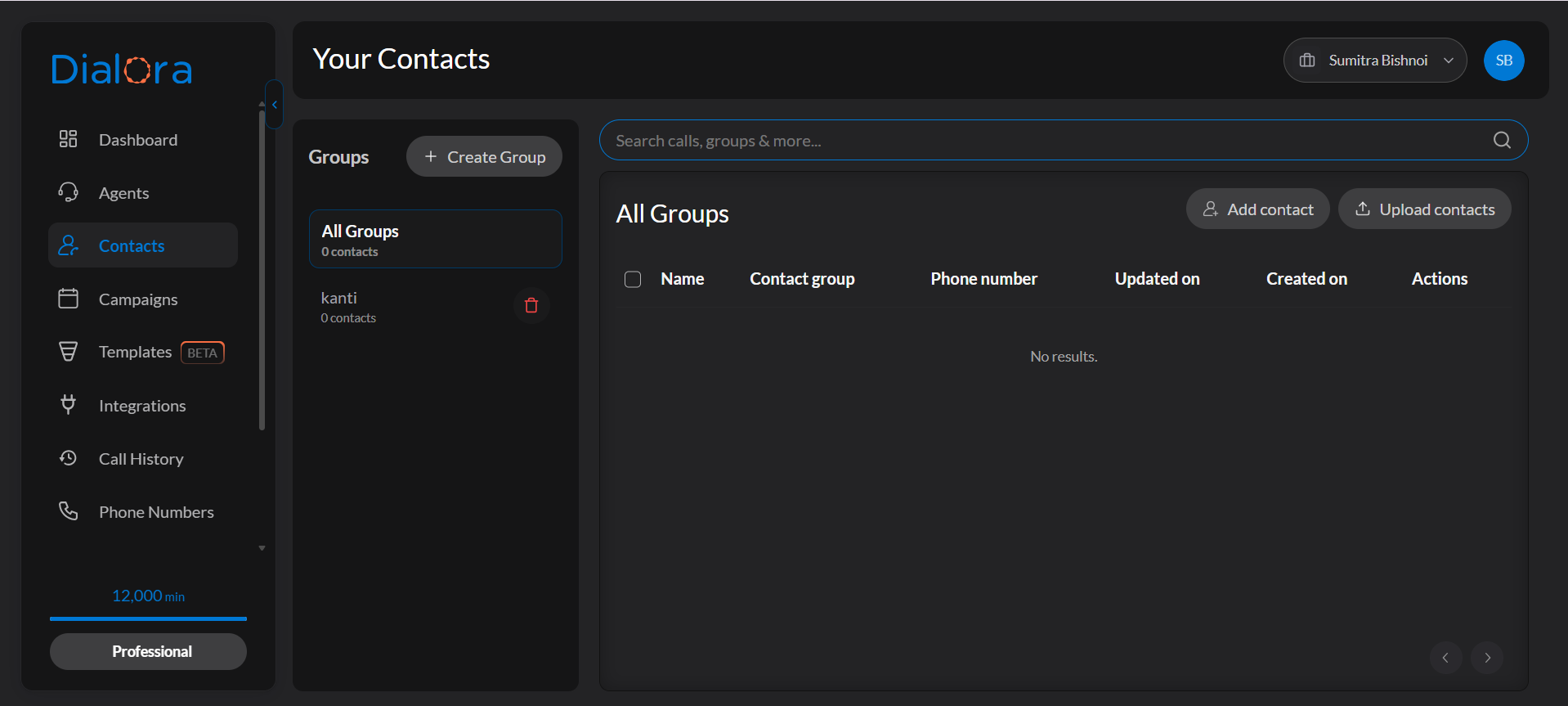
Step 4: Click “Upload Contacts”
A pop-up appears asking you to upload your CSV file. The file must be a real .csv — a renamed spreadsheet won’t be accepted.
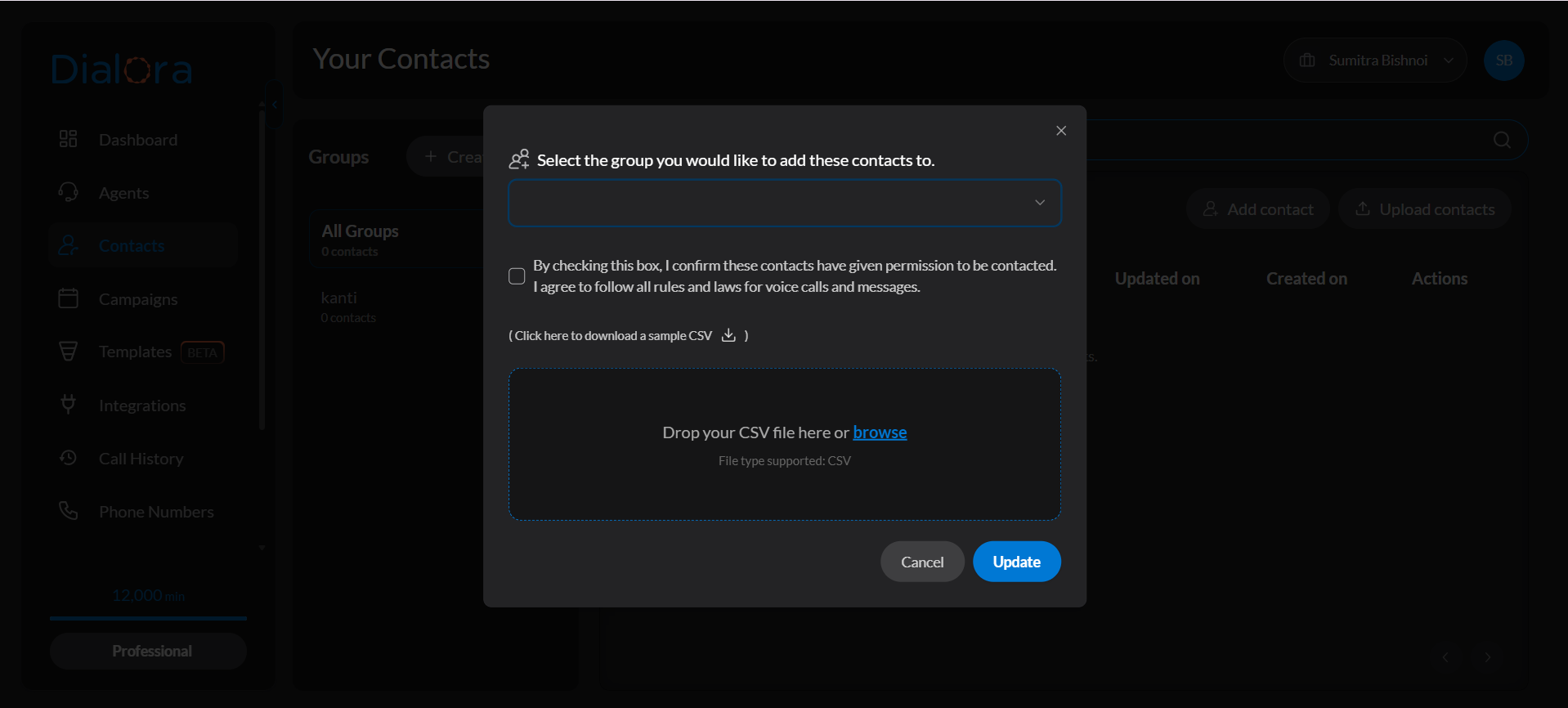
Step 5: Select your file and confirm
Choose the correctly formatted CSV and confirm. Your contacts are imported into the group you selected.
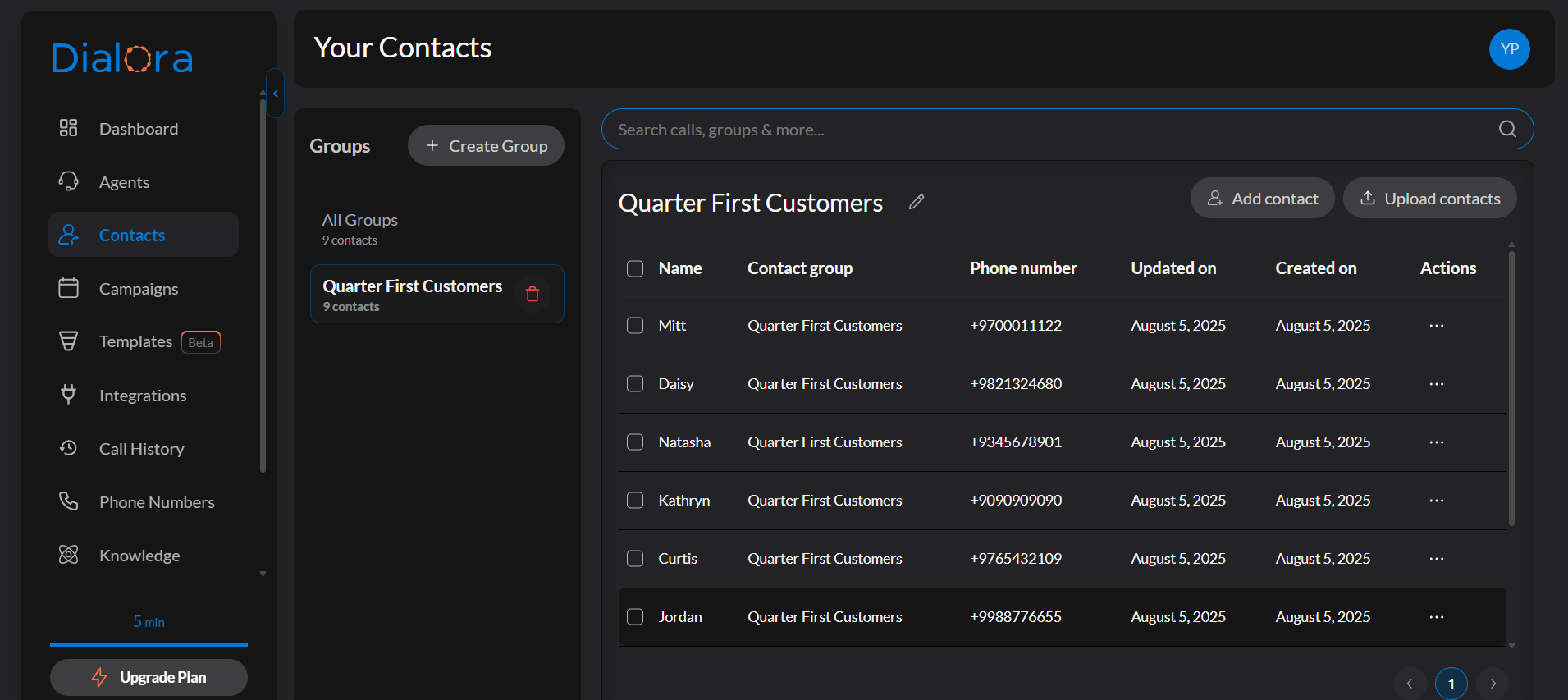
After the upload
Check the contact count on the group. If it’s lower than the number of rows in your file, the difference is rows that were skipped — almost always a blank first name or a phone number that couldn’t be parsed. Fix those rows and re-upload.
Uploading a list isn’t permission to call it. When you create a campaign you confirm you have consent from everyone in the group — see How to Set Up Outbound Campaigns.
Next step
With a group full of contacts, you can point a campaign at it — see How to Set Up Outbound Campaigns.