How to Set Up Outbound Calling Campaigns with Dialora Voice Agents
Follow these steps to launch an outbound voice campaign using your AI agent — perfect for offers, appointment reminders, or any customer outreach automation.
Before you start
A campaign needs three things to already exist. Set these up first or the form will have nothing to select:
| Requirement | Where |
|---|---|
| A voice agent | Set Up Your First AI Voice Agent |
| A contact group with contacts in it | How to Upload Contacts |
| A phone number to call from | Buy or connect one under Phone Numbers |
Step 1: Log in to your Dialora account
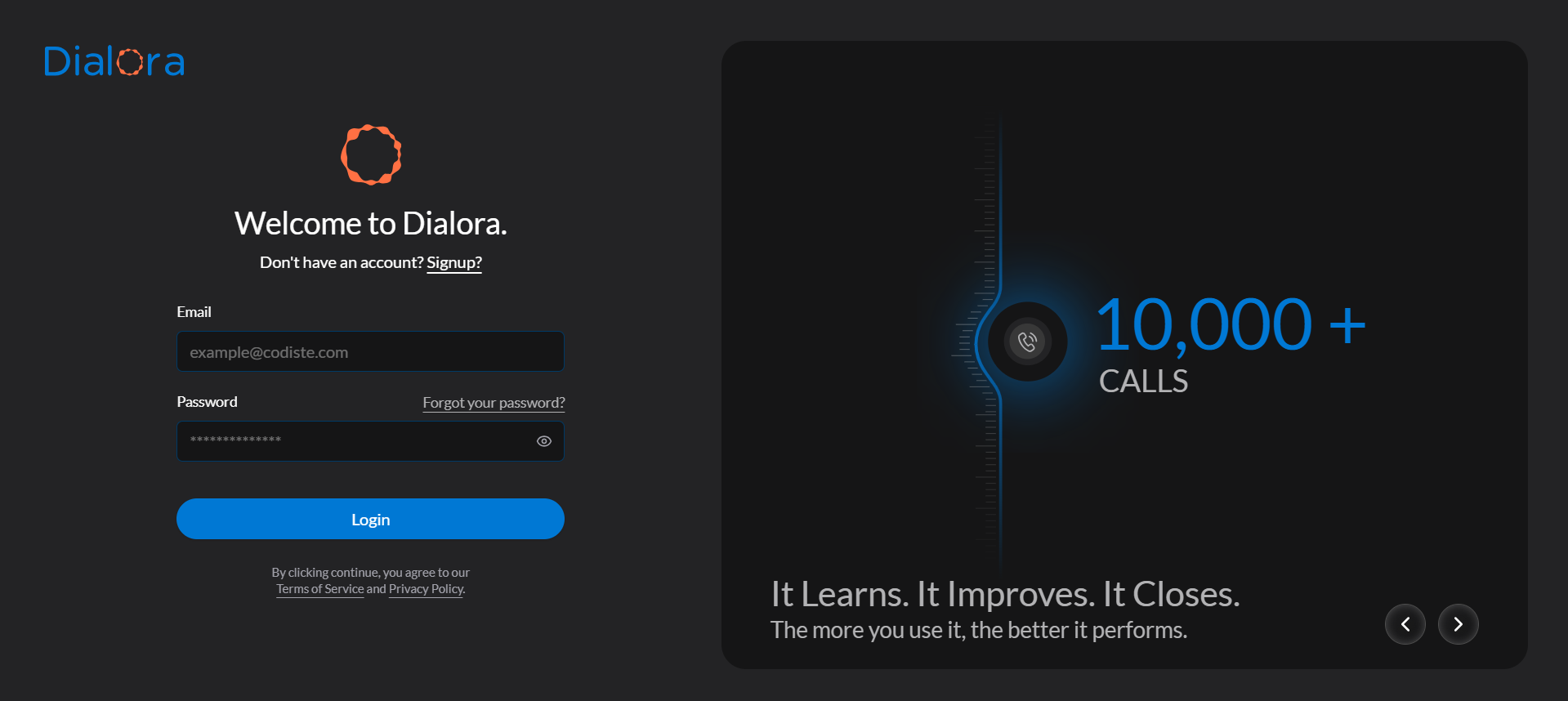
- Use your account credentials to log in.
- After logging in, you’ll land on the Dialora dashboard.
Step 2: Open the Campaigns tab
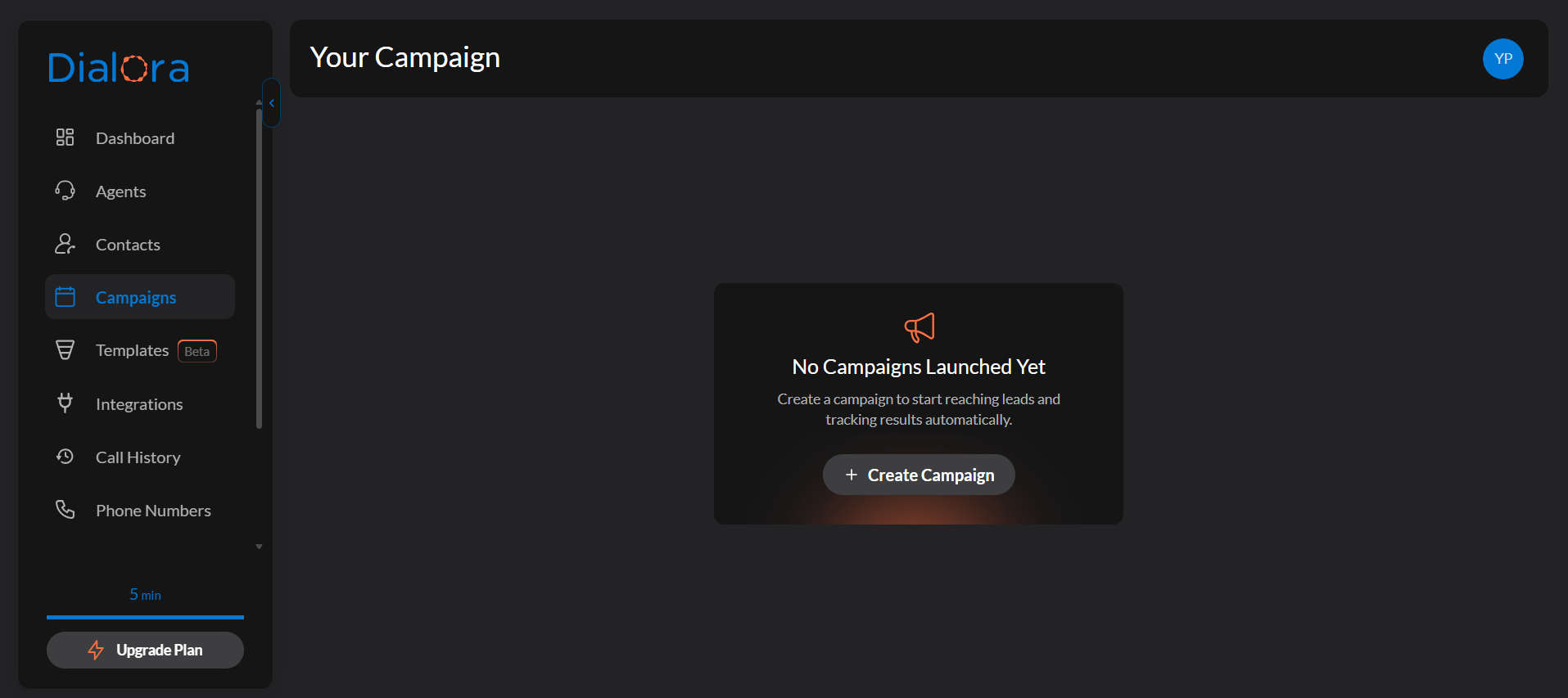
- On the left-hand sidebar, click Campaigns.
- This opens the Campaigns dashboard, where all current and past campaigns are listed.
Step 3: Create a new campaign
Click Create Campaign. Campaigns are outbound only — inbound calls are handled by assigning a number to an agent, not by a campaign.
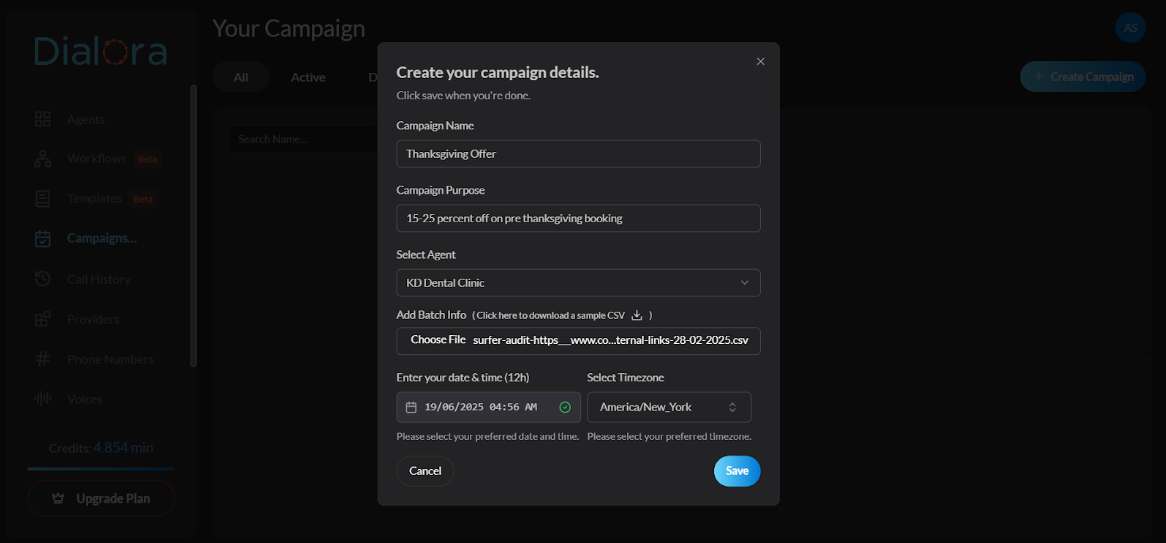
Step 4: Fill out the campaign details
For this example, say you’re launching a Thanksgiving dental offer campaign.
| Field | What to enter |
|---|---|
| Campaign Name | e.g. “Thanksgiving Dental Promo” |
| Contact Group | The list of people to dial |
| Select Agent | The agent that will place the calls — pick one whose prompt matches this campaign’s purpose |
| Phone Number | The number the calls come from |
| Start Date & Time | When the campaign begins |
| Timezone | The timezone the schedule is read in |
| Call Delay (seconds) | Pause between consecutive calls. Default 0. |
| Retry Interval | What happens to calls that don’t connect: no retry, immediately, after 24 hours, or after 48 hours |
| Calling Days | Which days of the week the campaign may dial. Default Monday–Friday. |
| Calling Hours | The daily window it may dial within. Default 09:00–20:00. The end must be later than the start. |
| Consent | A required confirmation that you have permission to call these contacts |
About the timezone
Choose the timezone of the country where your customers are, not where you are. If your campaign targets UK customers but you’re setting it up from the US, select a UK timezone so the calls land during UK business hours. Your calling days and calling hours are read in this timezone too.
About consent
Ticking the consent box is a statement that you have permission to call everyone in the contact group. It’s a required field and it’s your responsibility, not Dialora’s. Calling people who haven’t opted in can expose you to legal liability and will get your numbers flagged.
Once a campaign exists, you can’t change its name, agent, contact group, from-number, schedule, or calling windows. A mistake means creating a new one. Check the contact group, the from-number, and the start time carefully before you save.
Step 5: Save
Click Save. Your campaign is created as a draft — it doesn’t dial anyone yet. Schedule it or start it from the campaigns dashboard when you’re ready.
Step 6: Monitor it
Open the campaign to see its analytics:
- Total calls attempted and how many are still queued
- Pickup rate — how many of your calls actually got answered
- Outcome breakdown: completed, in progress, no answer, busy, failed, voicemail, canceled
- Average call time and the time slots with the most engagement
Campaigns move through statuses you’ll see on the dashboard: draft, scheduled, active, paused, resumed, completed, stopped, and canceled.
Tips
- Match the agent to the campaign. The agent’s prompt is what callers actually hear — a generic receptionist agent running a promo campaign will sound off.
- Use call delay for reputation. Firing calls back-to-back from one number gets it flagged faster. A small delay helps.
- Set retries deliberately. “Immediately” is rarely right for a human answering a phone; 24 or 48 hours gets better pickup and annoys people less.
- Keep the calling window legal. Many jurisdictions restrict outbound calling hours. The defaults are conservative for a reason.
- Test the agent first. Talk to it in the Playground before pointing it at a real list — see Test Your Agent.
Troubleshooting
If a campaign isn’t dialing, see Outbound campaign not progressing.