Custom Tools API for Third-Party Integration
Connect any third-party API directly to your voice agent. Enable real-time data lookups, CRM updates, booking confirmations, and more.
Overview
The Custom Tools API allows your Dialora agents to interact with external systems during conversations. Your agent can:
- Query Databases: Look up customer records, inventory, pricing
- Update CRMs: Create leads, update contact info, log interactions
- Manage Bookings: Check availability and confirm appointments
- Send Notifications: Trigger SMS, email, or push notifications
- Retrieve Data: Pull information from any REST API
Use Cases
- Booking Systems: Check availability, reserve time slots, send confirmations
- CRM Integration: Update Salesforce, HubSpot, or any custom CRM
- Database Lookups: Query customer history, account status, policies
- SMS/Email Triggers: Send follow-up messages after calls
- Payment Processing: Validate payment methods, process refunds
- Inventory Management: Check stock levels, reserve items
Step 1: Identify Your API Endpoint
You need a REST API endpoint (URL) that your agent will call. Example:
https://api.yoursystem.com/lookup-customerYour API should:
- Accept POST requests with JSON data
- Return JSON responses
- Include proper authentication (API key, OAuth, etc.)
- Complete within 5 seconds
Step 2: Log In to Dialora
- Go to Dialora and log in to your account.
Step 3: Open the agent’s Tools tab
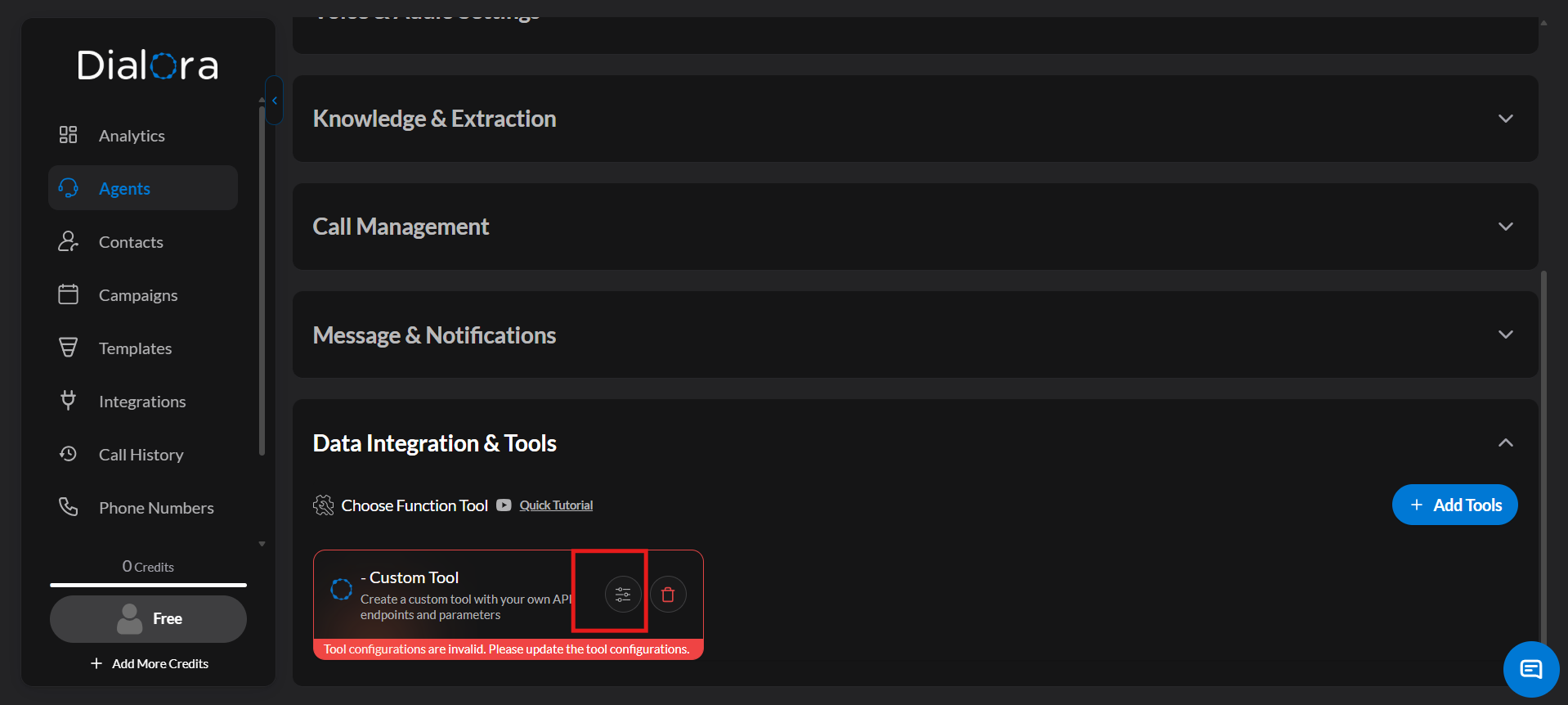
- Open the Dialora dashboard, go to Agents, open your agent, and click the Tools tab. Tools have their own tab now, alongside Basic Settings, Advanced Settings, and Widget.
- Click Add tool (or Select Tools From Library if the agent has no tools yet) and choose Custom Tool.
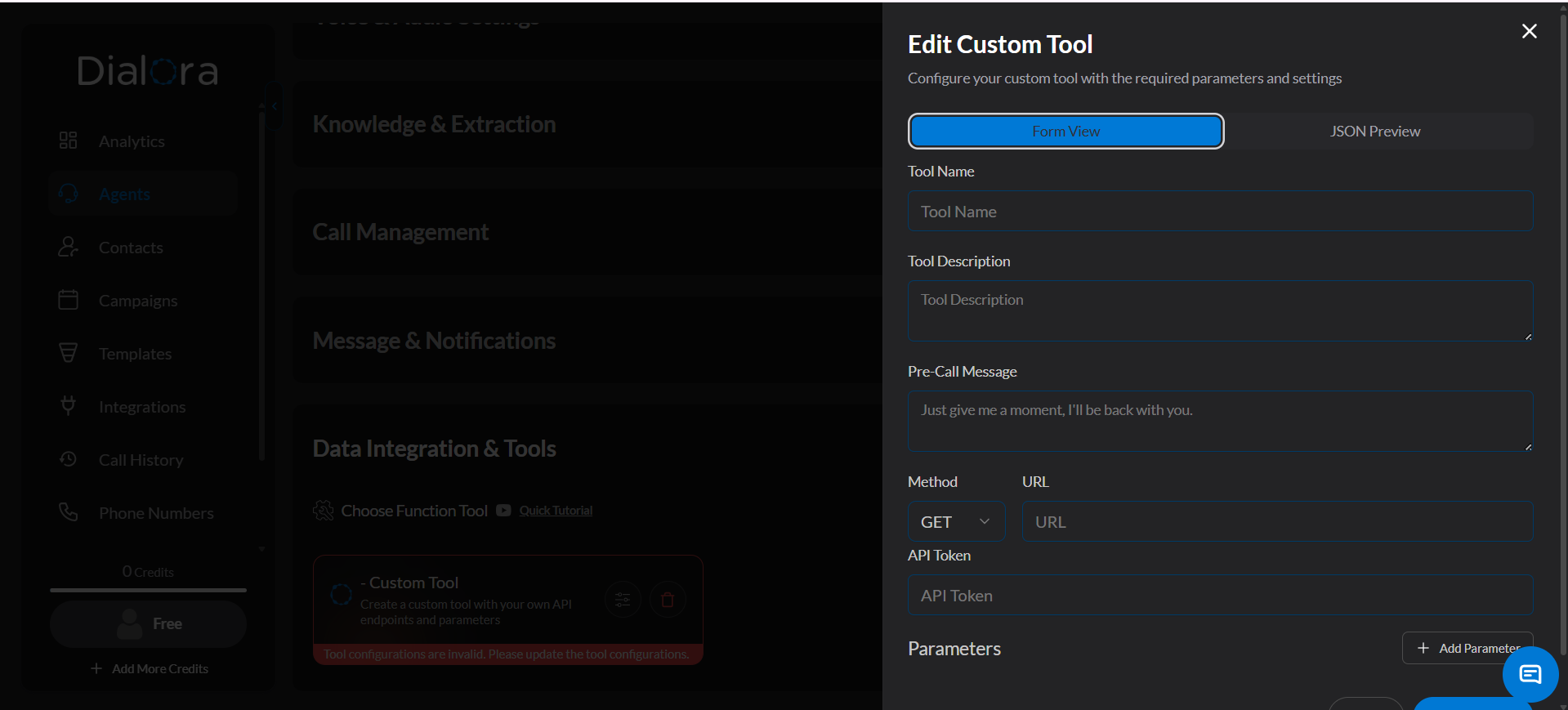
- The tool configuration opens in a side sheet, with each parameter laid out on its own row. Every tool card in the list shows at a glance how it’s configured.
You can build your custom tool in three ways:
- Generate with AI — Describe what the tool should do in plain language and let Dialora scaffold it for you
- Form View — Configure your tool using the visual form
- JSON Configuration — Paste a JSON tool definition
Generate a tool with AI
Instead of filling in every field by hand, open the AI panel and describe the tool you want — for example, “Check available TidyCal slots for a given date and return the open times”. Dialora generates the endpoint, method, parameters, and descriptions for you.
You can also use the same panel on an existing tool to change it: describe the change (“add a timezone parameter”) and the tool is updated in place.
AI scaffolds the tool; you own it. Check the endpoint URL, the request method, and every parameter name against your API’s real contract before you attach the tool to an agent — a plausible-looking parameter name that your API doesn’t accept will fail silently at call time.
Step 4: Configure the Custom Tool
- Enter a tool name (e.g., “Customer Lookup”).
- Paste your API endpoint URL.
- Select request method: POST or GET.
- Add API token for authentication.
Step 5: Define Parameters
Specify what data your agent should send:
- Parameter Name — The field name your API expects
- Type — Data type (string, number, boolean, etc.)
- Description — Explain the parameter so the agent knows when to use it
- Set parameter names to match your API’s expected fields
- Mark required vs. optional parameters
- Click Save to save your configuration
Important:
Never hardcode secrets in your agent prompts. Use Dialora’s authentication settings to store API keys securely.
Tip:
Start with a simple test endpoint. Once working, add complexity and additional business logic.