Custom Domain Setup Guide for Dialora Agency
Setting up a custom domain for your Dialora Agency app allows you to fully white-label the platform, providing your clients and team with a professional, branded experience. This process involves steps within your Dialora account and your external domain provider.
Video Guide:
Introduction
Setting up a custom domain for your Dialora Agency app allows you to fully white-label the platform, providing your clients and team with a professional, branded experience. This process involves steps within your Dialora account and your external domain provider.
Step 1: Initiate Domain Setup in Dialora
First, you need to tell Dialora which custom domain you intend to use.
- Log in to your Dialora Agency account .
- Navigate to the domain settings area (as described in the video, you’ll look for a button called Setup Domain ).

- Enter your desired custom domain (e.g., app.youragencyname.com or portal.youragencyname.com ).
Tip: It is best practice to use a subdomain (like app.youragencyname.com) for this purpose, as using the root domain (youragencyname.com) can sometimes conflict with other DNS records.
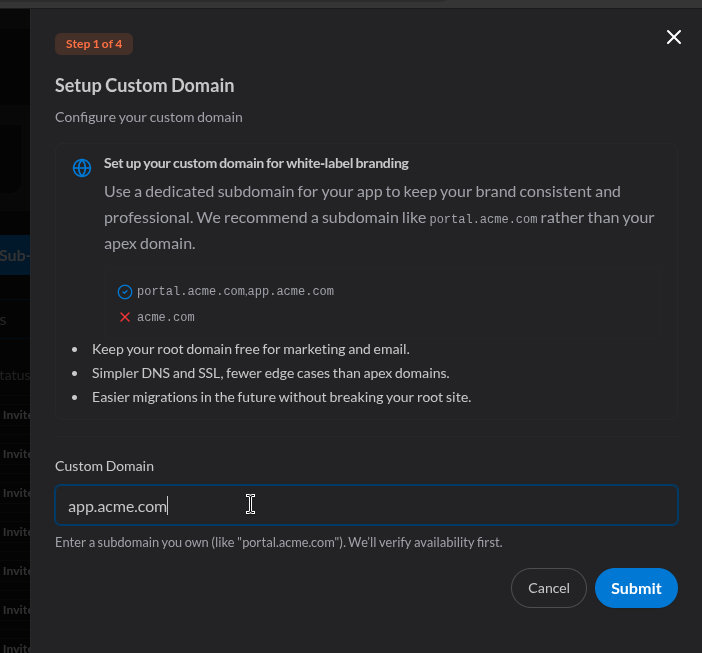
- Click Submit (or the corresponding save button).
- Dialora will then display the required DNS records (CNAME records) that you must add to your domain provider. Keep this page open as you will need to copy these records exactly.
Setup 1.1: Configure CAA Record
If your domain has any existing CAA records then will may need to add the missing CAA records before we deploy our app. The next screen will list the missing CAA records that you need to add in your domain provider as shown below.
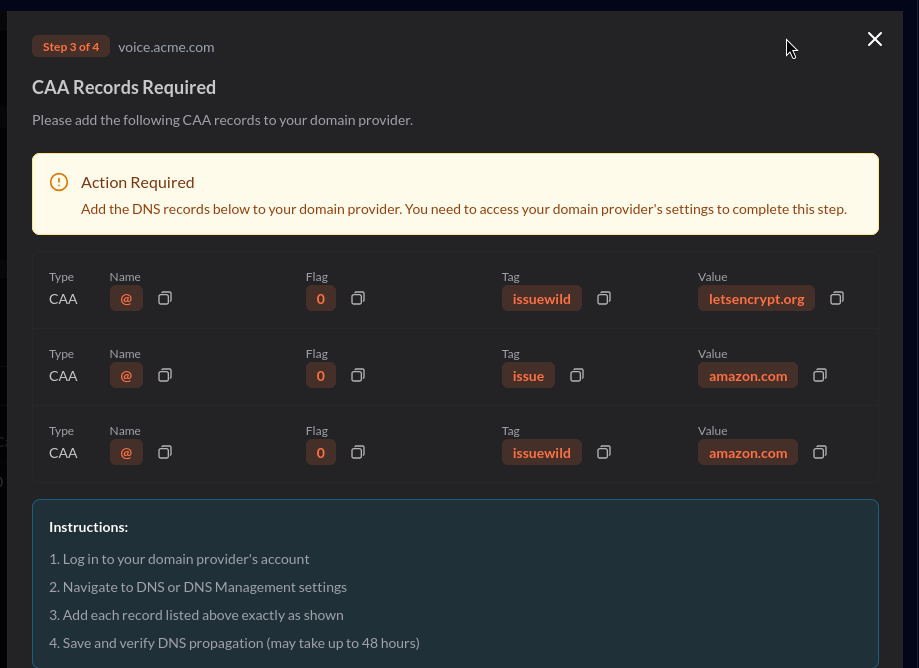
Once that is done it may take around 3-8 minutes and then we can move to next step.
Step 2: Configure CNAME Records with Your Domain Provider
Next, you must log in to the website where you purchased your domain (e.g., GoDaddy, Namecheap, Cloudflare, etc.) to modify your Domain Name System (DNS) settings.
- Log in to your domain registrar/provider account .
- Navigate to the DNS Management or Advanced DNS Settings section for the domain you are using.
- You will need to create CNAME records as provided by the Dialora setup page. The audio mentions adding four CNAME records.
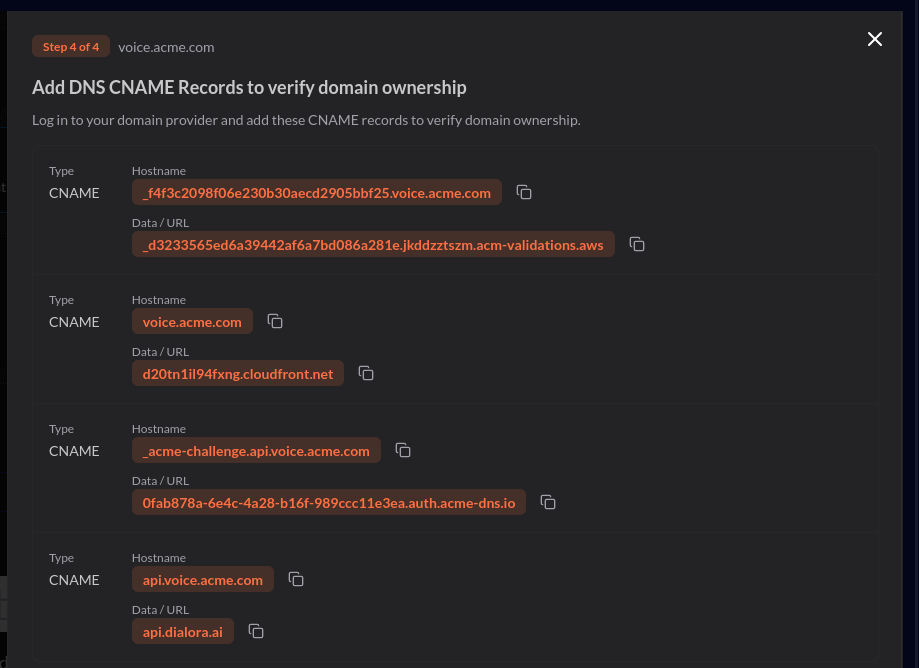
Action for Each CNAME Record:
| Field | Description | Your Action |
|---|---|---|
| Type | The type of DNS record. | Select CNAME (Canonical Name). |
| Host/Name | The name or host value provided by Dialora (e.g., app). | Copy the Host Value from Dialora exactly. |
| Value/Target | The destination URL the host points to (e.g., cname.dialora.com). | Copy the Data URL from Dialora exactly. |
| TTL | Time to Live (how long servers cache the record). | Use the default or choose a short TTL (e.g., 30 minutes or 1 hour). |
- Repeat this process until all the required CNAME records (e.g., four records) from Dialora are entered and saved in your domain provider’s DNS settings.
- Save all the changes in your domain provider’s DNS manager.
Step 3: Verify the Connection in Dialora
After adding the DNS records, you must wait for the changes to propagate across the internet, which can take anywhere from a few minutes to a few hours (or up to 48 hours in rare cases).
- Return to the Dialora domain setup page (from Step 1).
- The status of your domain will initially show as verifying or in verifying state.
- Wait a few minutes (or longer) and refresh the page .
- Once the records have propagated and are correctly pointing to the Dialora platform, the status will update to Verified or Live.
Step 4: Access Your App on the Custom Domain
Once the verification is complete, your Dialora Agency app will be accessible at your new custom domain (e.g., app.youragencyname.com).
- You can now navigate to your custom domain in your web browser.
- The page should load your white-labeled login screen with your own branding.
- You will be able to log in as an agency user and operate the app entirely from your custom domain.
Congratulations! Your Dialora Agency app is now fully white-labeled and accessible through your custom domain.