How to Set Up Deepgram API Key Integration with Dialora
Use the following steps to link your Deepgram API credentials with Dialora. Make sure your API key has the required access permissions.
Step 1: Log In to Your Dialora Account
- Go to Dialora and log in to your account.
Step 2: Navigate to the Integration Section
- Open the Dialora dashboard and locate the left sidebar.
- Click on Integration.
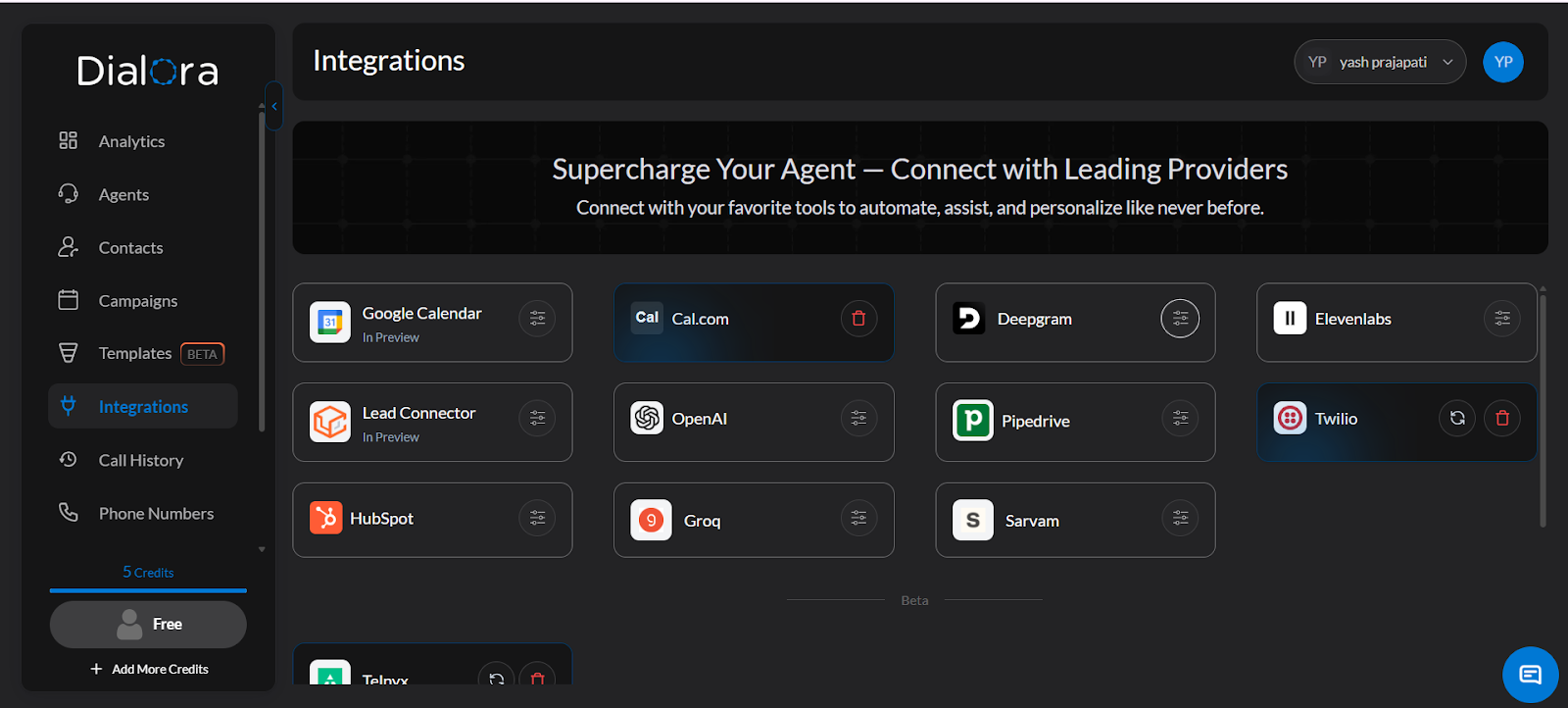
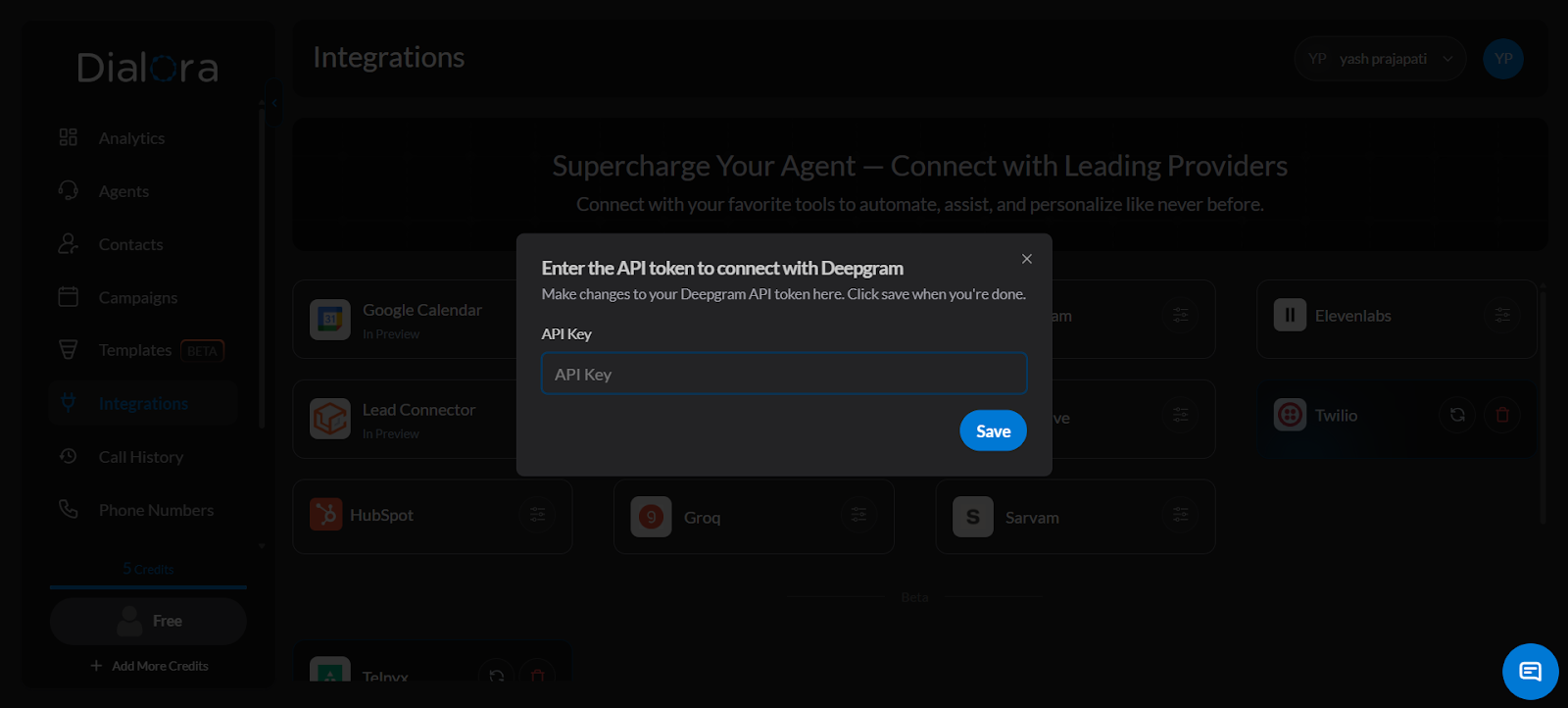
Step 3: Locate the Deepgram Field
- You will see a field for the Deepgram API Key — you’ll fill this in shortly.
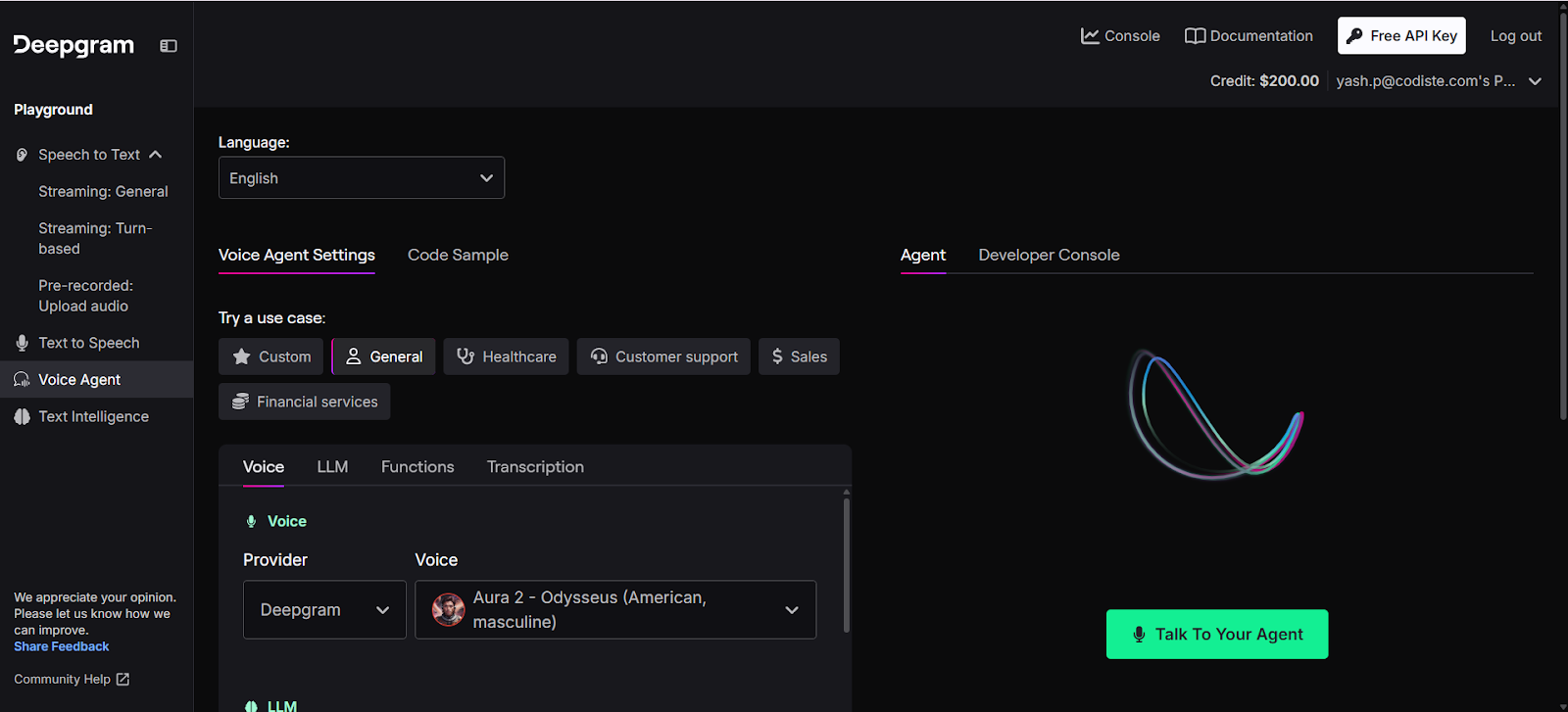
Step 4: Log In to Your Deepgram Console
- Open a new tab and go to the Deepgram Console .
- Log in to your Deepgram account.
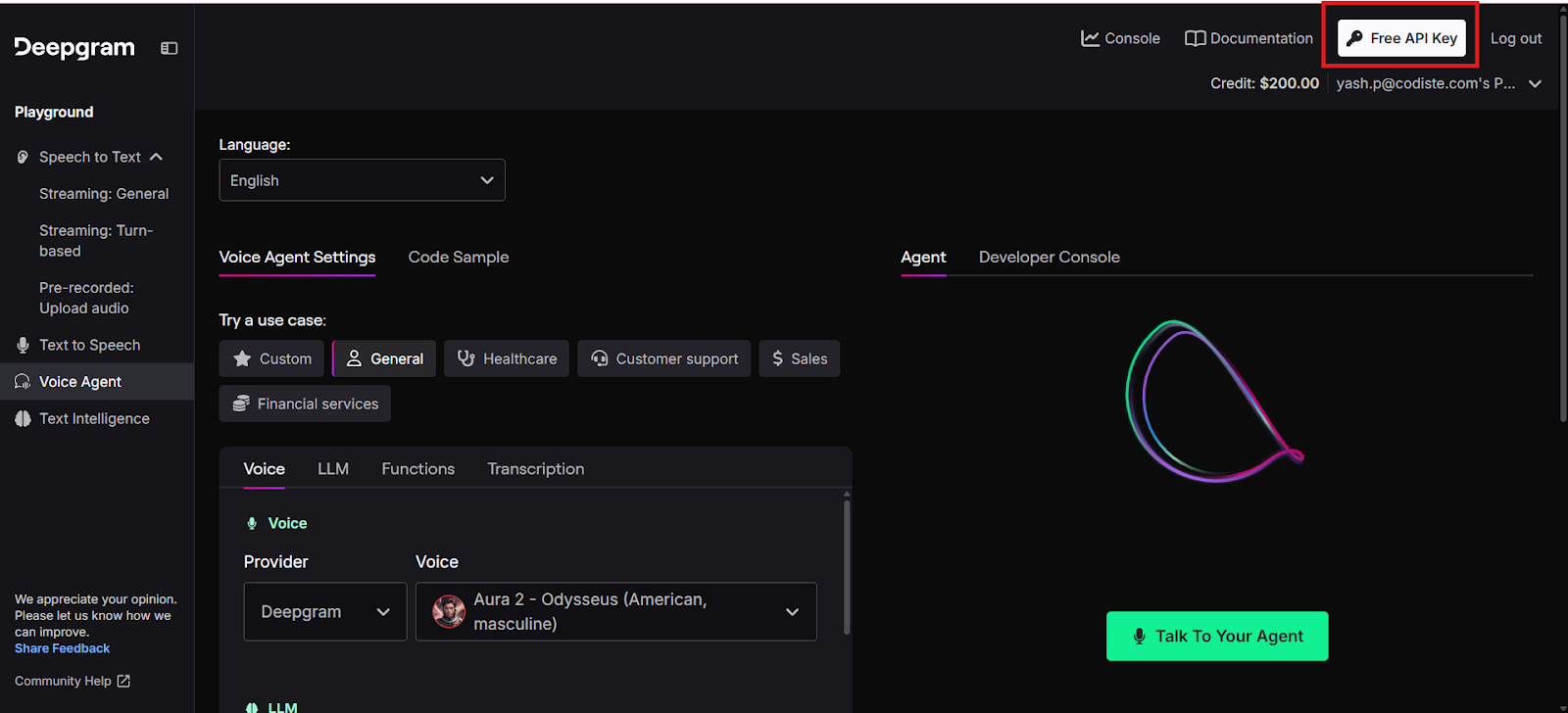
Step 5: Create a New API Key
- In the top right corner of the Deepgram Console, click Create a New API Key.
Step 6: Fill In the API Key Details
Fill in the following details:
- Friendly Name — give your key a recognizable name
- Permissions — select the appropriate access level
- Expiration — choose when the key should expire
- Tag — add a tag to organize your keys
For more information, refer to the official guide: Create Additional API Keys
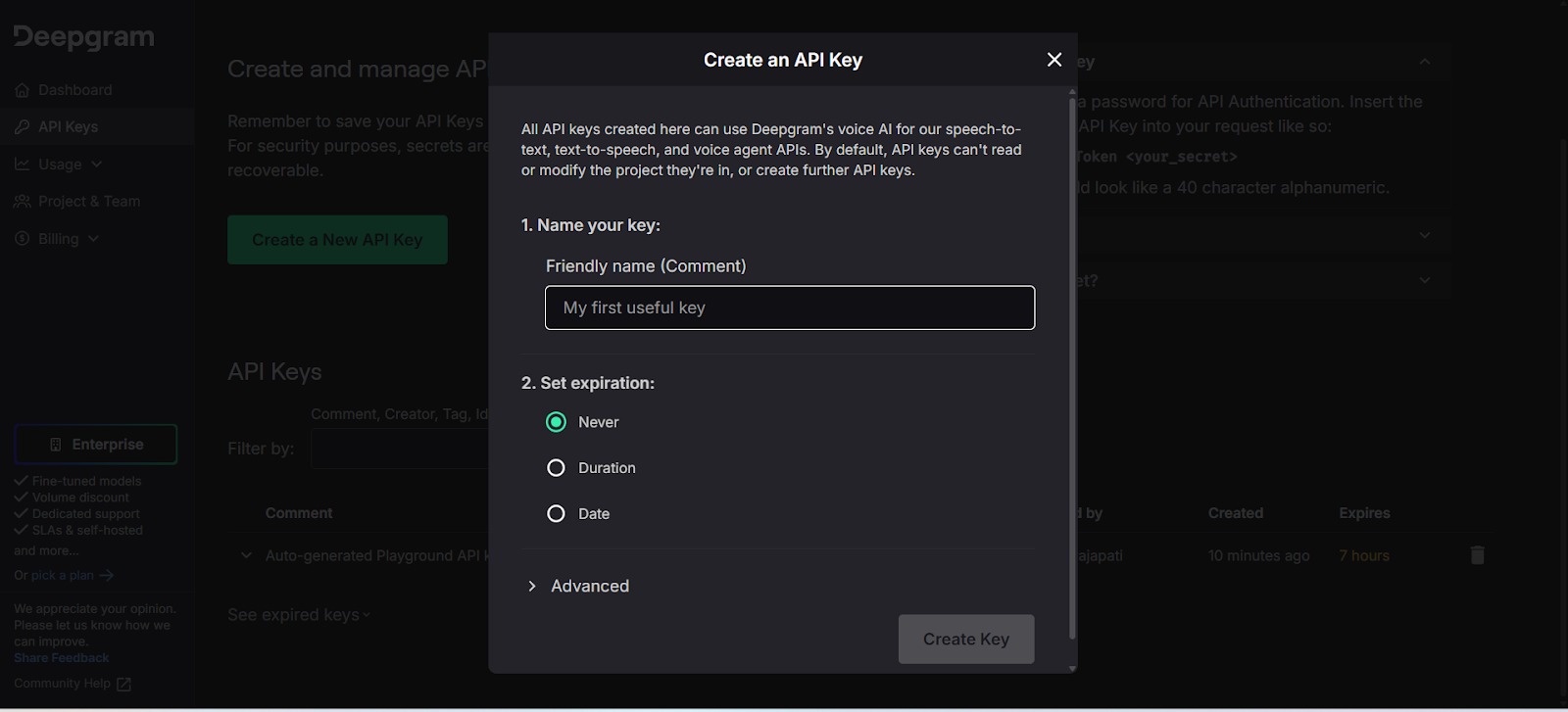
Step 7: Generate the API Key
- Once all details are filled in, click Create to generate your API key.
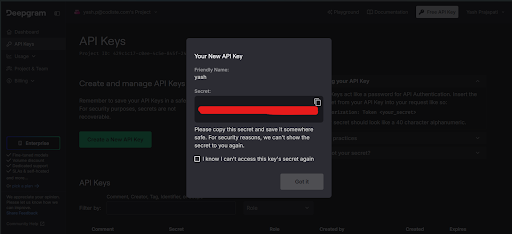
Step 8: Connect Deepgram to Dialora
- Copy the generated API key.
- Go back to your Dialora dashboard.
- Paste the API key into the Deepgram field under Integrations.
- Click Save.
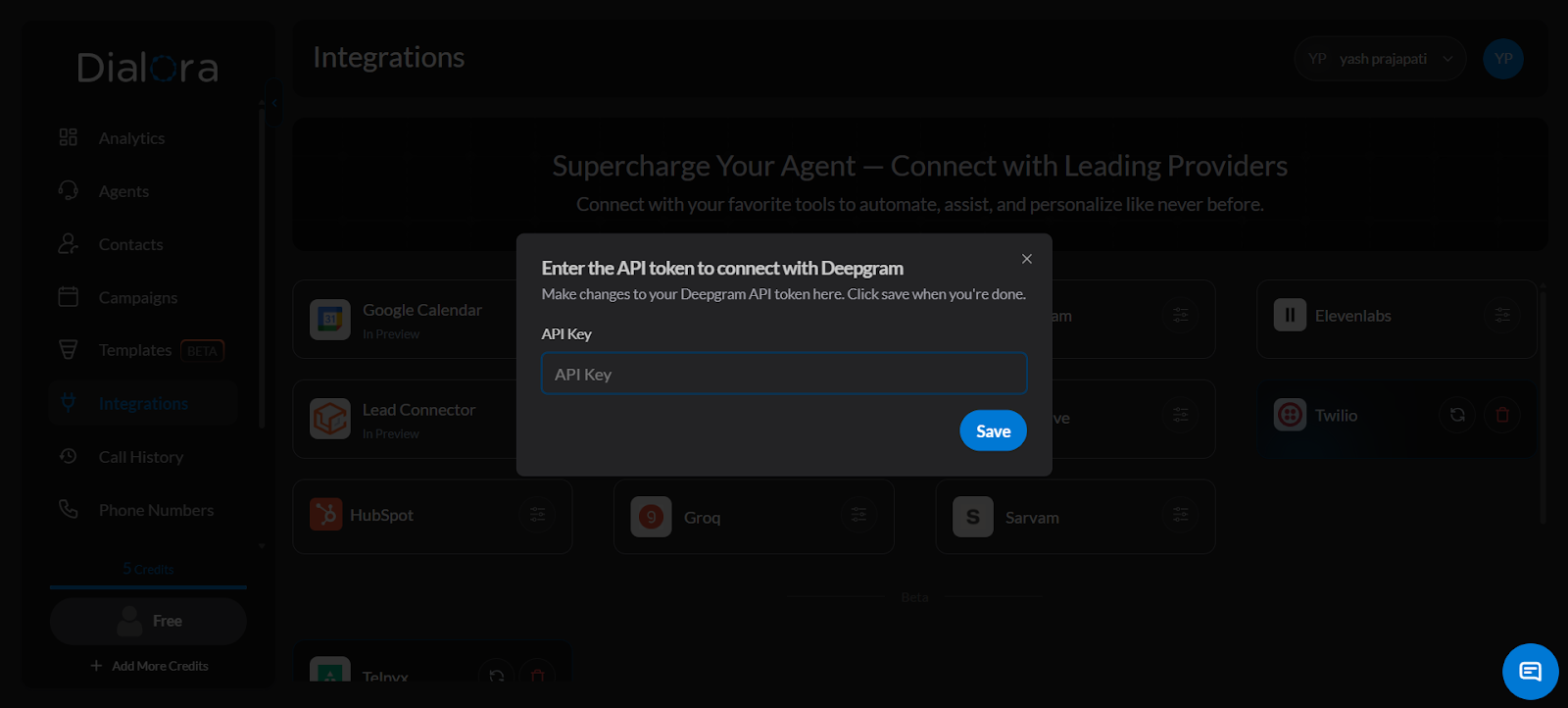
Your Deepgram account is now successfully connected to Dialora.