How to Set Up Sarvam API Key Integration with Dialora
The steps below will securely establish the API connection between your Sarvam environment and Dialora.
Step 1: Log In to Your Dialora Account
- Go to Dialora and log in to your account.
Step 2: Navigate to the Integration Section
- Open the Dialora dashboard and locate the left sidebar.
- Click on Integration.
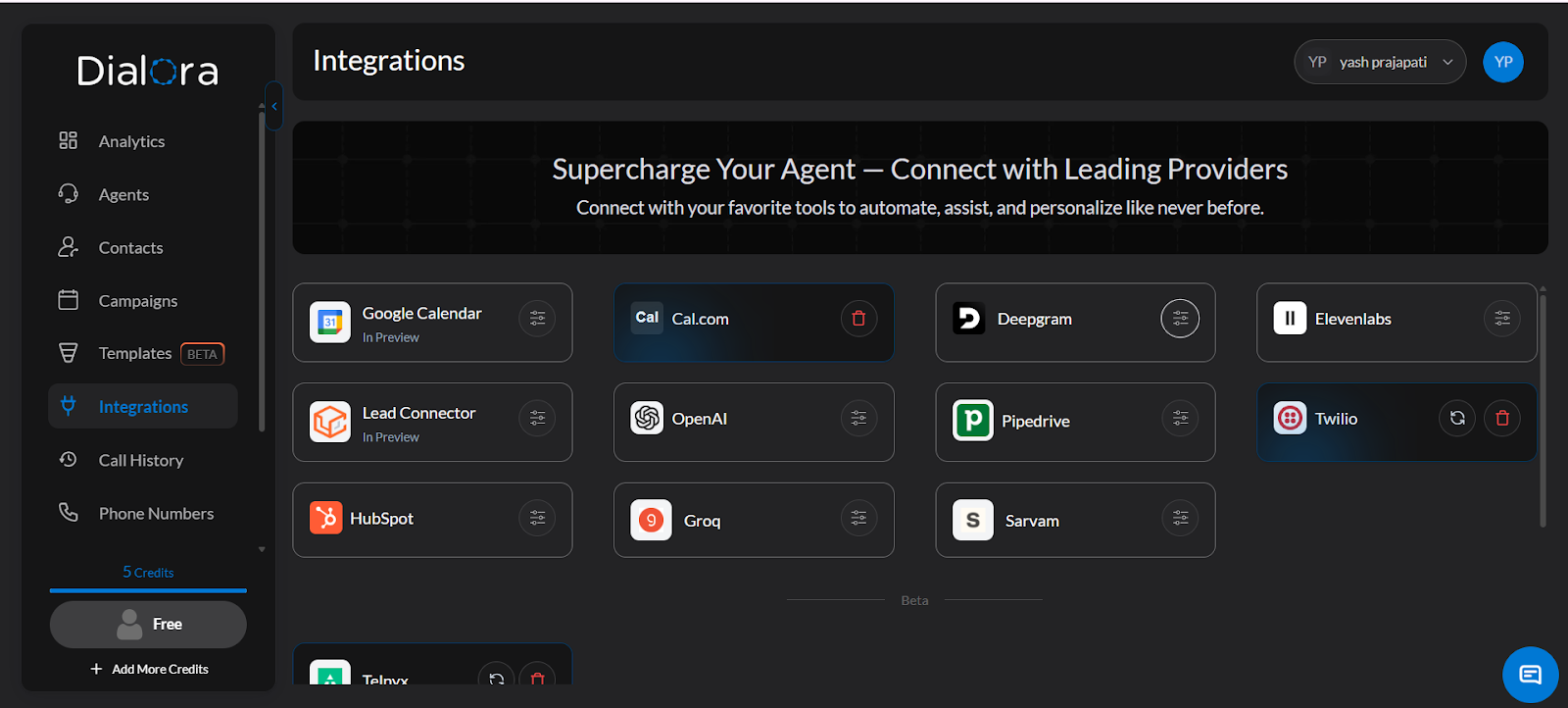
Step 3: Locate the Sarvam AI Field
- You will see a field for the Sarvam AI API Key — you’ll fill this in shortly.
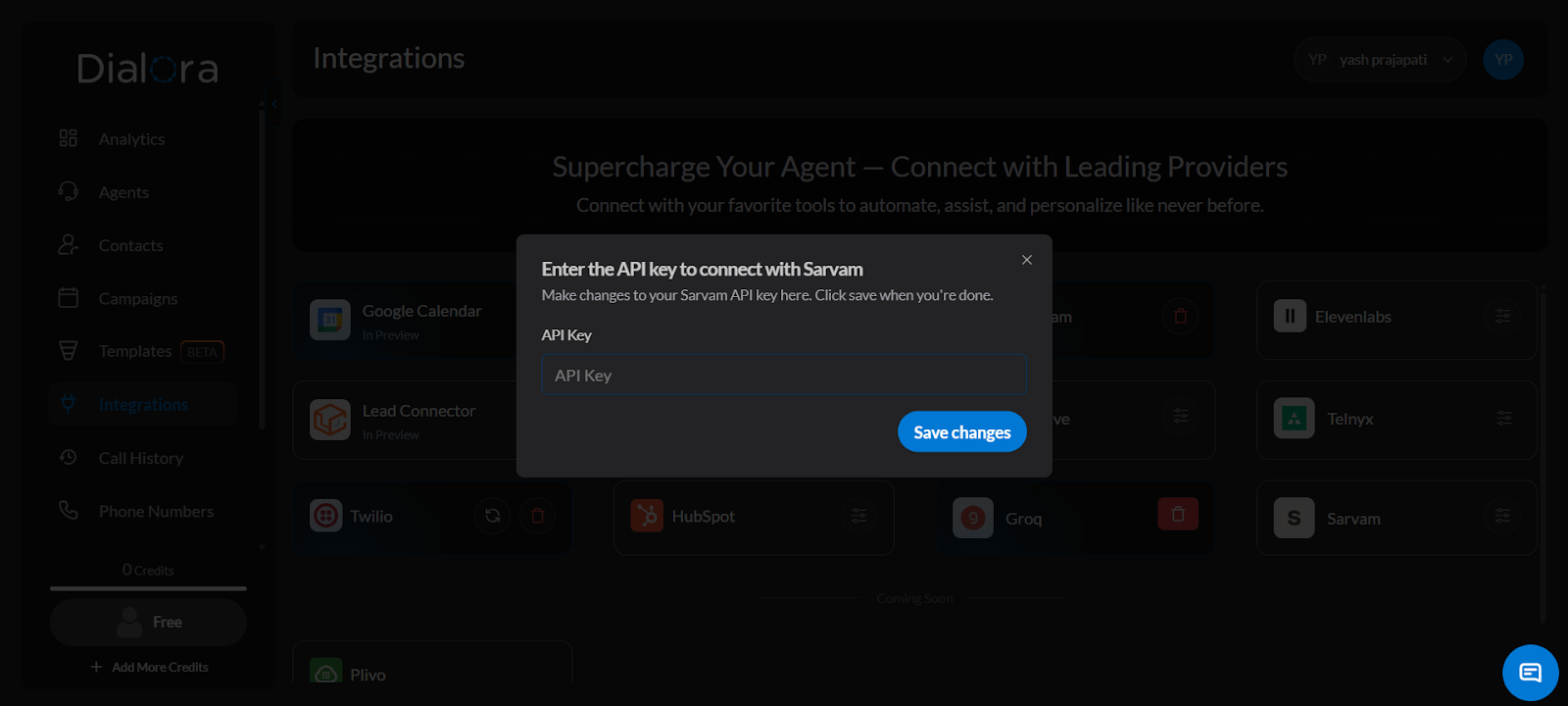
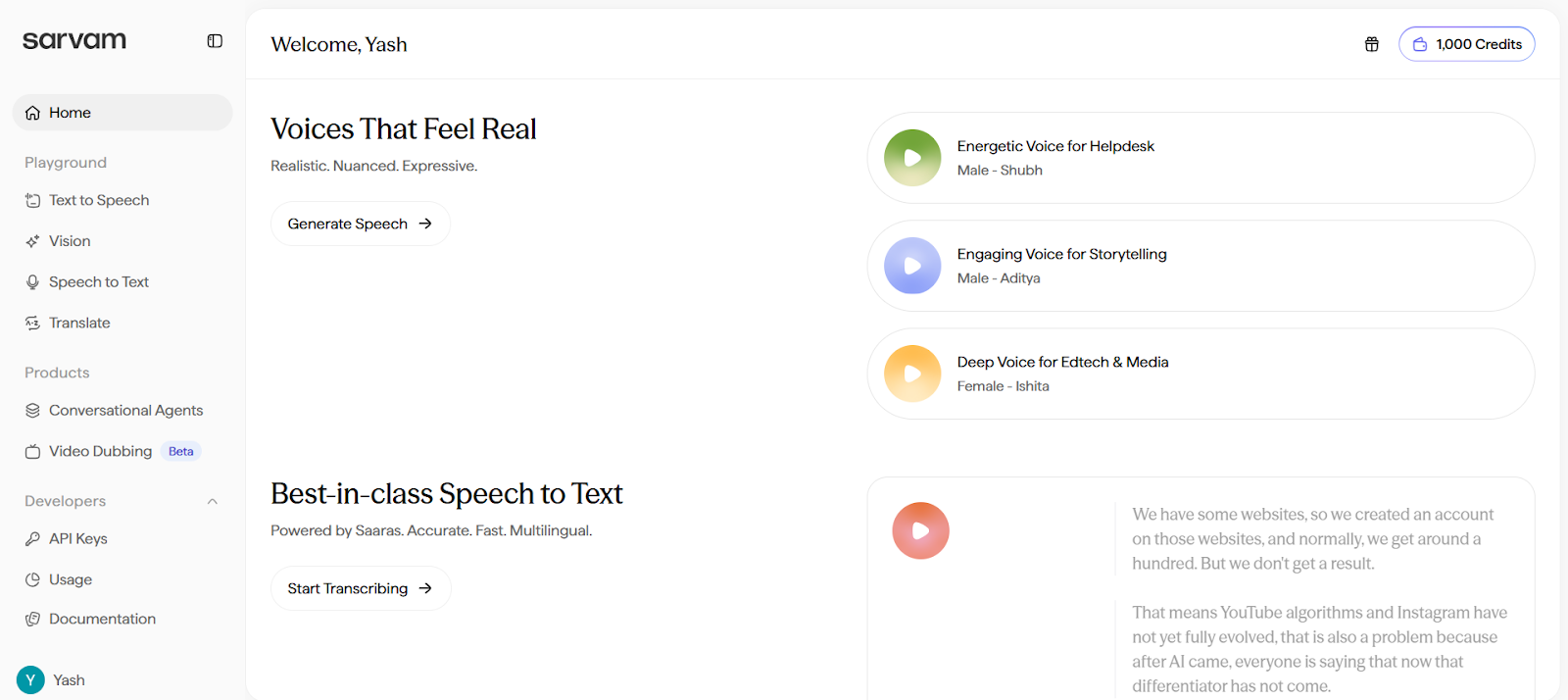
Step 4: Log In to Your Sarvam AI Account
- Open a new tab and go to https://dashboard.sarvam.ai .
- Log in to your Sarvam AI account.
Step 5: Navigate to the API Keys Section
- From your dashboard, navigate to the API Keys section.
Step 6: Create a New API Key
- Click Create API Key and fill in the required details, such as the key name.
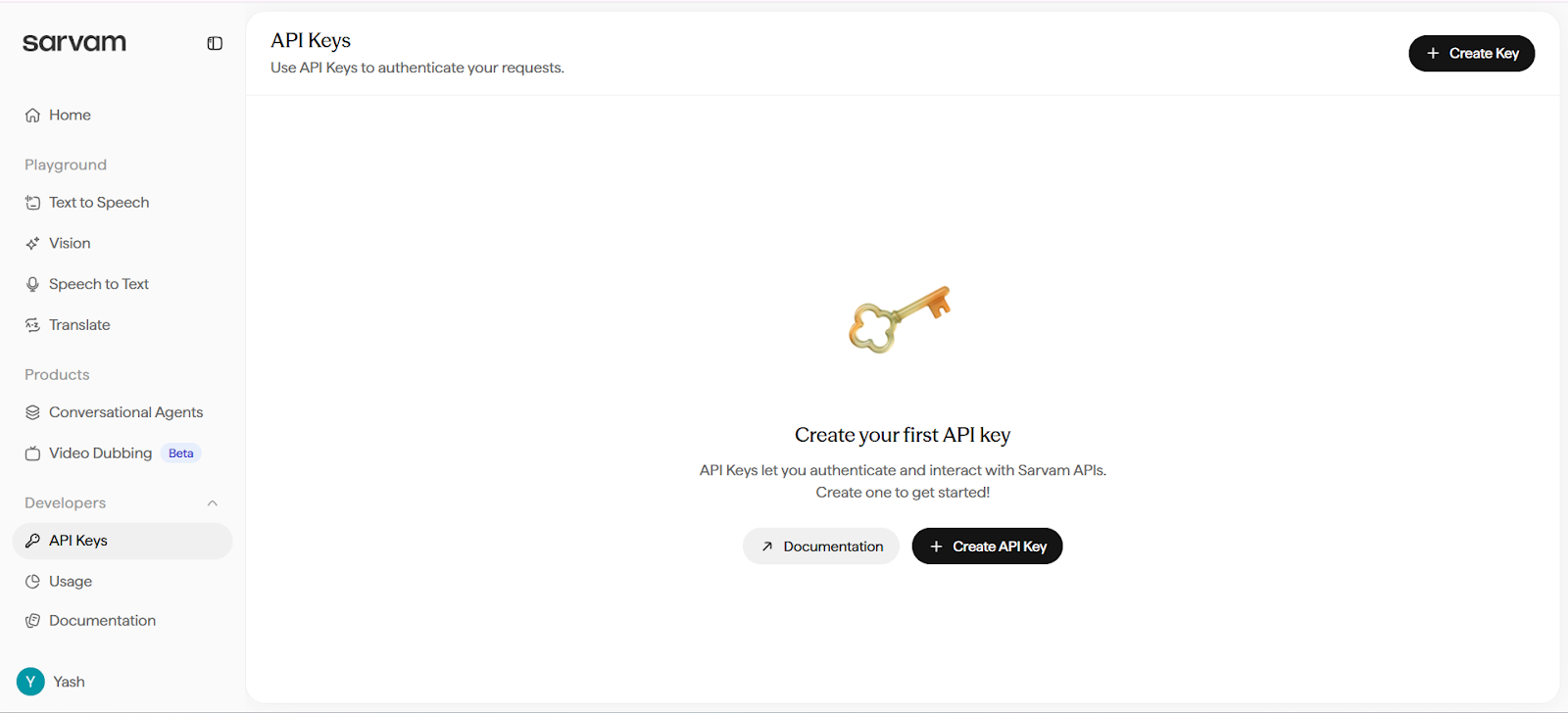
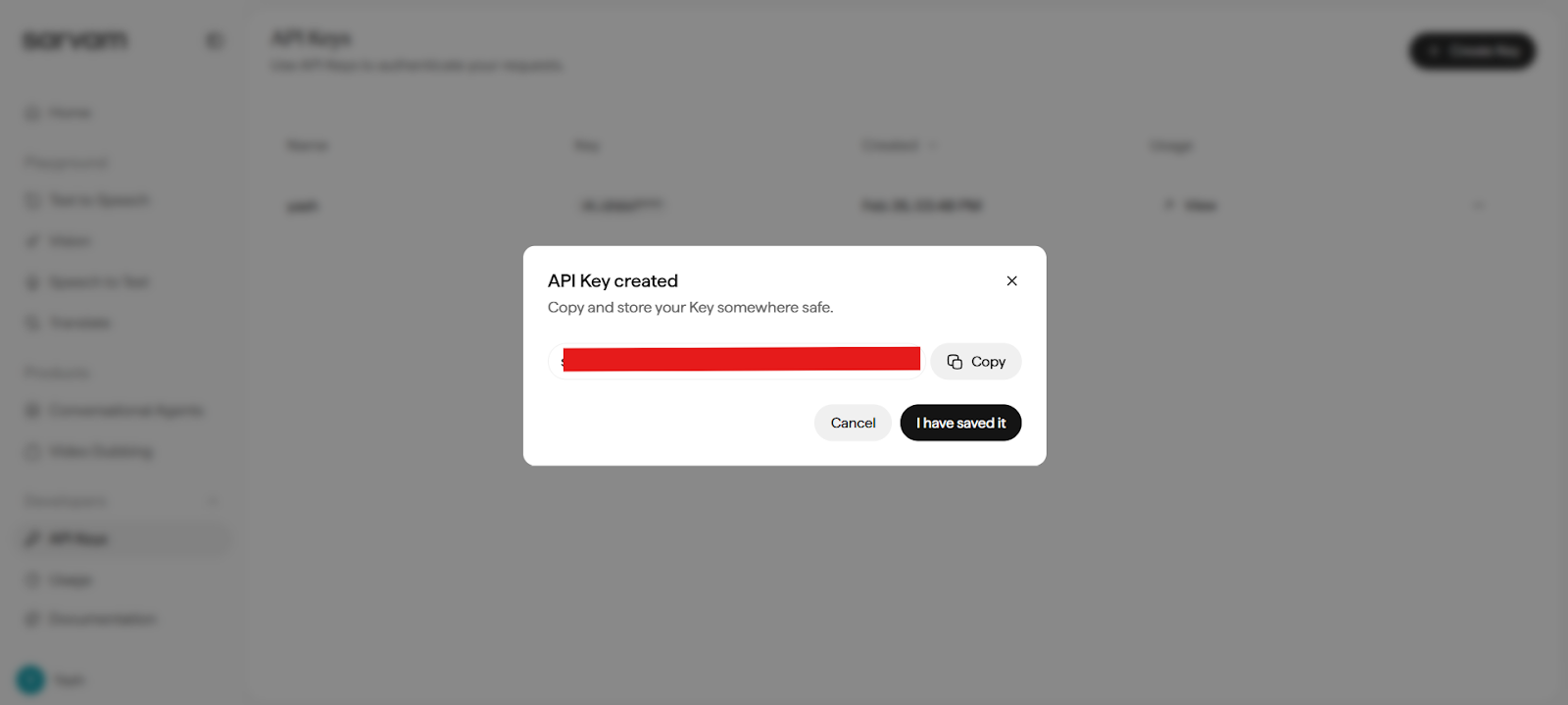
Step 7: Generate and Copy the API Key
- Click Create to generate your API key.
- Make sure to copy it — it will only be shown once.
Step 8: Paste the Key into Dialora and Save
- Go back to your Dialora dashboard.
- Paste the API key into the Sarvam AI field under Integrations.
- Click Save.
Your Sarvam AI account is now successfully connected to Dialora.