How to Set Up a Knowledge Base for Your AI Voice Agent in Dialora
A Knowledge Base is the digital brain of your AI agent. It contains everything the agent needs to know about your business — from services offered to company policies — so it can answer customer questions accurately and confidently.
Why it matters
- Helps your AI agent respond accurately to customer questions
- Enables better lead qualification, appointment booking, and support handling
- Keeps your AI aligned with your business goals, tone, and expertise
Prerequisites
- You’ve already created at least one voice agent
- You’re logged into the Dialora Portal
Step 1: Open Knowledge & Extraction
- Go to Agents in the left sidebar and open the agent you want to configure.
- Click the Advanced Settings tab.
- Expand the Knowledge & Extraction section.
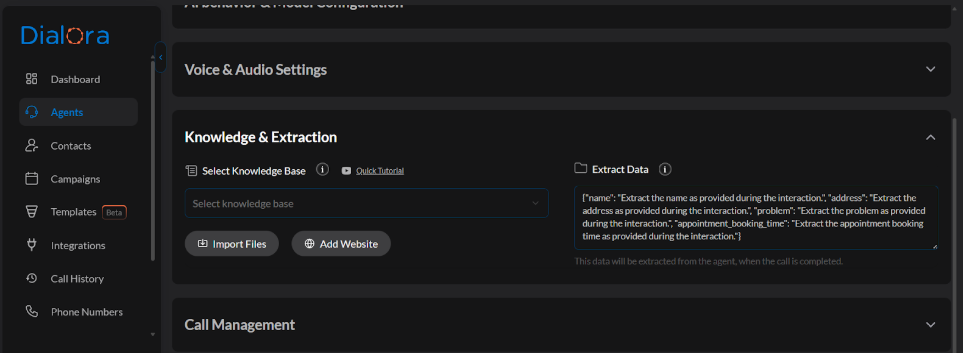
This panel covers two things. The knowledge base is below. The other part, Extract Data, is where you choose what the agent should record from each call — see Capturing data from your calls.
Step 2: Choose a source type
Dialora accepts three kinds of source. You can mix them — attach up to 3 knowledge bases per agent.
Option 1: A website
Point Dialora at a website and it discovers the site’s pages through its sitemap, then shows you the list so you can pick exactly which pages to include.
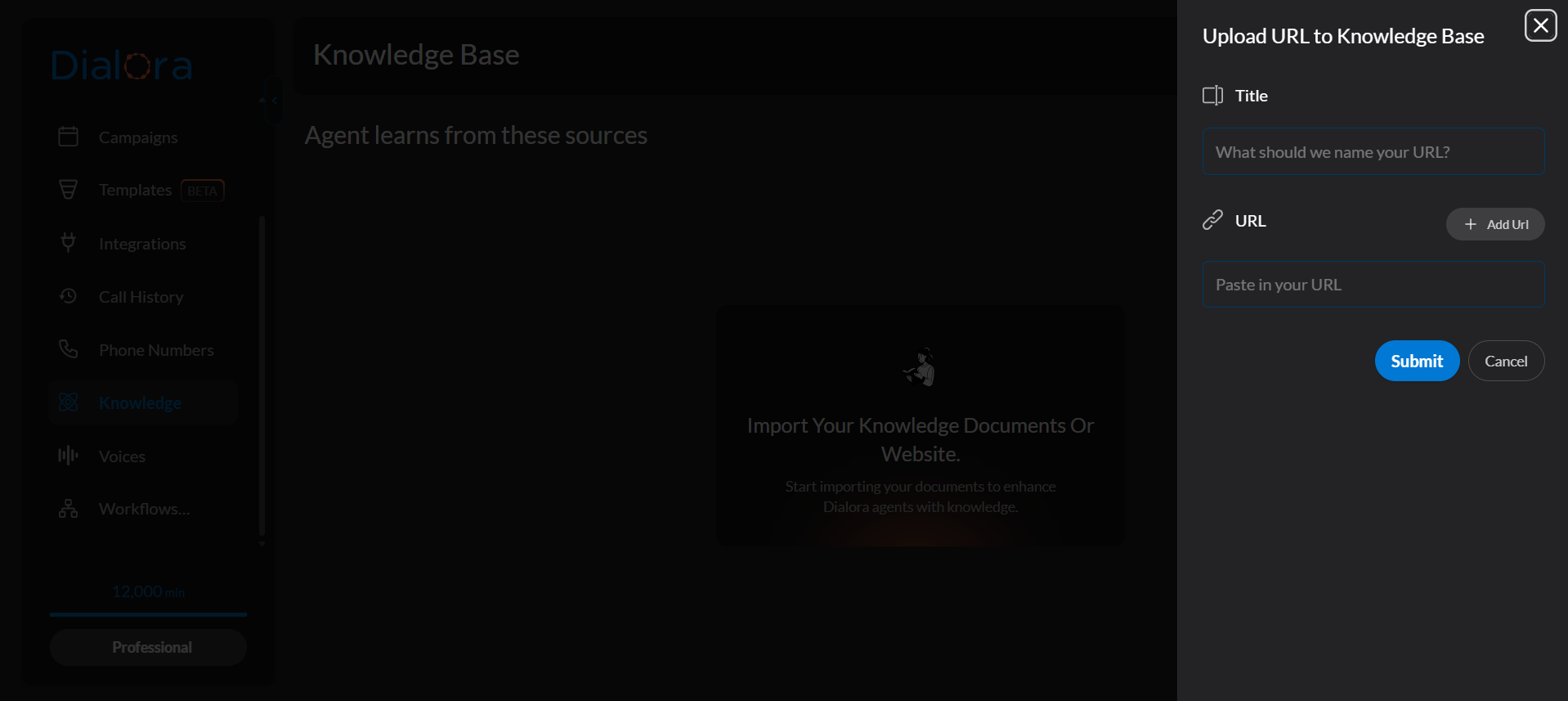
- Enter the site URL (for example your services page, docs site, or FAQ).
- Dialora discovers the available pages.
- Select the pages you want — up to 20 pages at a time. Choose the pages that answer customer questions; skip blog archives, legal boilerplate, and anything that will only add noise.
- Give the knowledge base a name, e.g. “Auto Repair Services KB”.
- Optionally set a refresh interval so Dialora re-reads those pages on a schedule and your agent’s answers stay current as your site changes.
Website content drifts. If your pricing, hours, or service list lives on the pages you selected, turn on automatic refresh so you don’t have to remember to re-import after every site edit.
Option 2: A PDF document
If your knowledge lives in documents — pricing sheets, SOPs, FAQs — upload them directly.
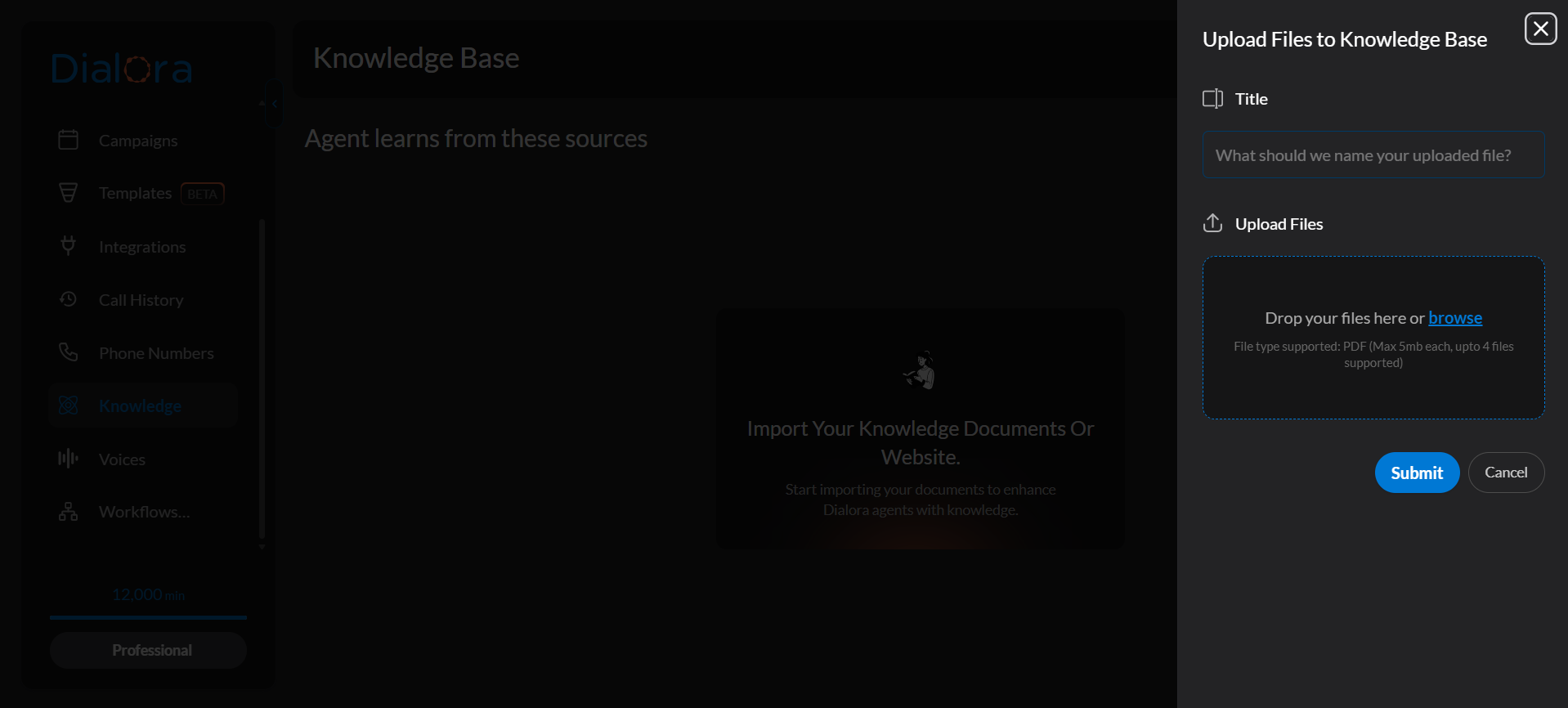
- Click Upload Document and choose your files.
- PDF only, up to 4 files at a time, each up to 15 MB.
- Give it a name and upload. The document is parsed and used as a data source for your agent.
Option 3: Pasted text
For anything that isn’t a file or a page — a policy you’ve written in an email, a script, a short FAQ — paste the text directly. Give it a title and save. This is the fastest option when the content is short and you don’t want to maintain a document for it.
Step 3: Test it
Go to the Playground and ask the agent questions your Knowledge Base should answer:
- “What services do you offer?”
- “Do you provide same-day repair?”
- “What’s your cancellation policy?”
The agent should answer from the source you provided. If it doesn’t, the content probably isn’t in the pages or file you selected — check what you actually imported.
Step 4: Publish
Knowledge Base changes are part of your agent draft. Click Publish to push them live — see Agent Versions, Draft and Publish.
What makes a great Knowledge Base
Include sources that answer:
- What services or products do you offer?
- What are your pricing and timing policies?
- What’s your refund, warranty, or cancellation process?
- What do customers in your industry usually ask?
The clearer and more focused the source, the smarter your agent becomes. A tight 5-page selection beats a 20-page dump that buries the answer.